
Single Sign On (SSO) via Okta
Solvimon supports single sign-on for the Okta provider. In order to enable this feature, it is required to set up a new App Integration on your Okta instance. To do so, the following steps can be followed:
- Log into your Okta Admin Console
- Navigate to Applications
- Click on Create App Integration with the following details:
- Sign-in method: OIDC - OpenID Connect
- Application Type: Web Application
- App Name: Up to the customer (Example: Solvimon Auth0 Integration)
- Sign-in redirect URIs: Reach out to the Support Team to get this field.
- Controlled access: Select who can access this application.
- Save and share with Solvimon the app information bellow:
- Client ID
- Client Secret
- Issuer URI
Once this is is information is provided, Solvimon is able to finalise the Okta set up.
Solvimon can also provide a secure Self-Service URL that contains a step by step on how to set up the app, and where is also possible to submit the Client ID, Client Secret and Issuer URI and test the connection right away.
Self Service URLReach out to the Support Team or Customer Success Manager to request a secure Okta Self Service URL.
Self Service URL completionOnce the self-service flow is completed, inform the Solvimon team.
After the Okta Set Up is finalised, the sign in process starts by going to the Log In screen and:
- Click on the Sign with SSO button
- Add your email address
- Select the Okta option
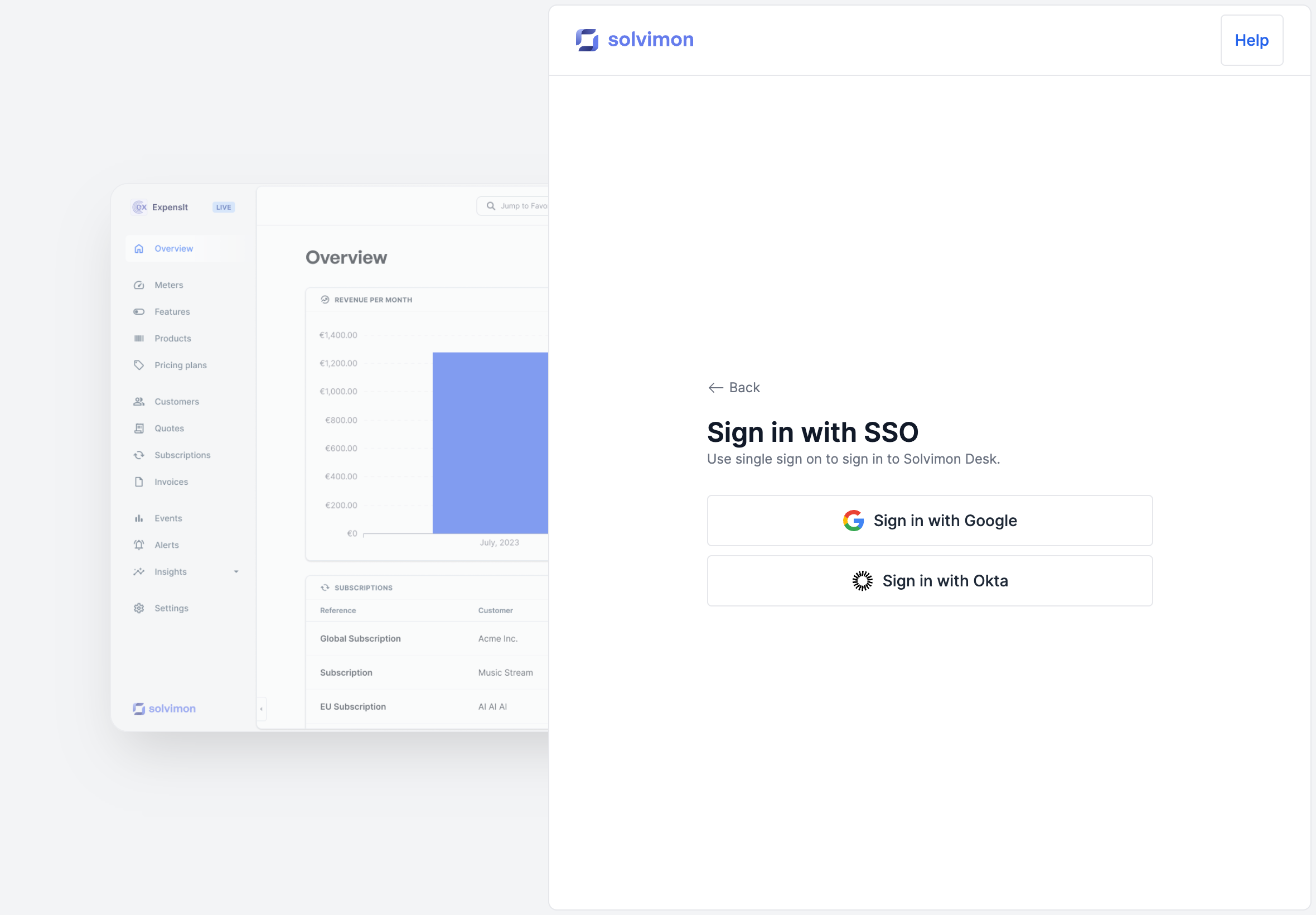
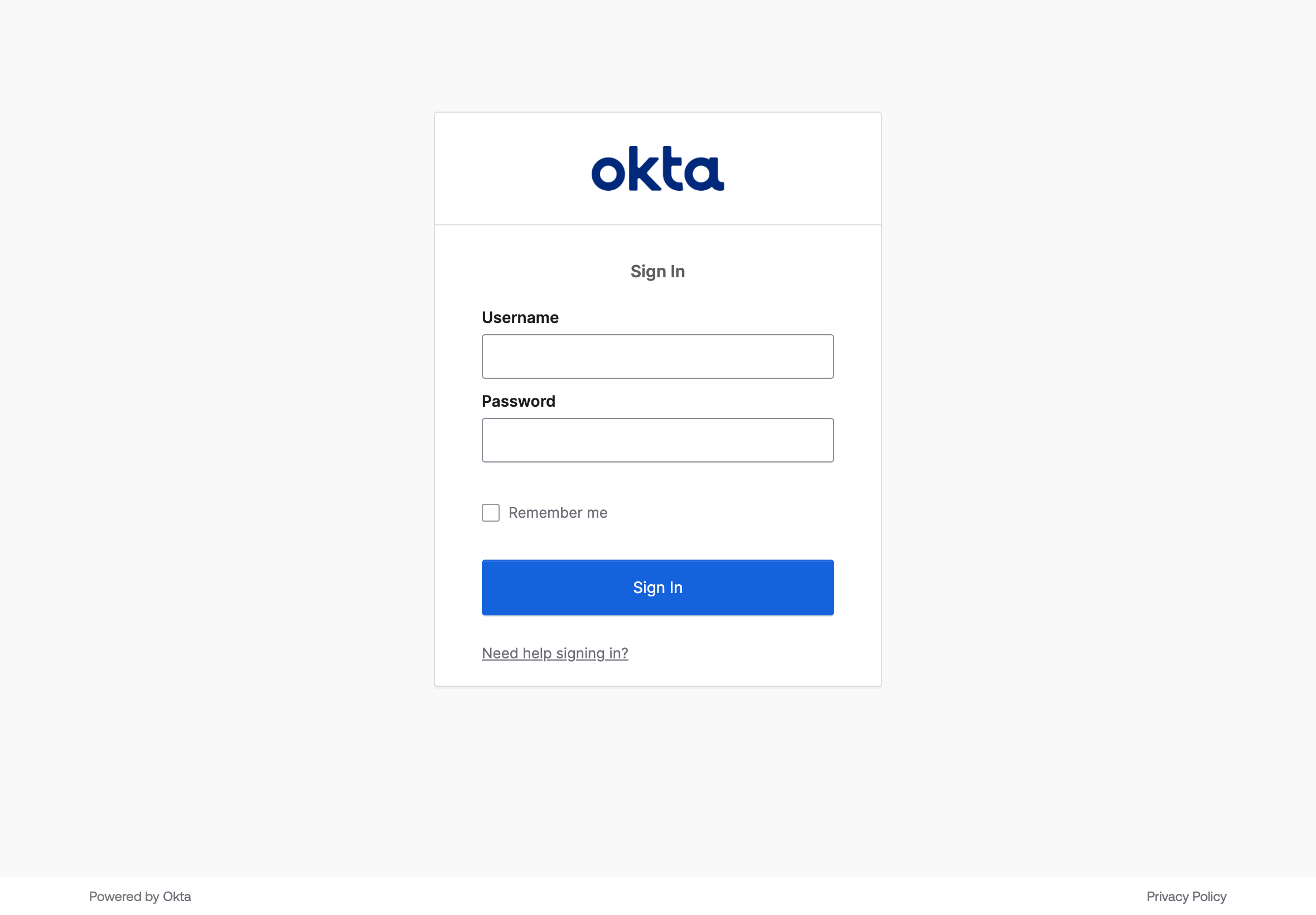
This will forward you to the Okta's sign in screen. Once you input your login credentials, you will be redirected to Solvimon Desk.
SSO-onlyIt is possible to turn off the default username and password login functionality. Please let our support team know if you wish to have this option enabled.
Important to realizeThe email address used to log in to the Okta account must be the same as the one registered for the user in Solvimon Desk.
To de-activate users, please contact Solvimon support
Updated 5 months ago