
Quotes
Configuring quote offers to send to your customer for review.
Premium FeaturePlease contact our support team if you are interested in using this functionality.
With the Solvimon quoting tool you can compile a pricing quote for a possible customer, or a customer that wants to start using new products or move to a new plan.
The Quoting functionality looks a lot like the Subscription management functionality: it is possible to create multiple schedules with a pricing plan version, start- and end-date, discounts, commitments and (if applicable) custom pricing.

There are a few differences: a quote also has an owner, which is a user of your Solvimon platform account. This can be a sales person, for example.
Quote versions
Quotes can consist of multiple versions, that are essentially their own proposal for a subscription with all configurations that are available once a prospect decides to become your customer. Pricing can be adjusted, discounts and commitments set, and multiple schedules can be created to align with ramp-up agreements.
Quote version statuses
A quote version is in DRAFT status when created, but will have other statuses once the customer deal moves through the pipeline.
Statuses in order of appearance:
- Draft
- Final
- Accepted - prospect accepted the offered deal
- Rejected - prospect did not accept offer
- Closed - quote version was closed due to other reason than feedback from customer
Once a customer has accepted the quote, the Solvimon Desk user gets the option to transform the quote into a regular subscription.
If a customer has rejected a quote, a new version can be created and the adjusted pricing, additional agreements or prospect feedback can be implemented in the new offer.
Creating a Quote
Pre-requisites
Before configuring quotes in the system, ensure the following information is set up on your platform:
- Billing entity details.
- The customer for whom you want to create the quote.
- Default subscription settings in the Settings menu (optional).
Configuring terms
Once all the prerequisite information is in place, follow these steps to create a new quote:
- Go to the Quotes section in the sidebar menu.
- Click on "Create New Quote."
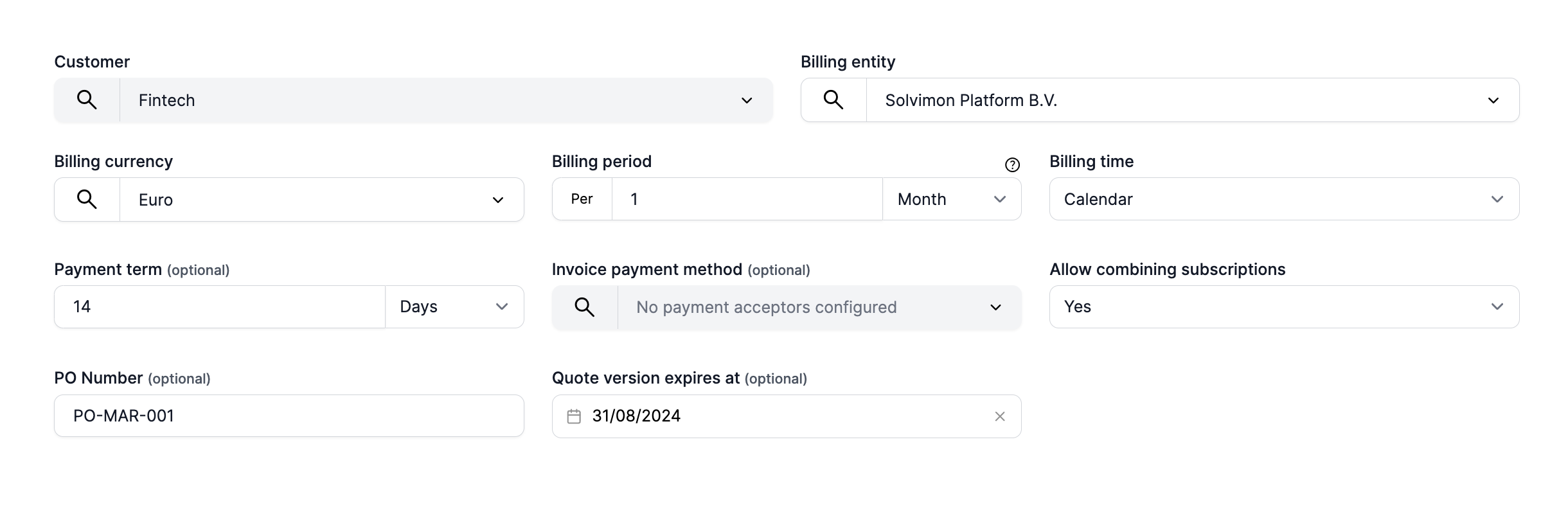
- You will see a form to set up subscription terms. If you've already configured the default subscription settings, they will appear pre-filled.
Updated 10 months ago