
Invoice statuses
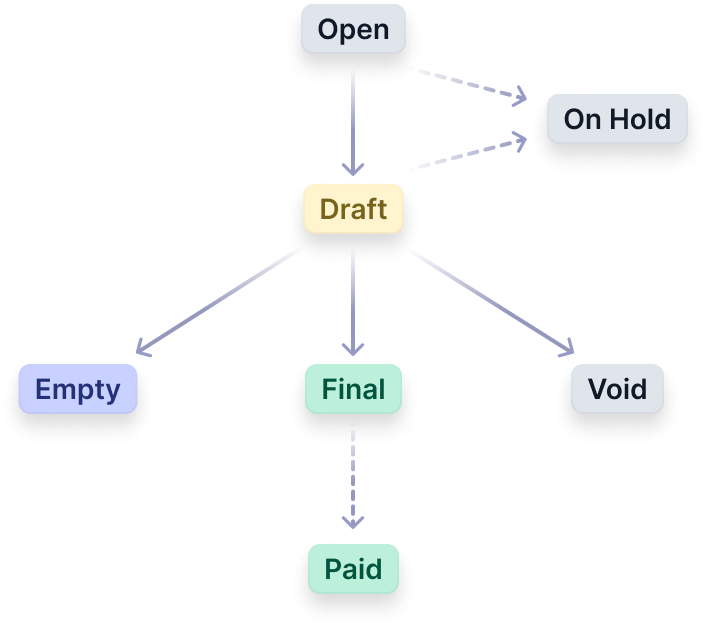
Open
Invoices in the Open status represent ongoing billing periods. They remain subject to modifications when new charges, such as additional usage events, occur within the customers' subscriptions.
Draft
Invoices automatically transition to the Draft status when the billing period concludes. This transition occurs precisely 2 hours after the billing period ends
The Draft status grants a grace period of 8 hours, so you can -
- Make adjustments and edits to the invoice details, ensuring accuracy before finalisation.
- Add more events within the billing period to include any missed or delayed usage data in the invoice
Once all the changes are done, you can wait for the grace period to end (the status will automatically switch to Final), or manually move it to Final using the interface or API
Final
Final invoices are those with fixed invoice numbers. They signify completed billing periods with charges that have been finalised.
Users can preview and download these invoices for record-keeping and review purposes.
Empty
In cases where no chargeable items occur during a billing period, an Empty invoice is generated.
These invoices are created similarly to Final invoices but are labeled as Empty to indicate the absence of charges. They do not receive an invoice number.
Void
The Void status signifies an invalidated invoice, indicating no expected payment. It's commonly applied to invoices with errors or those mistakenly issued, removing them from revenue and accounts receivable records. Despite being voided, these invoices are kept for audit purposes in the invoice listings.
Following voiding, the invoice remains accessible via UI views and displays a Void status to indicate the action. Voiding is possible only for invoices that are not yet Final
It's important to note that -
- Once an invoice is in
Void, its status remains unchangeable. - You cannot
Voidan invoice inFinalstatus, but only if it'sOpenorDraft - An invoice has been marked as
Paidsince it indicates the payment has been successful for that invoice
Bulk Updating Statuses
Invoice statuses can be updated in bulk from the invoice overview page.
Access the 'Bulk Edit' option on the overview page to open the bulk edit view. Within this view, you can select multiple invoices simultaneously (with a maximum selection limit of 15 invoices).
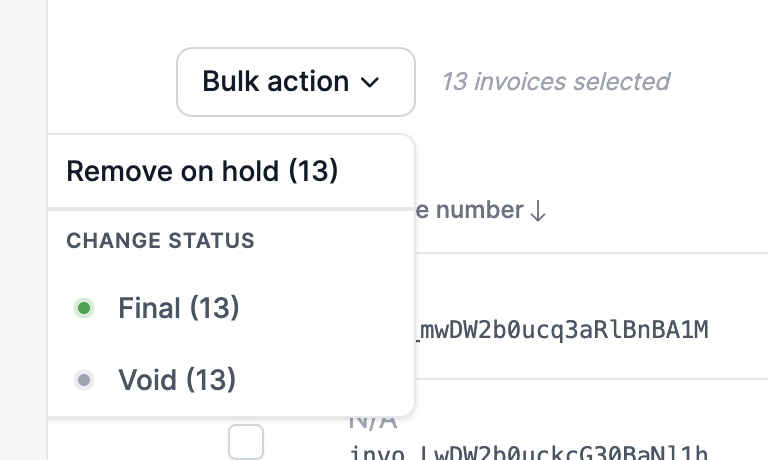
Once you've chosen the invoices for bulk update, navigate to the right-hand side of the page. Here, you'll find a 'Bulk Action' dropdown menu.
This menu presents all available actions applicable to the selected invoices. For instance, invoices in 'Draft' status can be transitioned to 'Final' or 'Void', while those marked as 'On-hold' can be removed from the hold status.
Updated 10 months ago