
Usage file uploads
Export your usage data from your BI tool or data warehouse and upload them.
Ingestion via API is the most automated way of sending data to Solvimon, but Solvimon also allows you to upload (large) usage files via Desk.
See the step by step guide to upload usage events via the file upload method.
1. Download template file
In Desk, go to Files > Upload file and download the .csv file template.
The column header indicates whether the field value is optional. If it is not set as optional, it is a required field.
The headers of the file consist of:
- Customer reference
- Pricing plan subscription reference (optional) - used when a customer has multiple subscriptions
- Event reference (Unique event reference. Needs to be unique)
- Timestamp (optional) - read about formatting here
- meter value references
- meter property references
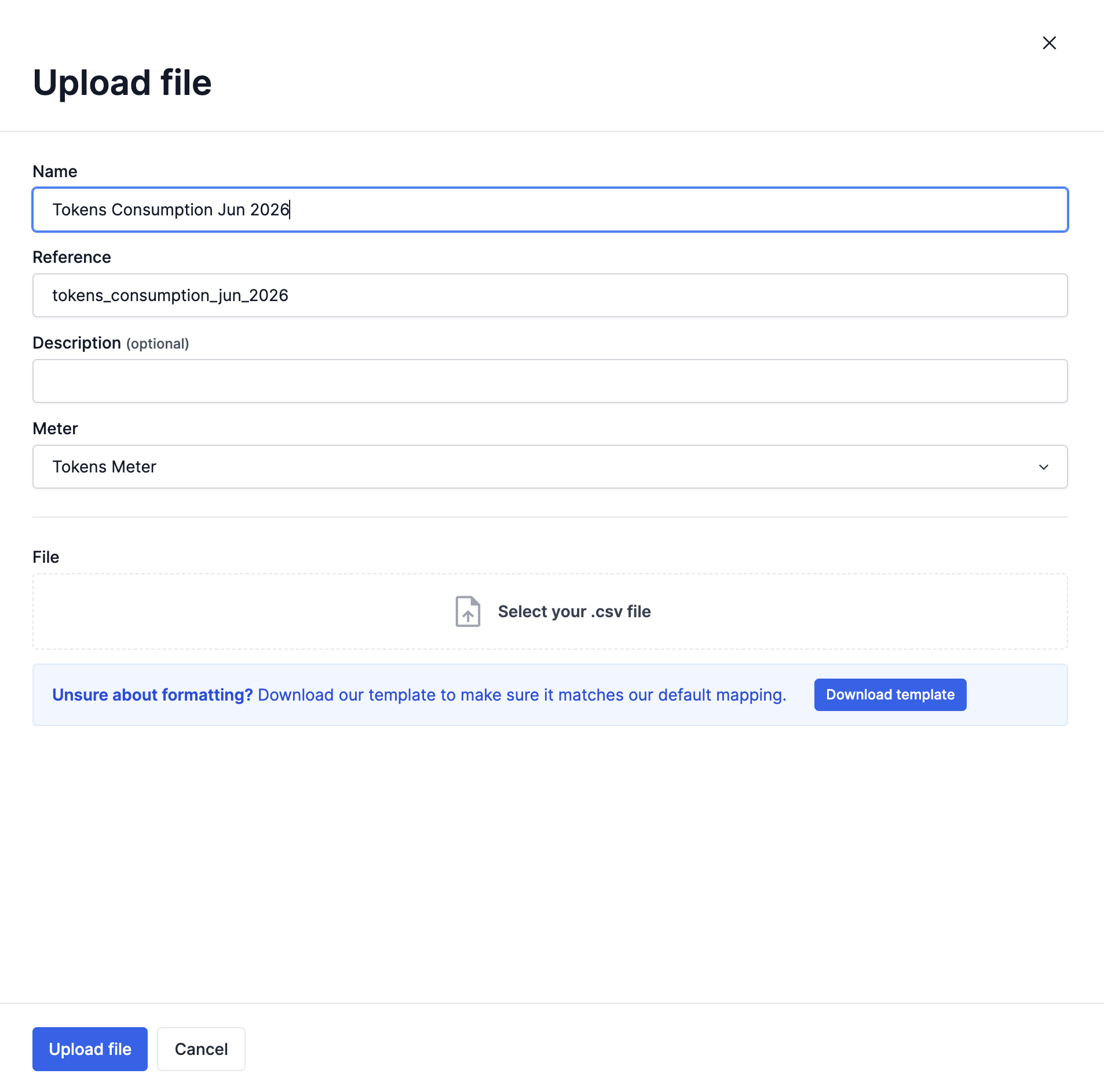
2. Fill file with data
Fill the data you want to ingest into Solvimon and upload it. The file will be processed and once done, the events are ingested into the solvimon system. You can find these events by going to the Events page.
Formatting your data correctly
The file upload method is strictly validated, just like with the other methods. To make sure you format data in the right way check out our timestamp formatting or create an example usage event via the manual ingestion method to get the right formatting.
Do not change file headersThe file headers are important for the system to recognise what data to create in the Solvimon platform. Do not change the given headers of the template, or your file will not be accepted.
3. Upload file
Once you've updated the file with all the events you would like to upload, you can upload it in the File upload section of Desk.
File uploads usually have a name, description, reference, upload date and time, a number of records (e.g. rows) count, and a status.
The status can be:
- Processing: the system is working through the data and was not fully processed yet
- Error: there are errors in the update file, it was not ingested
- Done: the file and all its events were fully processed successfully
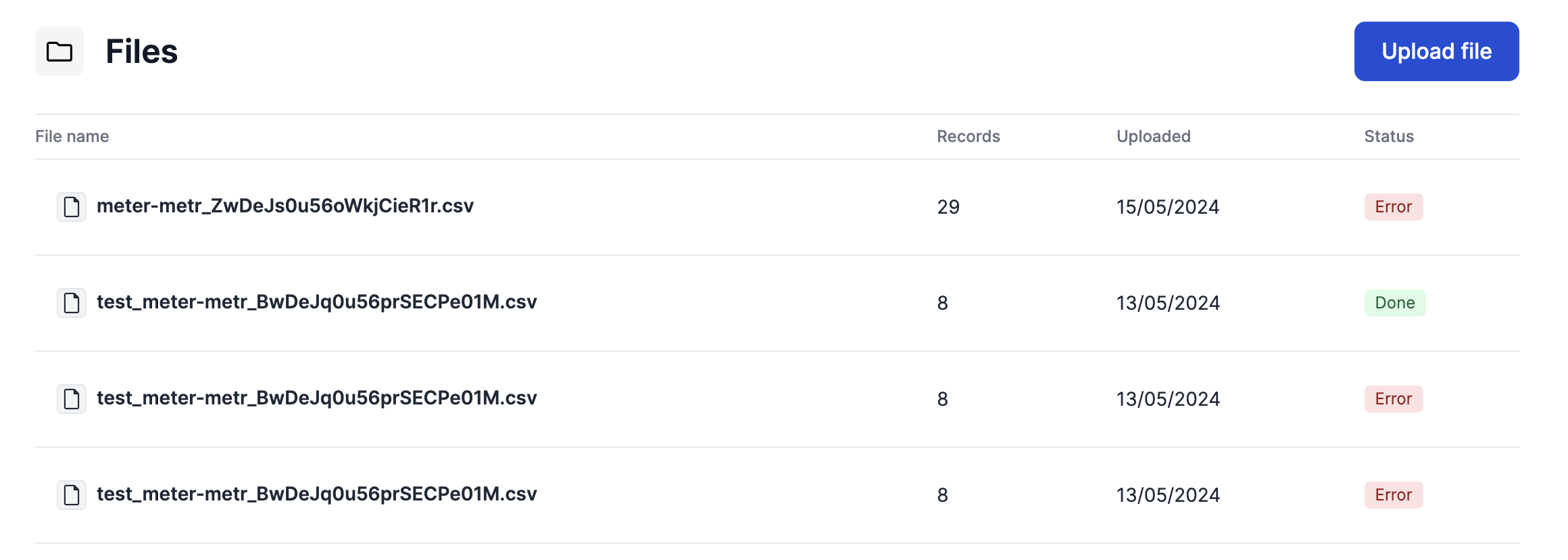
Timing of usage ingestion & billing periods
If your customers have usage events up until the moment the billing period cycle is closed (for example, the end of the month), you need to ingest their usage data after the end of the billing period end date.
Caution with file-ingestion for running billing periodsBe cautious with using the file ingestion method as your standard way to upload usage event data.
Read more about invoice statuses and the standard grace periods here.
Invoice statuses and event processing
By default, Solvimon invoices are created during the billing period (status is OPEN), and are set to DRAFT once the billing period is open. The invoice is set to be updated to FINAL after 8 hours. This setting is a default setting and can be changed for your platform.
Once an invoice is FINAL and you have automations running (for example to send the invoice per email), you can no longer ingest usage data.
Therefore, if you are using the file upload mechanism, please ask the Solvimon support team to change the default DRAFT period to a longer time period or to even automatically set your invoices to the On Hold status, so you have enough time to upload usage data before manually setting invoices to FINAL.
Updated 4 months ago
Read more about invoice status updates and manual event ingestion below.