
Google Cloud Storage
Export Solvimon data to Google Cloud Storage
To enable usage of Solvimon's data seamlessly in your Google Cloud Storage location. This page describes the steps necessary to connect your Google Cloud Storage to Solvimon for data exporting.
Getting started
Requirements
- An existing Google Cloud Storage Bucket.
- The ability to create a Google Cloud Storage bucket to which you grant
Storage Adminfor the service account you created.
Optional:
- An existing Folder inside the Google Cloud Storage Bucket to export data to.
Step 1: Create Google Cloud Service Account
This step is optional if you already have a service account with the Storage Admin role, but highly recommended a separate service account for ease of permissioning and auditing. A service account with these roles can run all the necessary jobs to export data from Solvimon to Google Cloud Storage.
We recommend to create a Service Account by following GCP's guide for Creating a Service Account. Once you've created the Service Account, make sure save its ID as you will need to reference it when granting roles. Service Account IDs typically take the form {ACCOUNT_NAME}@{PROJECT_NAME}.iam.gserviceaccount.com.
Step 2: Grant the Google Service Account access to the Bucket
This step is required to be able to access the Google Cloud Bucket. To achieve it, follow the next steps:
- Go to the Cloud Storage page in your Google Cloud Platform.
- Select the Bucket that you want that it contains the data coming from Solvimon.
- Go to the
Permissionstab and then click theGrant Accessbutton. - In the tab
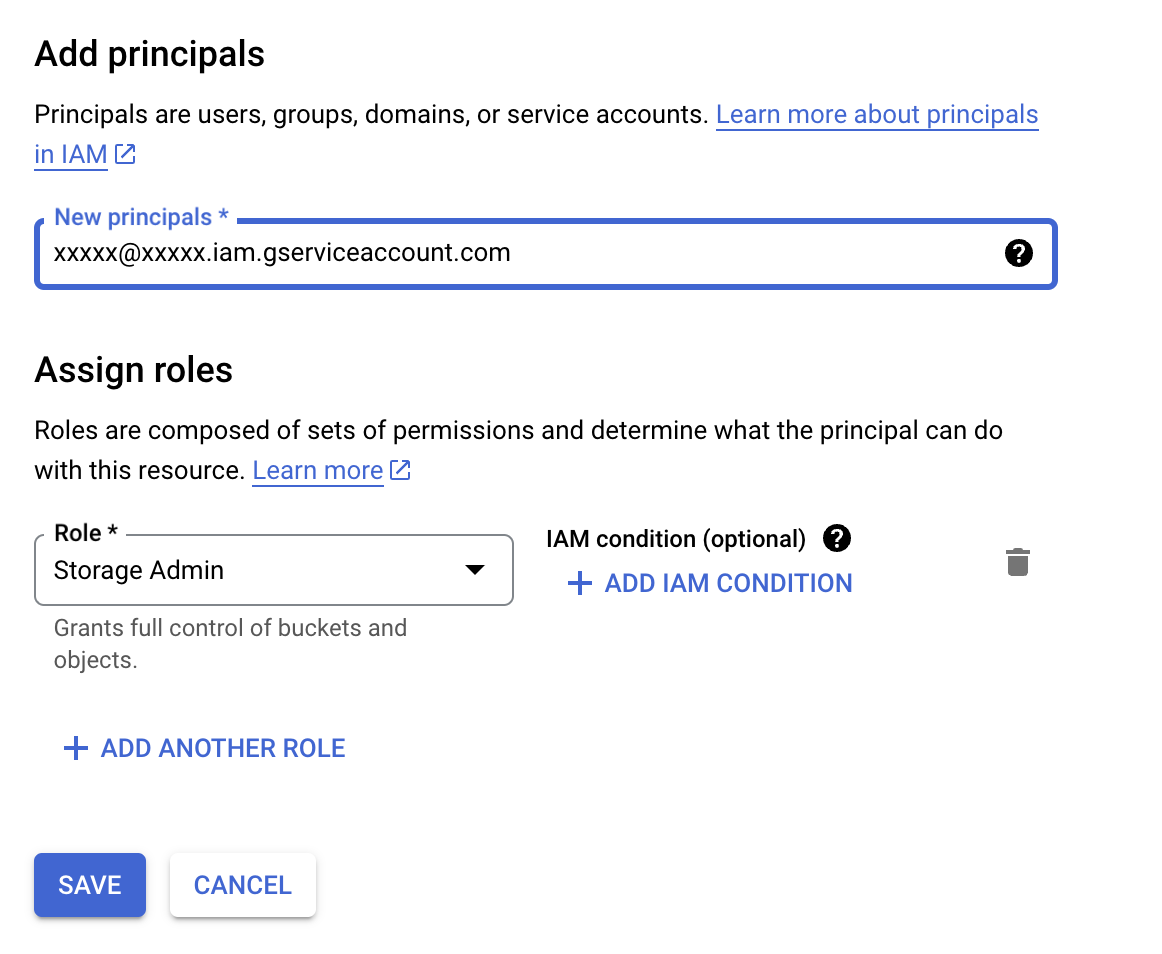
New principalsadd the Service Account that you have just created. - The role that you should grant to this Service Account is
Storage Admin.
Below there is an image which shows how the add principals tab looks like and an example on how to fill in the elements from step 4 and 5.
Step 3: Create an HMAC key
This is a necessary step to ensure that the data is connected from Solvimon to the Google Cloud Storage Bucket safely. The steps to get the HMAC access ID and secret for your Service Account can be found in the following guide, which provide detailed instructions.
Step 4: Share the relevant information with Solvimon
Please confidently share the following information with us:
| Field | Description |
|---|---|
Project ID | The project ID to which the data should be exported to. |
Dataset Location | The location of the dataset, e.g. US, or europe-west1. |
HMAC Key Access ID | This is generated in the Step 3. |
HMAC Key Secret | This is also generated in the Step 3. |
GCS Bucket Name | This is the name of the bucket in where you want to store the Solvimon data. |
GCS Bucket Path(optional) | This is the name of the folder in your bucket where Solvimon data will be stored. |
As soon as we receive this information we will reach out and work with you directly to set-up the relevant data exports.
Updated 10 months ago