
Custom fields
Configuring custom fields and metadata
Since most organizations have meta-data that is entirely related to the industry and specific needs of their own clients, and often this data needs to be on invoices, Solvimon allows you to create custom fields for various resources to manage these type of fields.
Resources with custom field options
Solvimon provides the option of creating custom fields for the following resources:
- Customer
- Contact
- Billing Entity
- Product
- Invoice
- Subscription
Once the custom fields are created, they can be added to the hosted checkout pages and invoices. They can be accessed through the web interface, and via the API.
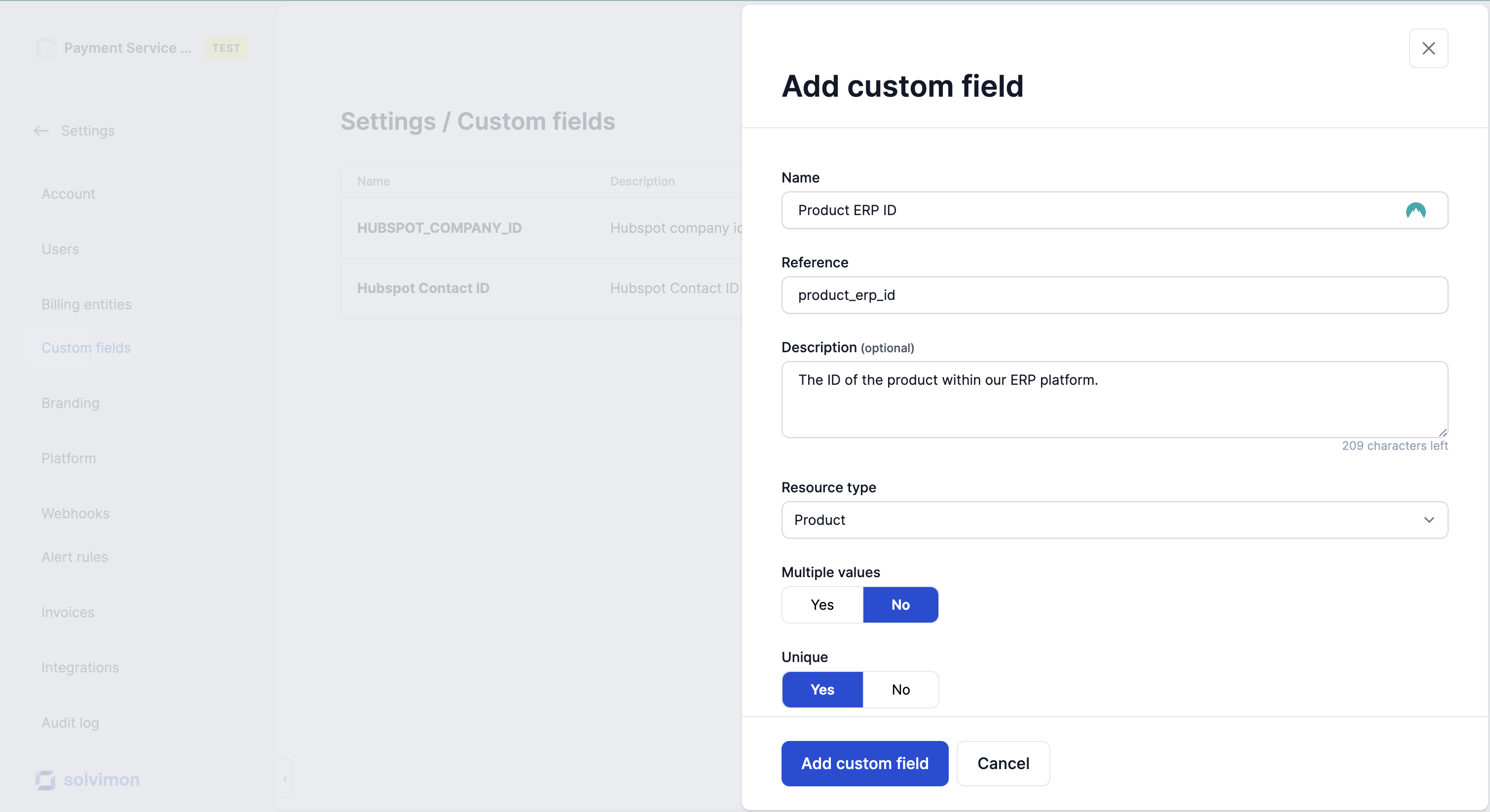
Field options
A custom field consist of a name, reference, description (optional), and is attached to a specific resource. Moreover, there are various options to make sure the validation of entering values is also supported:
Multiple values
When this is enabled, more than one value per unique resource is accepted. For example, if you have a Customer custom field 'Payment method' and it has 'Credit Card' and 'Automatic bank wire transfers'.
Unique
It is possible to let the Solvimon platform do a uniqueness check on your custom values.
For example, if you have a unique invoice ID that you want to connect to your invoices, you set up an Invoice custom field with multiple values turned off and unique turned on.
Show on invoice
The name explains itself, but for certain resources (customer, billing entity, invoice) you can elect whether you want the field to be shown on the invoice PDF and thus be visible for your customers, or if you only want it to be included in the invoice data.
For the latter, it can be handy in case you have integrations that need certain data.
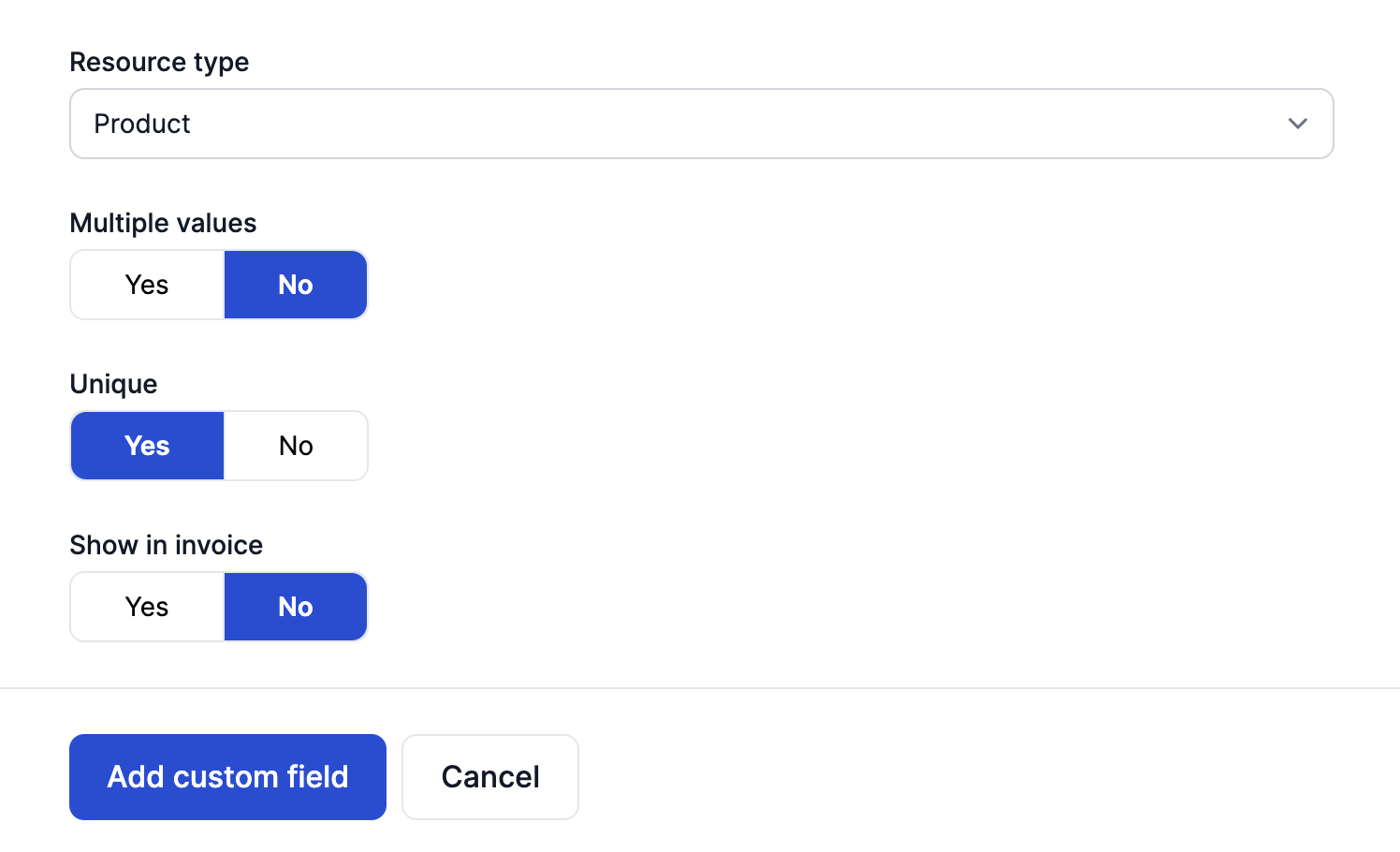
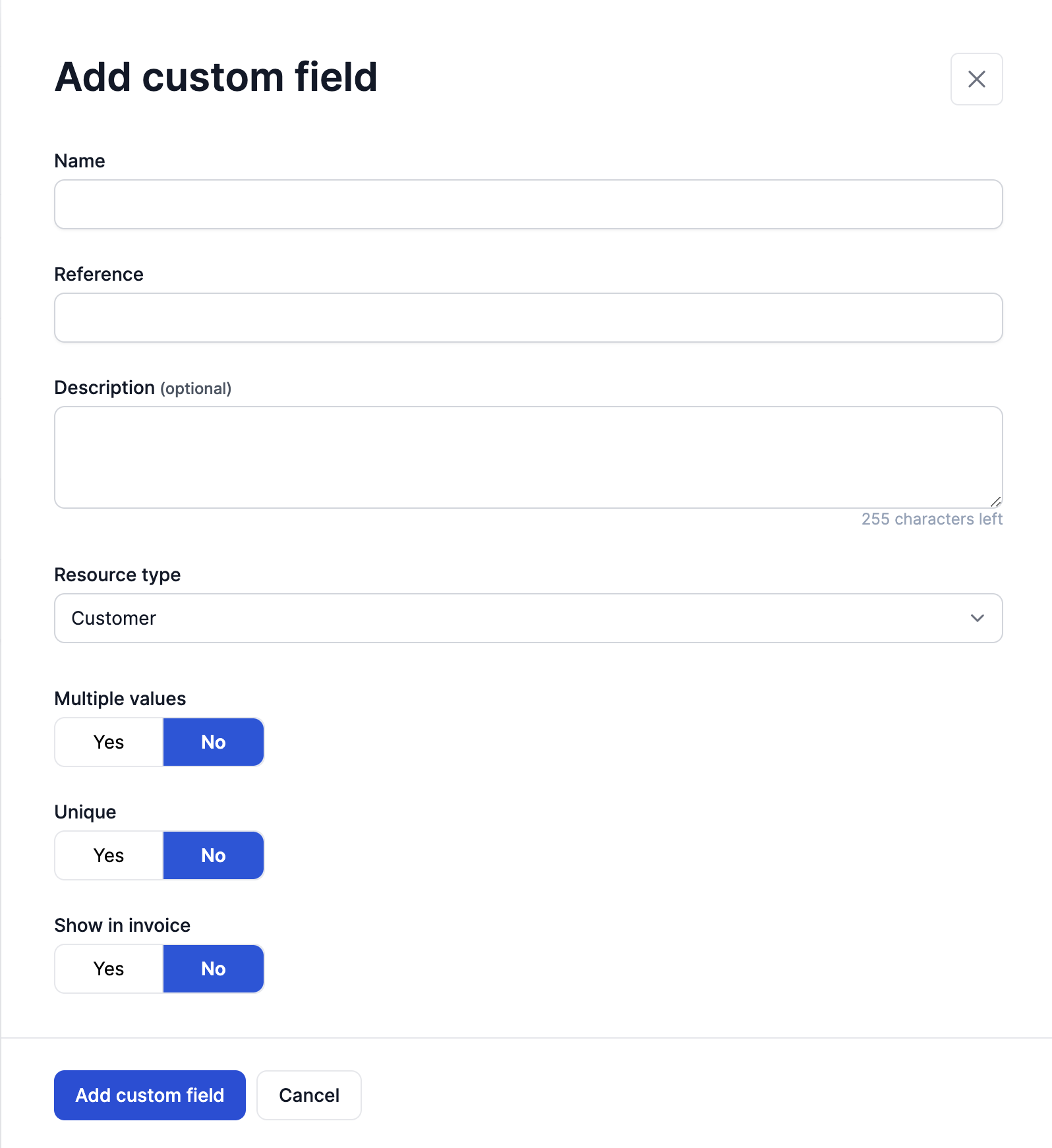
Creating Custom fields
Under Settings > Custom Fields, you can view all the created custom fields and add a new custom field
Adding Data to Custom Fields
Updating custom field data through the Solvimon Desk
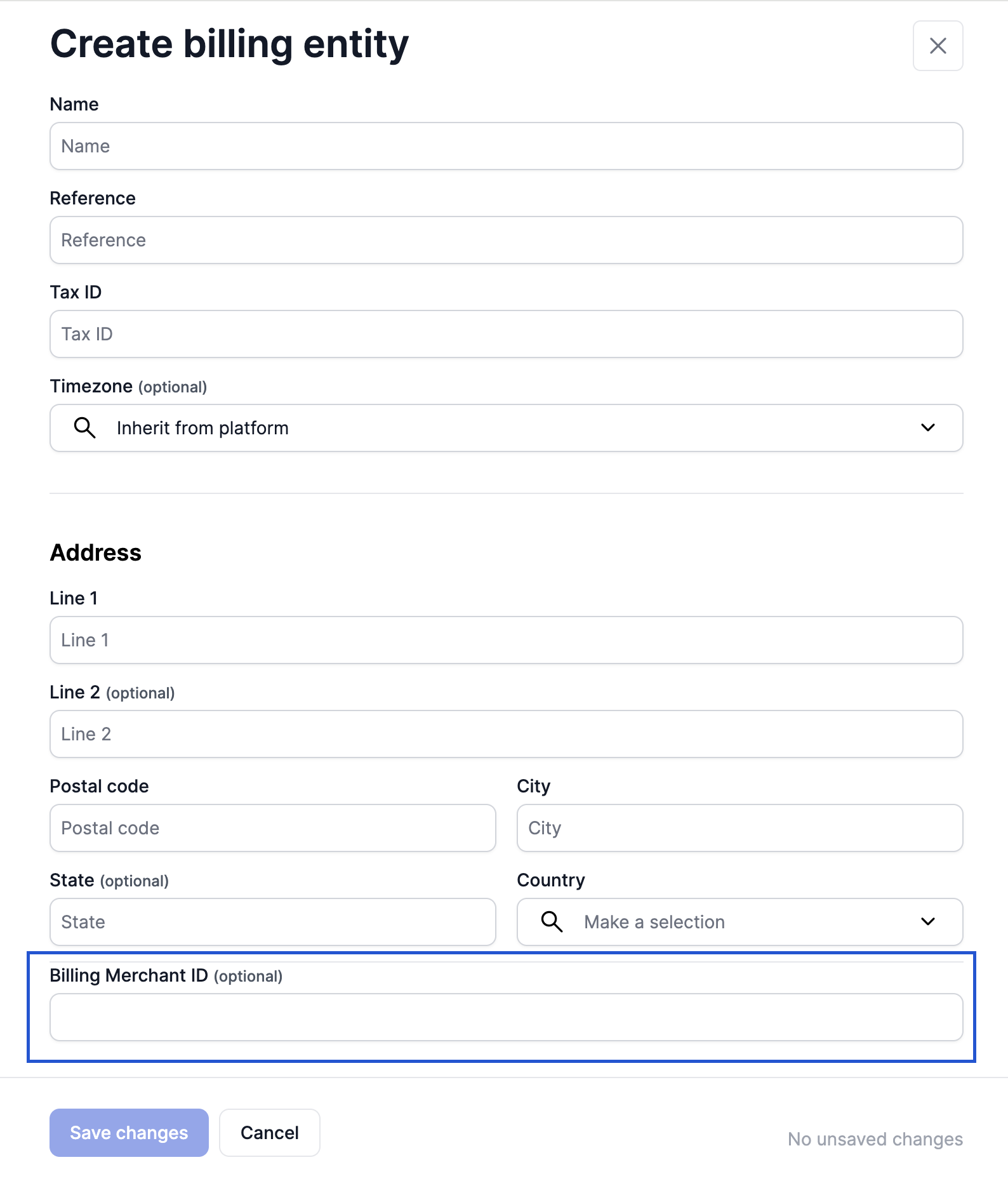
Once the custom fields have been added to your platform, you can add data to the custom fields by editing or creating data in objects for which custom fields has been created
For eg, to add data to a custom field for an existing billing entity, open the billing entity details page and use the Create/ Edit Billing Entity option. This will display all the custom fields that are available in your site and you can add the data here
Using the API to collect custom field data
For API users, if you have custom fields created in your Solvimon Desk, they will be listed in your API documentation as part of your input parameters. You need to be logged in to your Solvimon Desk to view the custom fields in the API documentation.
You can capture custom field data during sign up through the hosted pages, using the API or through the web interface.
Updated 10 months ago
Read more about the resources you can add custom fields to below: