
HubSpot
To get CPQ (Configure, Price and Quote) functionalities of Desk to Hubspot
To view, configure pricing and quotes from within your CRM, we offer a direct integration with HubSpot.
Overview
Integrating the Solvimon Desk widget into your HubSpot CRM will enable you to do the following -
- Automatically synchronize all Companies and Contacts from HubSpot to Solvimon
- View all pricing-related information of your customer
- View all active subscriptions and their details
- View the Invoice Listing page for that customer, individual invoice details, and download invoices
- Create Quotes, Edit Draft Quotes, and share the created quotes with your customers
View your customer details
You can now access your customer's information from your HubSpot CRM. This lets you see the details of an active subscription like its Start Date, Initial Term and last billed Invoice Amount, any quotes created for them, etc.
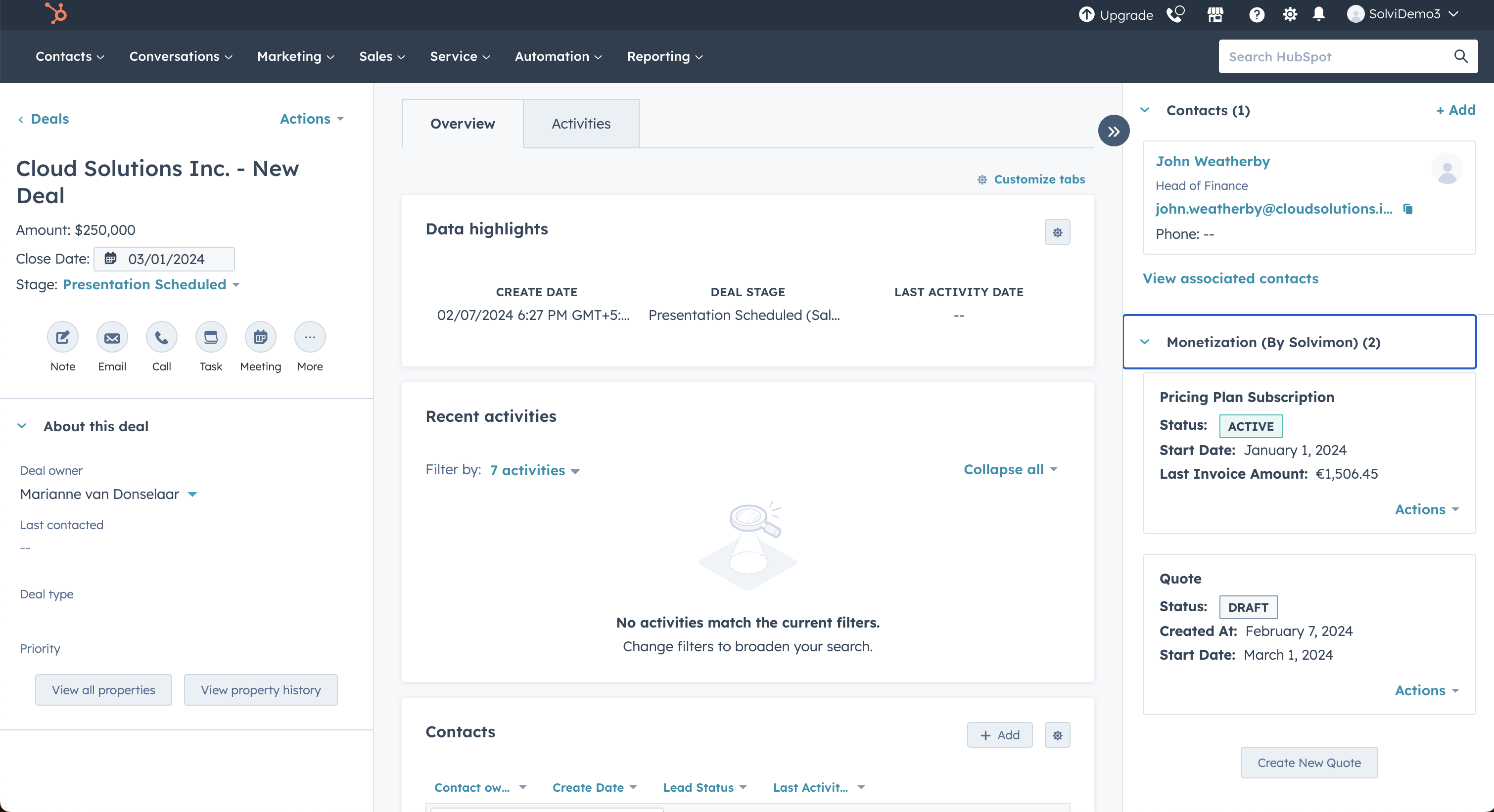
On the right-hand side, the integrated Solvimon Desk cards display subscription and pricing information relevant to your customer and enable you to create a Quote for them.
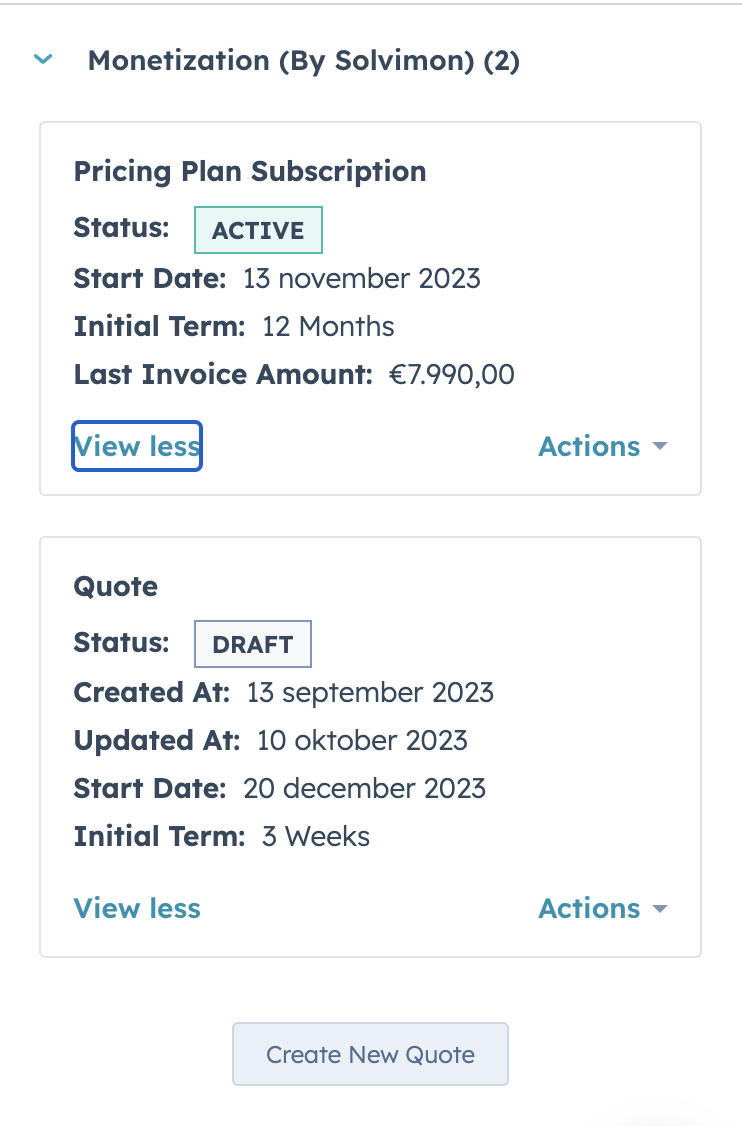
View Your Active Subscriptions
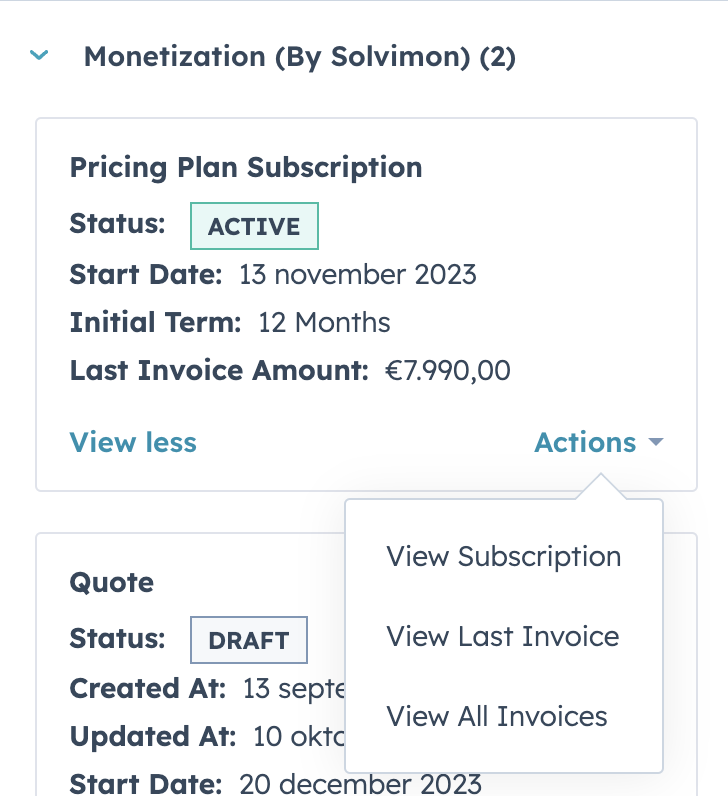
You can now see the details of an active subscription by clicking on the View Subscription option from the dropdown menu
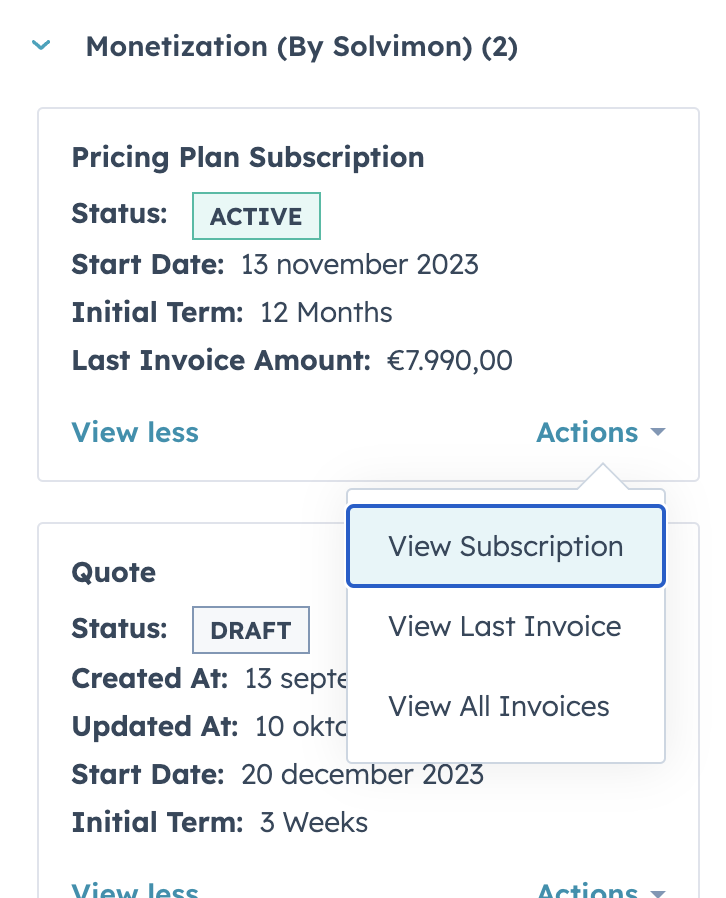
It opens up a frame for you to log in to the Solvimon Desk (if you haven't logged in yet) and view details
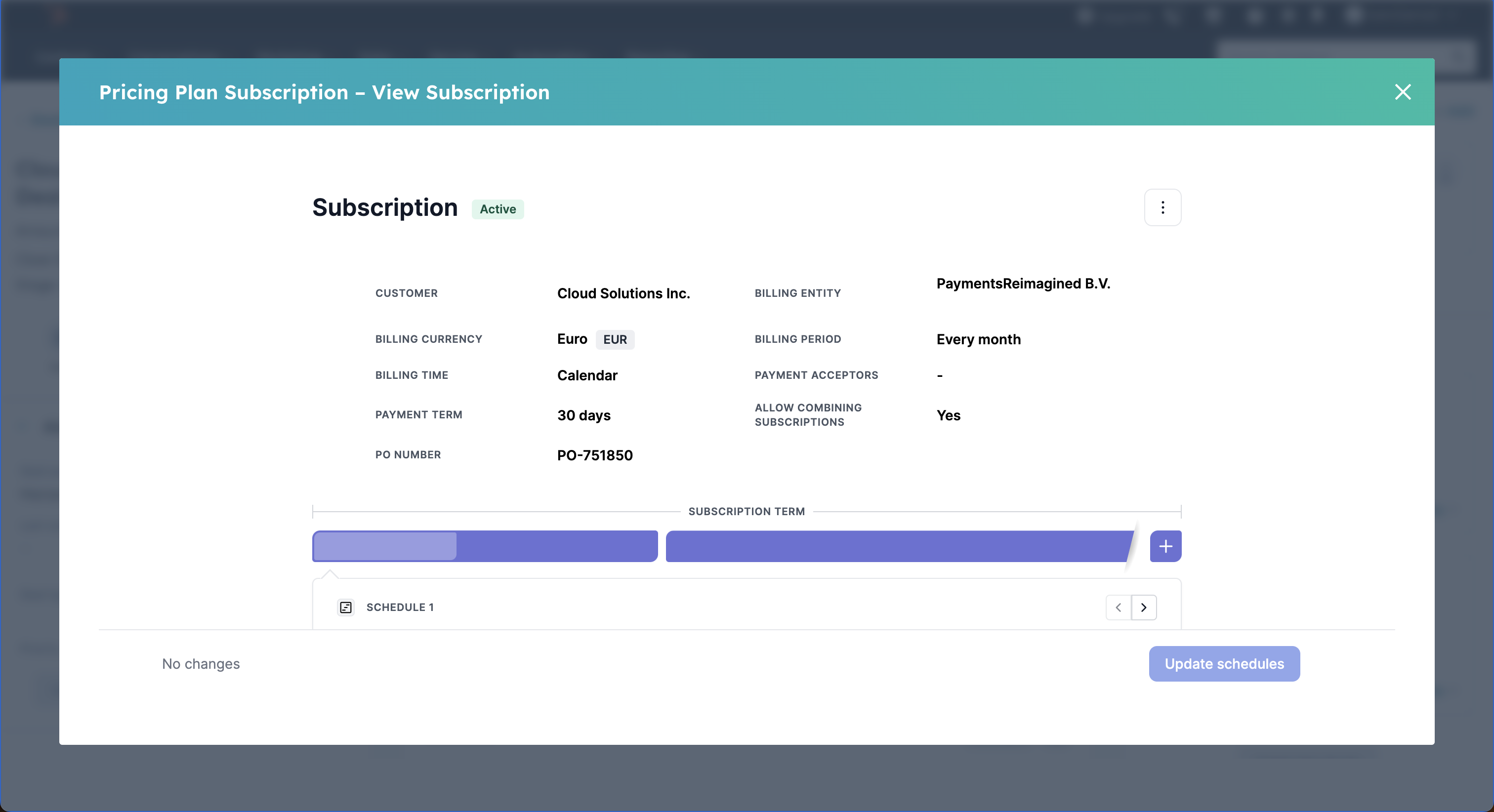
Each Active Subscription has an Actions menu dropdown with the following options - View Subscriptions, View Last Invoice, and View All Invoices
View a listing of your invoices and their details
You can now view all your invoices by selecting the View All Invoices option from the dropdown menu
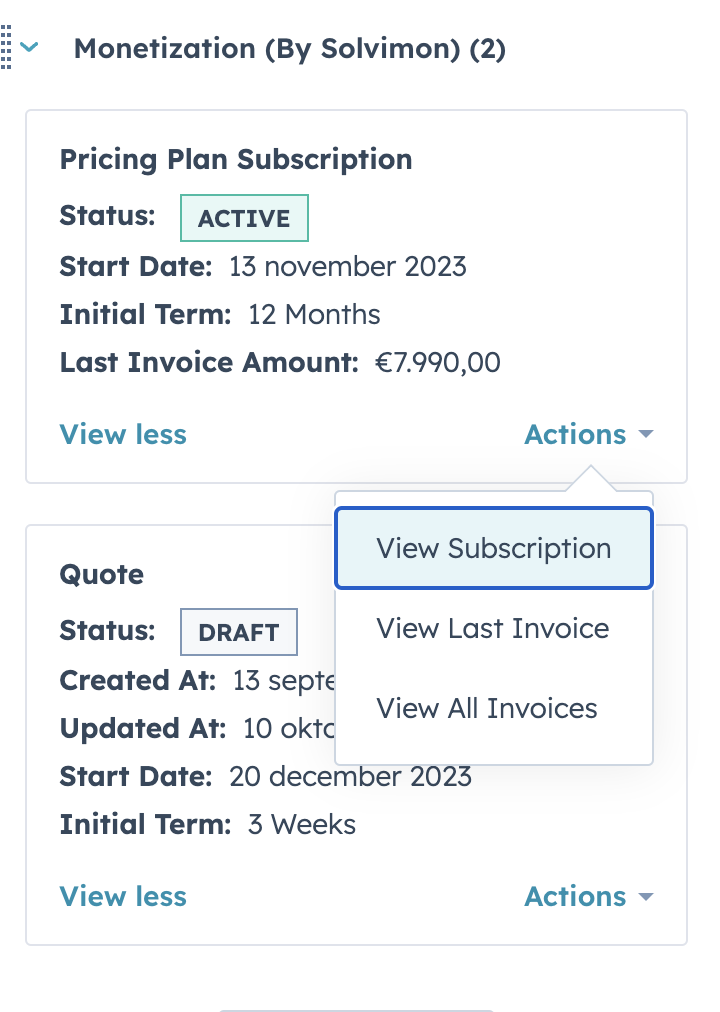
It navigates you to the Invoices Listing Page on the Solvimon Desk where you can click on an individual invoice to view its details.
You can also download the invoice PDF, usage report and change the payment status of an invoice from within the HubSpot application itself
Create and Edit quotes from within the application
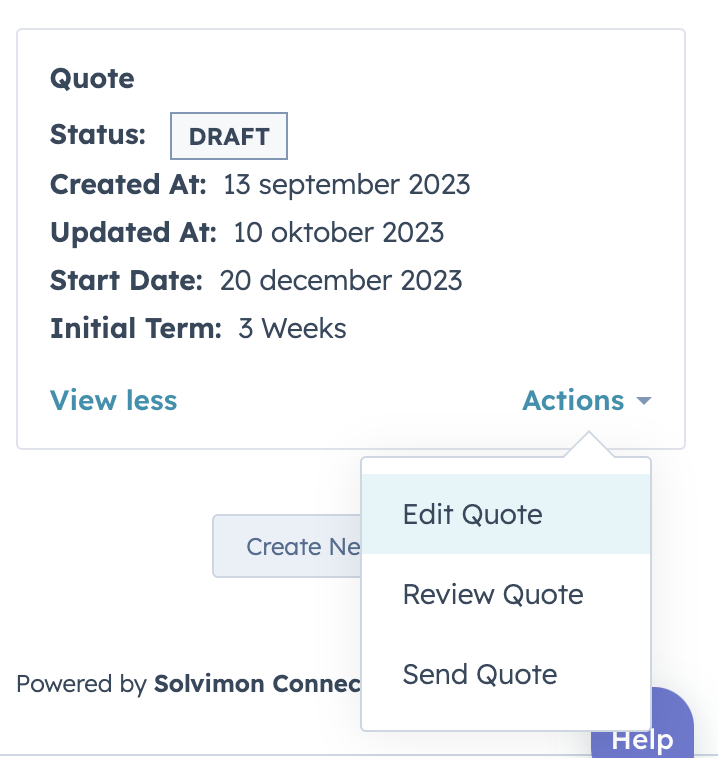
You can view your created quotes which are in Draft stage.
the
You can Create a New Quote using the Create New Quote button and also Edit an existing Quote in Draft stage
You can share quotes with your Customers from the HubSpot app after you've created it.
Getting started
Requirements
To start setting up the integration, you will need the following:
- A HubSpot account that stores all your relevant customer information.
To ensure data integrity between the Solvimon Desk platform and the HubSpot CRM, it's important to consider the following criteria:
For HubSpot Companies we require:
- A
Companymust be associated with a deal. - The
Countryfield must not be empty.
Deal stages are requiredIf a Company is not associated with a deal, it will not be synced. In addition we require a list of deal stages to be given when setting up the integration. Only companies that are in those deal stages will be synced.
Country is requiredAn empty Country field will cause workflows to fail. If the Country field is empty, it will default to NL (Netherlands).
For HubSpot Contacts we require:
First NameandLast Namemust not be emptyEmailmust be a valid email address.- The
Contactmust be linked to a company.
If the first and/or last name is empty, it will default to 'undefined'.
Empty emailsAn invalid or empty email will result in a failed contact creation/update.
Contact and company linkIf the contact is not associated with a company, it will not be synced
Solvimon Customer ID in HubSpot
If you would like to have visible the Solvimon Customer ID in the HubSpot companies that you have synchronised, follow these steps:
- In your HubSpot account, go into the CRM tab, and then Companies.
- Select one of the companies that you have just synced.
- Go to the settings symbol.
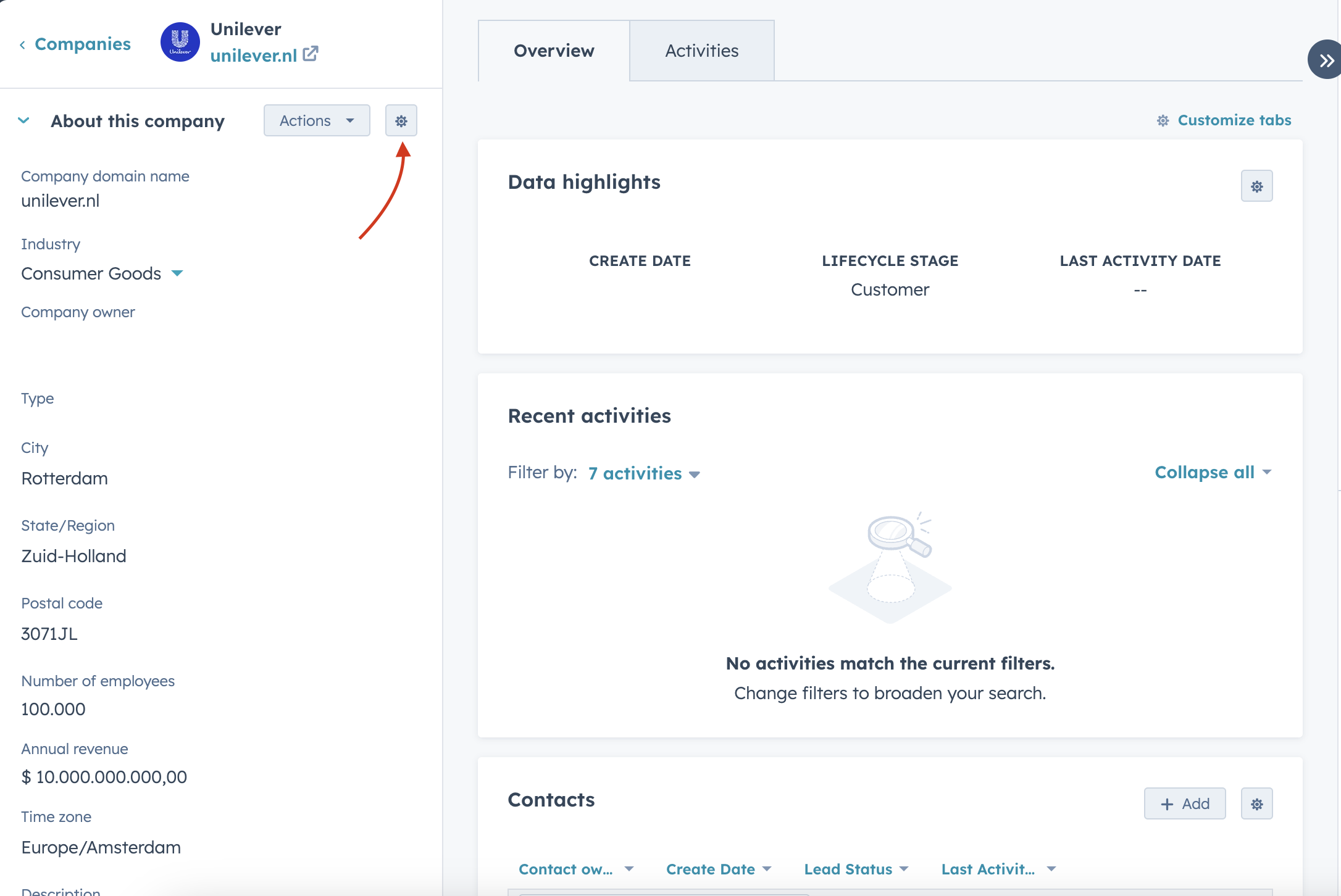
- Click the tab Company Information.
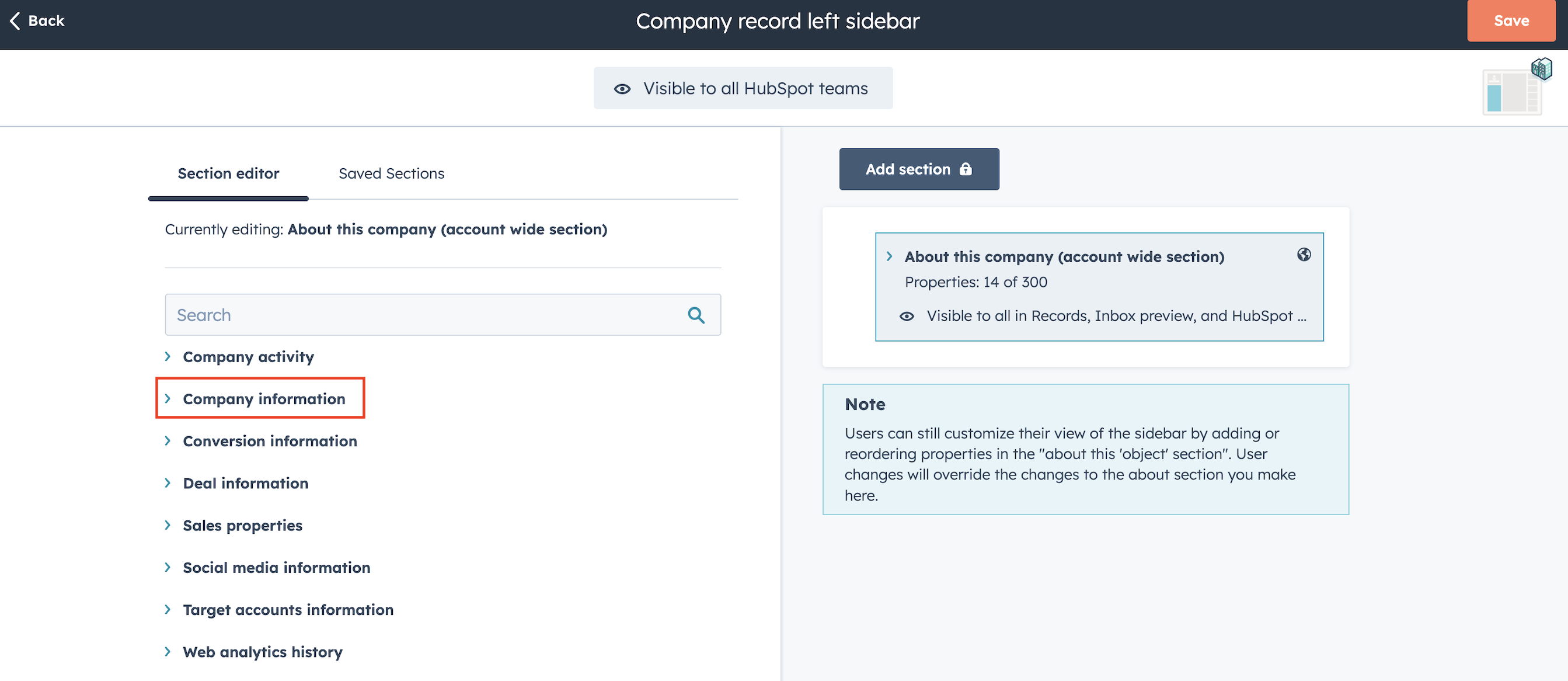
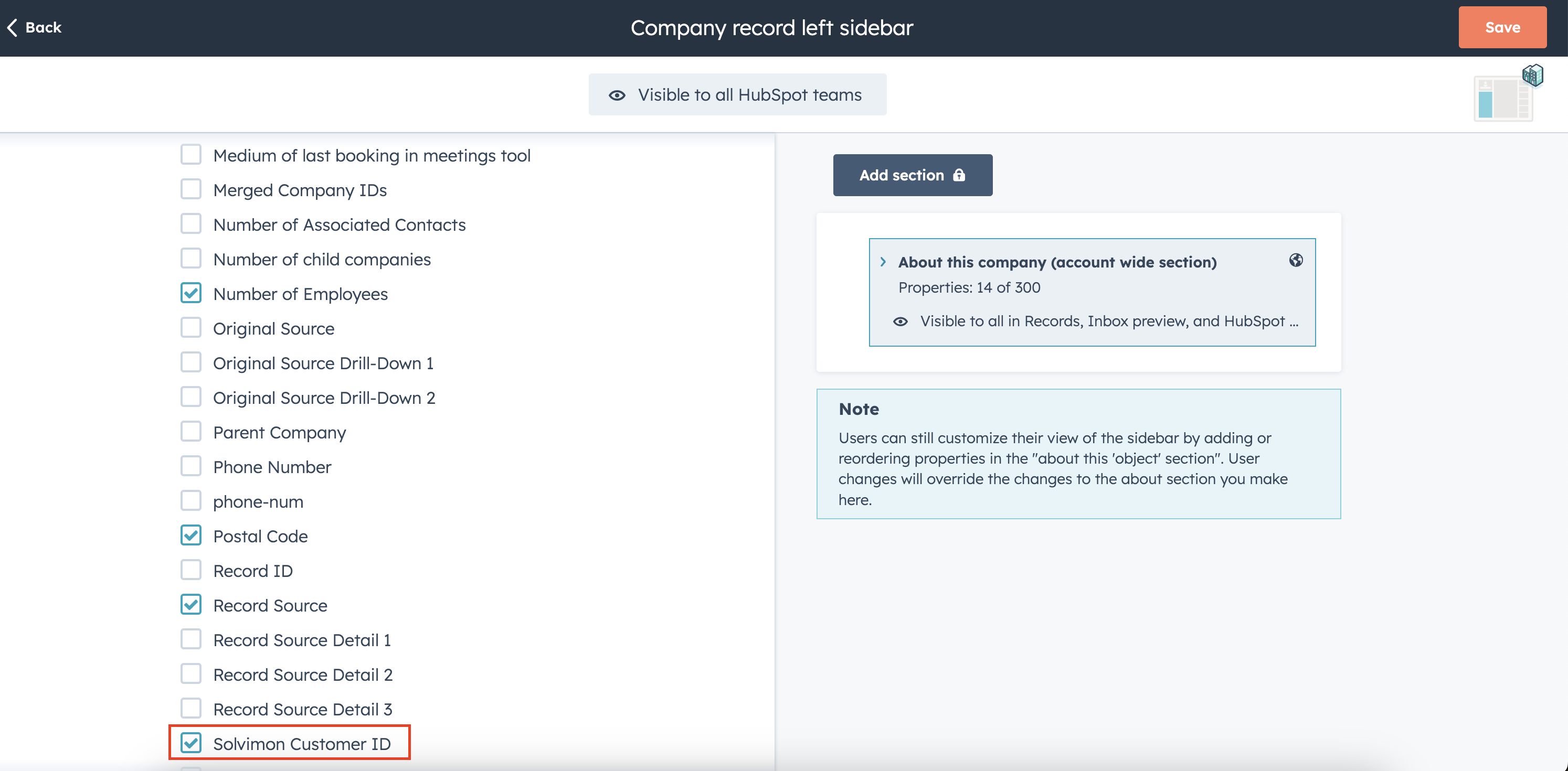
- Search for Solvimon Customer ID and tick it.
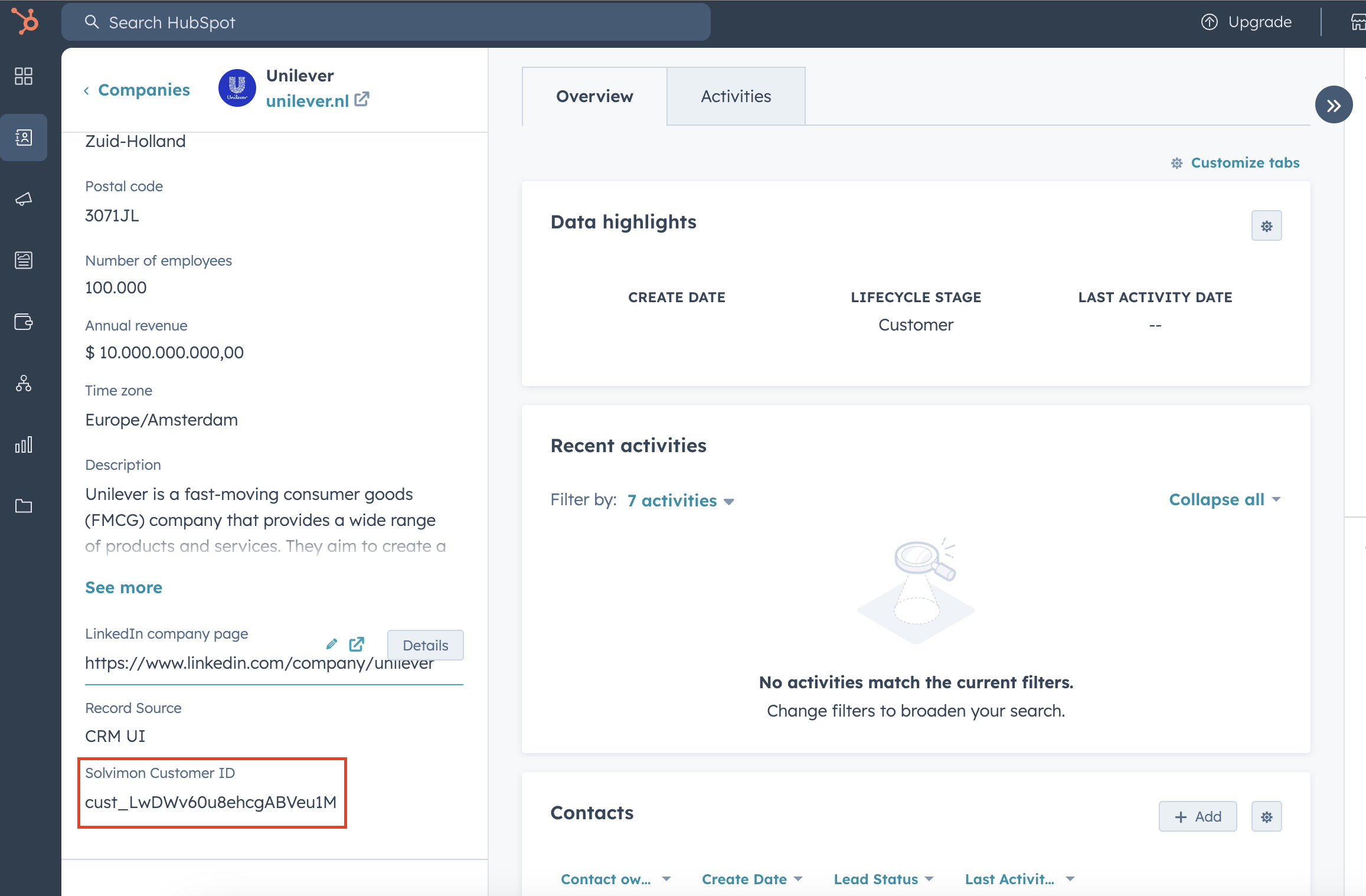
Now, when you go back to the company page, you will see that the Solvimon Customer ID is visible a few minutes after the synchronisation.
Enabling the HubSpot integration within Solvimon
First, go to your Settings page in Solvimon Desk and hover to the Integrations view. The integrations page gives an overview of all possible supported integrations. The HubSpot integration is listed within the Customer Relationship Management section and can be enabled by connecting. There are two main configuration settings that define the way objects are synchronized between Solvimon and HubSpot.
- Pipeline and Deal Stage configuration settings
- Detailed configuration settings
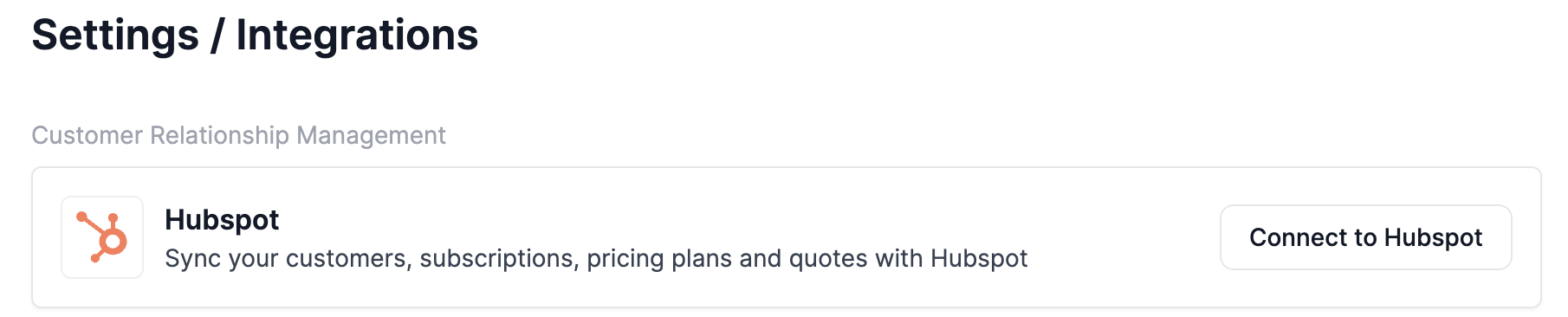
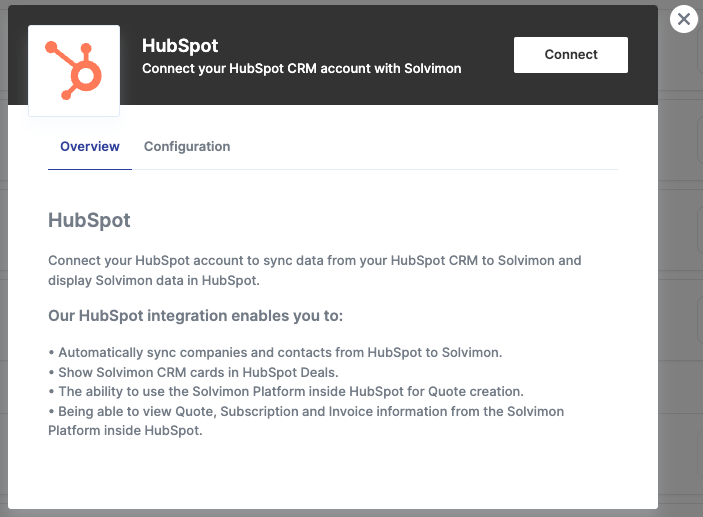
After clicking on 'Connect to Hubspot' you will be redirected to the confirmation portal with an Overview and Configuration panel. The Overview panel lists the actions that will be enabled by connecting with the HubSpot integration.
Pipeline and Deal Stage configuration settings
The Configuration panel can be used after the HubSpot integration is connected and will show the required configuration options. These are the main configurations and cover the Pipeline and the specific Deal Stages, which determine when the synchronization of HubSpot objects happens in Solvimon.
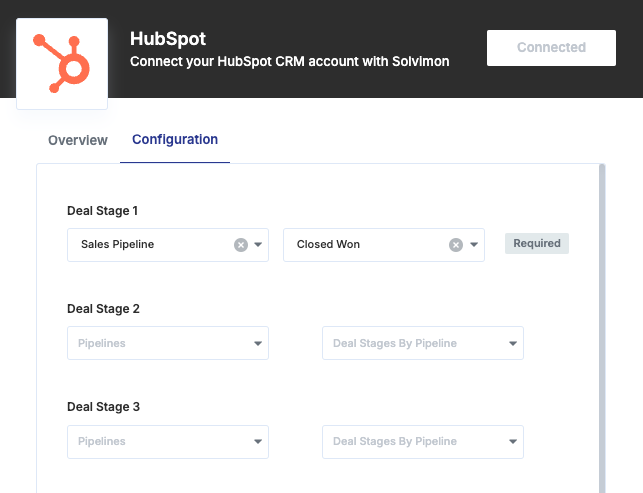
Pipeline and Deal stagesWe require the user to input at least one set of Pipeline and Deal Stage within that Pipeline. First, select the specific Pipeline the Deals must to be filtered on. After this, the deal stages can be selected for which they want companies and contacts to be synced to Solvimon. In most cases the "Closed Won" stage is sufficient, but we also allow the user to input more than one stage. Next to this, you can have multiple Pipeline and Deal Stage settings totalling 3 configurations.
Detailed configuration settings
Next, there are more detailed configuration settings based on HubSpot objects and actions. These configurations are add-ons to the main settings described above. The detailed workflows can be toggled to turn on and off and are as follows:
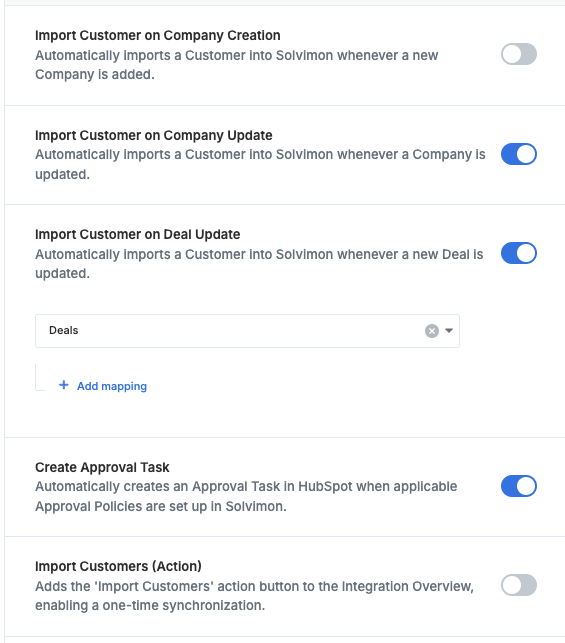
Import Customer on Company Creation
- This setting will enable the creation of a Solvimon Customer whenever a HubSpot Company is created in HubSpot
Import Customer on Company Update
- This setting will enable the creation of a Solvimon Customer whenever a HubSpot Company is updated under the following conditions:
Import Customer on Deal Update
- This setting will enable the creation of a Solvimon Customer, representing the HubSpot linked Company, whenever a HubSpot Deal is updated under the following conditions:
Create Approval Task
- This setting will enable Solvimon's Approval Flows that will be imported as HubSpot Tasks
Import Customers (Action)
-
This setting will create the ability to trigger a new one-off synchronization of the HubSpot objects to Solvimon. When enabling this there will be a button available on the Integrations Overview page:

Detailed configurationAll detailed synchronization configuration settings are only applied when there is not already an existing Solvimon Customer associated with the HubSpot object and when the object falls within the already configured Pipeline and Deal Stage.
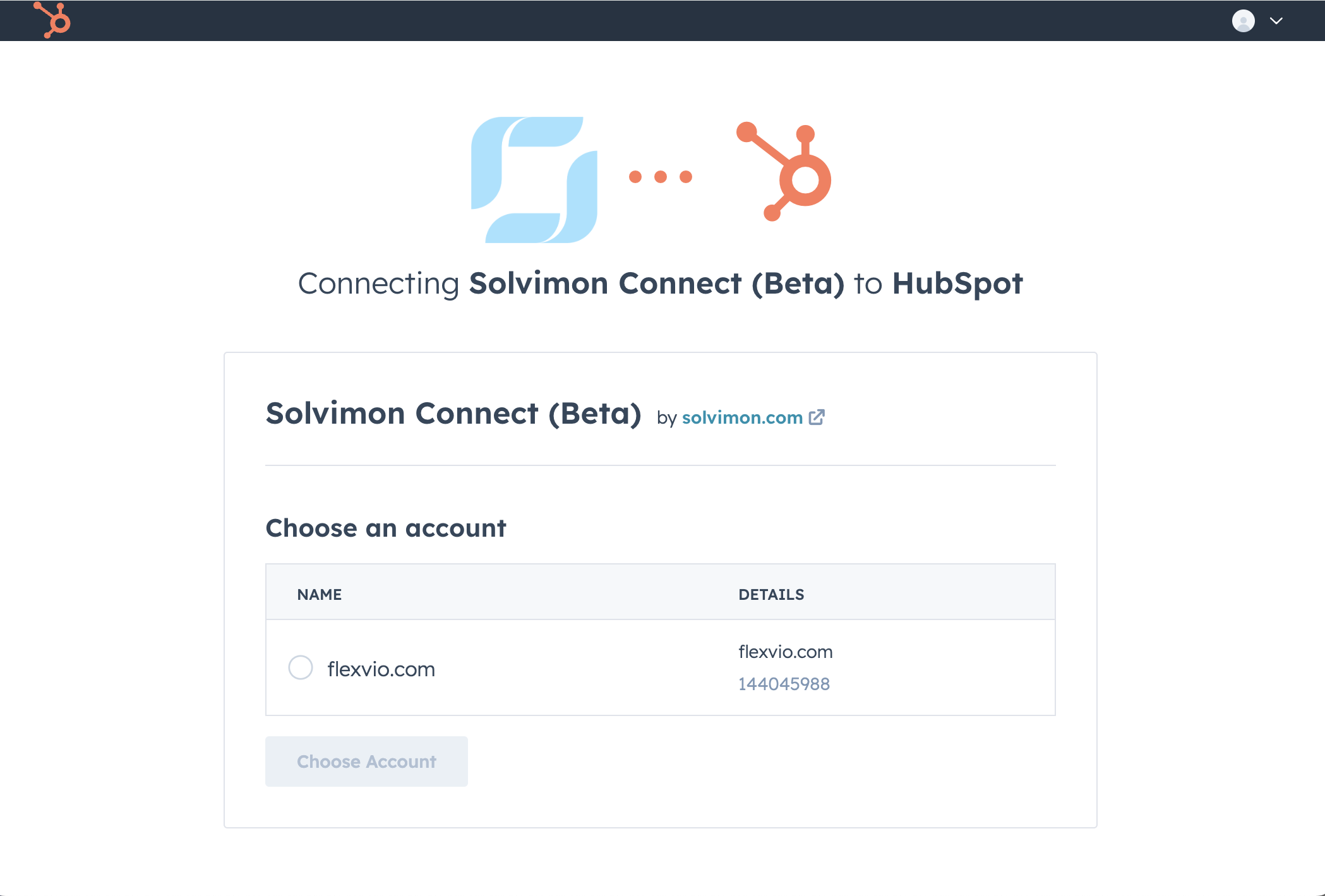
When connecting the Solvimon Desk widget called 'Solvimon Connect' to your HubSpot CRM, a pop-up screen will display an overview of the HubSpot accounts that can be connected. Please choose one and click 'Choose Account'. After this, the HubSpot integration process is finished and connected.
When you have connected your HubSpot integration you can manually sync your customers and contacts on the integrations page (Settings/Integration). To do this you will need to click on the three dotted menu in the HubSpot item, and then select "Sync Customers & Contacts. This will (in the background) start a manual synchronisation of the relevant customers and their contacts to Solvimon. Note that this might take up to 5 minutes to fully complete.

In the background creations and updates of relevant customers and contacts will happen automatically.
To Know More
Watch a demo video of Solvimon's HubSpot integration over here
Updated 6 months ago