
Pricing rules
Set up diversified pricing with meter property conditions.
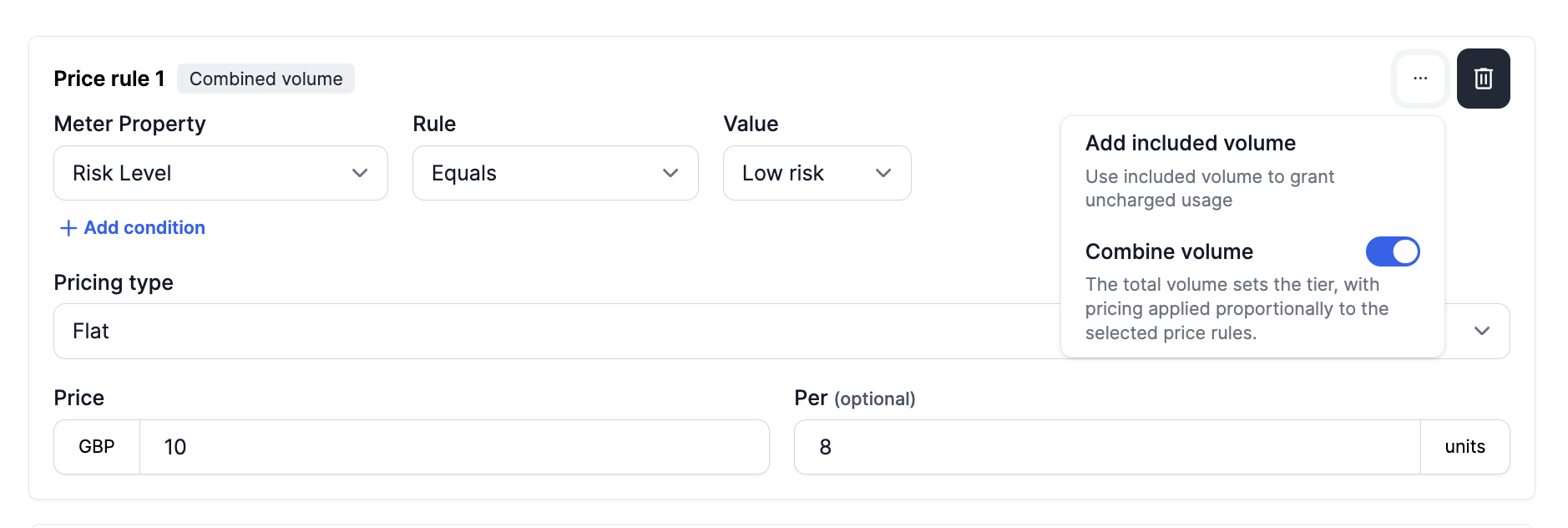
When setting up pricing, you might want to have a default pricing setting for a product, but also have certain conditions based on the meter property values of your customer's usage and connect different pricing to it.
To create pricing rules (the technical API term being pricing item config), you need at least one meter property connected to the meter of the product item you are configuring pricing for. Be aware that if you set up a meter property and do not add the flag 'required', it cannot be selected in the pricing configurator.
Meter property must be requiredIf a meter property within a meter is set to be 'optional', it cannot be used within pricing rules and it will not show up in the price rule configuration.
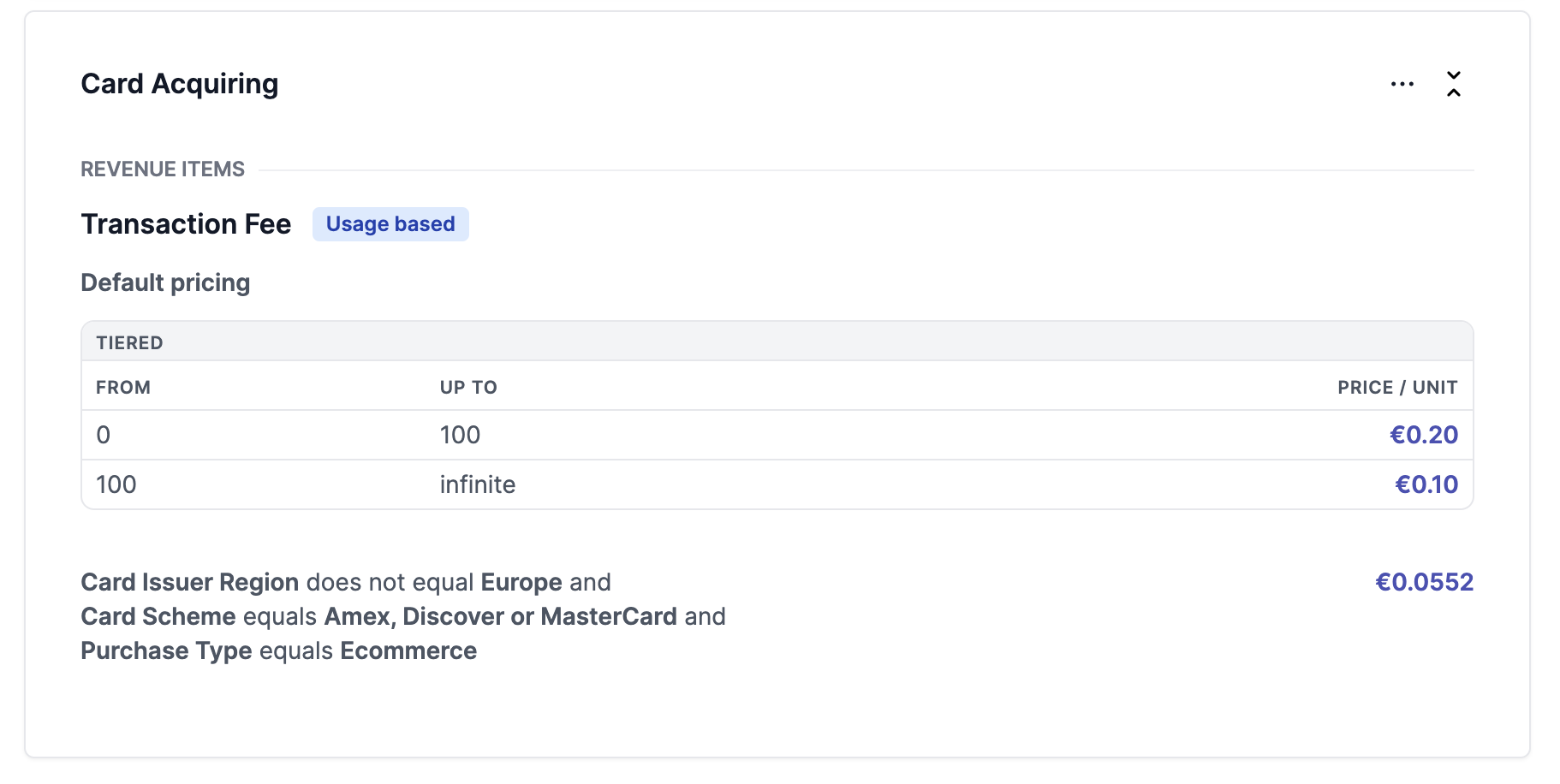
In the example below, the default pricing for transactions is tiered, but a pricing rule defines that if a meter event matches the given combination of conditions, the pricing is a flat rate of 5,52 cents.
Condition comparator types
Pricing rules are applied when, for one specific event, all meter property conditions match the ones set up in the pricing rule.
| Comparator | Description | Meter property types |
|---|---|---|
| Equals | matches the given value | All |
| Equals one of | matches one of the given values | All |
| Does not equal | does not match | All |
| Does not equal one of | none of the given values are ingested | All |
| Greater than | matches if ingested number is bigger | Number |
| Greater than or equals | matches if ingested number is bigger or the same | Number |
| Less than | matches if ingested number is smaller | Number |
| Less than or equals | matches if ingested number is smaller or the same | Number |
Example use-cases
A meter property might be the country code in which a credit card is issued. Using pricing rules, a sales representative can then set a different price for cards issued in the US versus those issued outside the US. This allows the business to offer customised pricing that better meets the needs of its customers and probably helps you to seal the deal.
Price rules can be simple or more complex. A simple price rule can look like this:
| Product | Billable Metric | Price Rule | Price |
|---|---|---|---|
| KYC | KYC checks | 1. Checked entity = individual | 2.50 EUR |
| KYC | KYC checks | 2. Checked entity = business | 5.00 EUR |
Or more complex:
Product | Billable Metric | Price Rule | Price |
|---|---|---|---|
KYC | KYC checks |
| 2.50 EUR |
KYC | KYC checks |
| 5.00 EUR |
KYC | KYC checks |
| 10.00 EUR |
In the last example, you may have noticed that rule 3 does not have an entity location specified. When determining the appropriate price for a product, the system looks up the pricing rules in order. So, if the conditions of rule 1 are met, the pricing of rule 1 is applied. If the conditions of rule 2 are met, the pricing of rule 2 is applied, and so on. If none of the conditions are met, the default price for the product is used. This ensures that the right price is applied based on the specific circumstances of each transaction.
In the Solvimon platform, extensively difficult pricing methods and conditional pricing rules can be used. We are more than happy to help you define and configure them on your account.
Updated 10 months ago