
NetSuite
Connect your Netsuite ERP with Solvimon Desk for easy billing and invoicing
You can now find a NetSuite Integration panel on Solvimon Desk under Menu → Settings → Integrations → Netsuite.
Getting Started
Requirements
To set up an integration with Solvimon Desk and NetSuite, you will need an active NetSuite account.
To sync VAT and Revenue Recognition related information per invoice line, the SuiteTax and Revenue Recognition Netsuite modules have to be enabled.
SuiteTax and Revenue Recognition ModulesSolvimon will still send the VAT information and revenue recognition dates when syncing invoices, but Netsuite will not consume that information if the the above modules are not enabled.
For the Commitments, Discounts or One Off invoice lines to be synced, specific items need to be created for Solvimon to post the amounts for those lines. The items must be of the type Service For Sale.
Enable the integration between Solvimon and Netsuite
To enable the integration between Solvimon and Netsuite, a new integration record needs to be created in Netsuite, as well as a new certificate. The following steps can be followed to set up the connection.
Step 1: Create the Integration in NetSuite
1.1 Create an Integration Record
-
Log in to NetSuite
-
Navigate to:
Setup → Integration → Manage Integrations → New -
Fill in:
- Name: e.g.
Solvimon Integration - (Optional) Description
- Name: e.g.
-
Under Authentication:
- ✅ Enable OAuth 2.0
- Enable Client Credentials (Machine to Machine) Grant
- ❌ Disable all other authentication options
- Add Restlets and Rest Web Services to the Scope
- ✅ Enable OAuth 2.0
-
Click Save
📌 Important: After saving, NetSuite will generate a Client ID. You’ll need this later for Sovimon.
Step 2: Generate and Upload the Security Certificate
This certificate allows Paragon to authenticate securely with NetSuite.
⚠️ Important security note The private certificate file acts like a password. Anyone with access to it can authenticate to NetSuite.
2.1 Generate the Certificate (on your computer)
If you are not technical, you can copy and paste the command below exactly as written.
macOS / Linux
Open Terminal, then run:
openssl req -new -x509 -newkey rsa:4096 \
  -keyout private.pem \
  -out public.pem \
  -nodes \
  -days 730 \
  -sha256 \
  -sigopt rsa_padding_mode:pss \
  -sigopt rsa_pss_saltlen:64
When prompted:
-
You may leave most fields blank
-
For Common Name (CN), enter:
solvimon-netsuite-m2m
After completion, you will have two files:
public.pem→ uploaded to NetSuiteprivate.pem→ uploaded to Paragon (keep secret)
Certificate generationPlease reach out to Solvimon's support team if you would like Solvimon to generate the certificates on your behalf.
2.2 Upload the Certificate to NetSuite
-
In NetSuite, go to:
Setup → Integration → OAuth 2.0 Client Credentials (M2M) Setup -
Click Create New
-
Fill in:
- Entity: Select the user/entity that owns the integration
- Role
- OAuth 2.0 Application: Select the integration created in Step 1
- Certificate: Upload
public.pem
-
Click Save
✅ Your NetSuite integration is now authorised to use certificate authentication.
Step 3: Enable the Integration in Solvimon
3.1 Configure NetSuite in Solvimon
-
Log in to Solvimon
-
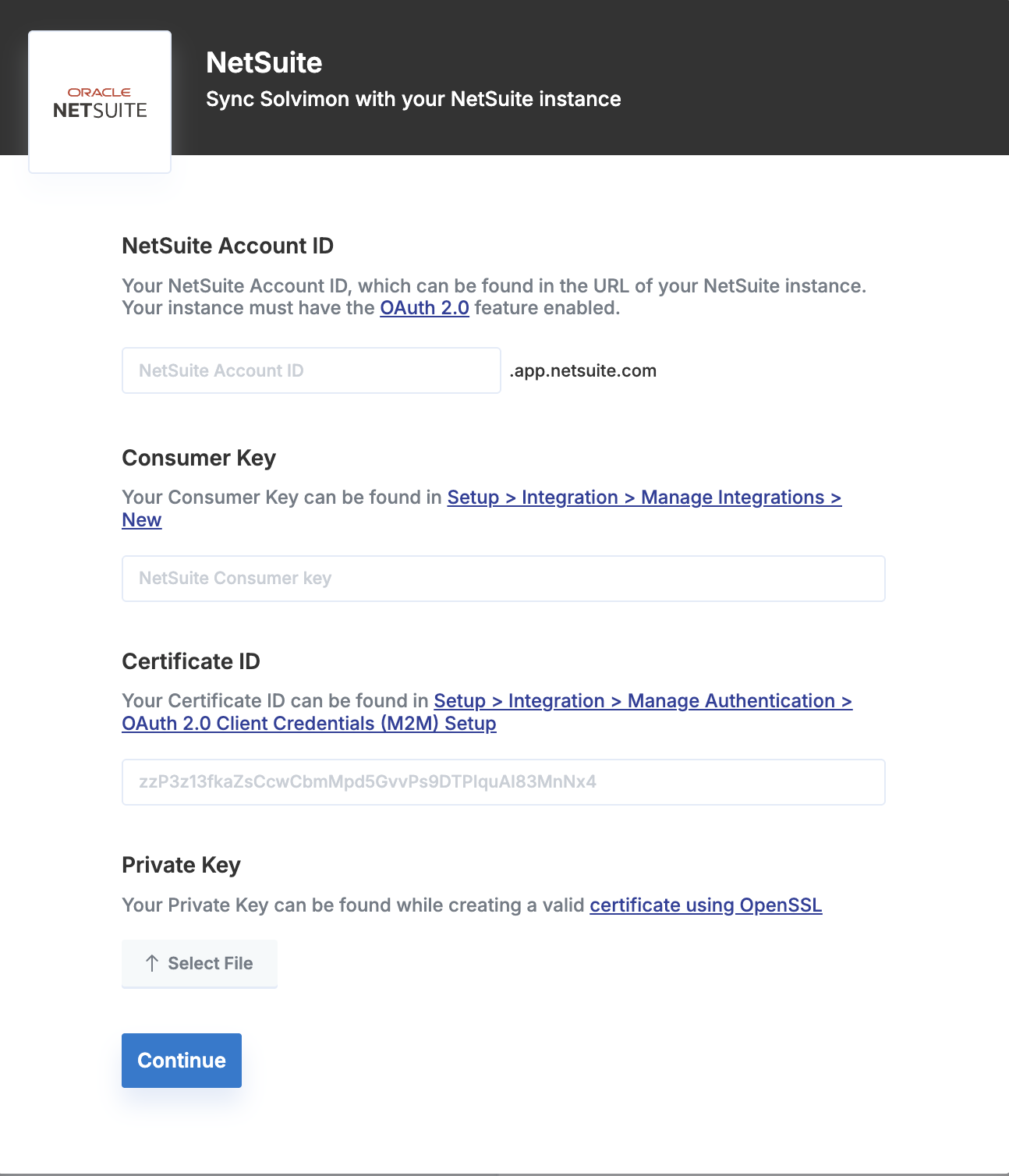
Navigate to Setting → Integrations → Add Integration → ERP → NetSuite and click on Connect
-
Enter the following details from NetSuite:
- Netsuite Account ID: This field can be retrieved from the URL of your Netsuite instance (f.e.
https://1234567.app.netsuite.com/..., where1234567is the ID, or by accessing the Netsuite environment and going to Setup → Company → Company Information and then look for the fieldAccount ID. - Consumer Key (from the Integration record created in NetSuite)
- Certificate ID (from the certificate record created in NetSuite)
- Certificate Private Key → upload
private.pem
- Netsuite Account ID: This field can be retrieved from the URL of your Netsuite instance (f.e.
-
Save the configuration
Step 4 : Setup configurations and Enable Integration
Once authenticated, you can view the configurations tab to enable the workflows you'd like to enable in your Netsuite environment.
One of the input fields that requires configuration is the Company-Language(f.e. "en","es","fr", etc).
Currently, the supported and out of the box workflows are listed under configuration but if you don't see the one you're looking for, you could reach out to your Customer Success Manager or Support Team.
You can disconnect the integration at any point from Desk.
Step 5 : Synchronise your data
Once the integration is in place there can be multiple ways to setup the synchronisation.
Its by default trigger based for updating the list but custom triggers can also be handled and for such requirements you can reach out to your sales executive for further assistance.
Import Customers
You can import your Customers from Netsuite to Solvimon to speed up your onboarding process.
Every Customer entity in Netsuite is treated as a Customer for Solvimon, with the following mapping:
| Netsuite Customer Field | Solvimon Customer Field |
|---|---|
| Company Name | Legal Entity Name |
| Address Country | Country |
| Billing Email Address | |
| Address 1 | Address Line 1 |
| City | City |
| State | State |
| Zip | Postal Code |
| Tax Registrations.Tax Registration Number | VAT number |
All Contacts from Netsuite Customer are synced as Contacts in Solvimon.
Import Billing Entities
You can import details of your Netsuite Subsidiaries as Solvimon Billing Entities (read more about billing entities here)
You can add more than one Billing Entity to your platform on Solvimon. In order to be valid for invoicing in Solvimon every Billing Entity needs the following:
- Name
- Tax ID
- Address
- First Line
- Postal Code
- City
- Country (read more about Country Code standardisation)
The integration syncs the following information from Netsuite Subsidiaries:
| Netsuite Subsidiary Field | Solvimon Billing Entity Field |
|---|---|
| Subsidiary Name | Billing Entity Name |
| Address Line 1 | Adress Line 1 |
| Zip | Postal Code |
| City | City |
| Country | Country |
Import Products
Items configured on your Netsuite account can be synced to Solvimon. The items would be created in the Products section in the settings menu under the category NetSuite Item Imports.
This will include the product line items defined in the ERP along with it's metadata i.e. NetSuite Item ID.
Netsuite Item TypesCurrently, Solvimon only pulls the Netsuite Items of the type Service Sale. If your items are configured under a different type, reach out to the Customer Success or Support team to discuss new import types.
Export Invoices to Netsuite
Whenever an invoice is finalised in Solvimon, it can be either manually or automatically get pushed to NetSuite.
In the scenario where the Customer being invoiced does not exist in NetSuite, Solvimon will create the Customer before syncing the Invoice.
For Invoices pushed from Solvimon to NetSuite, each Product will be treated as a line item in the NetSuite Invoice along with its net amount, tax amount and gross amount.
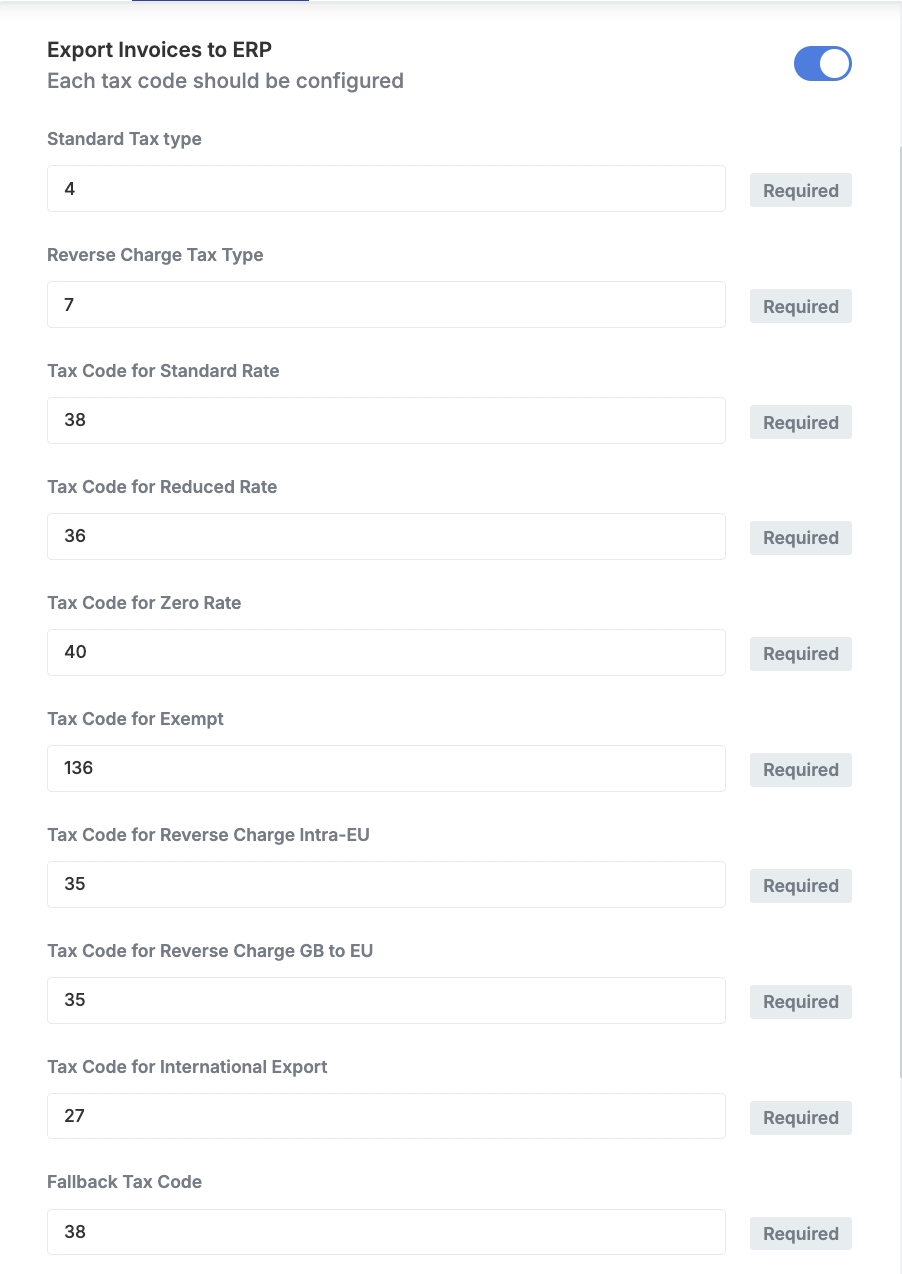
Solvimon will also push for each invoice line the respective Tax Type and Tax Code depending on the Tax Scenario. The Tax Type and Code IDs can be given as an input on the Connect Portal, on the Export Invoices to ERP workflow:
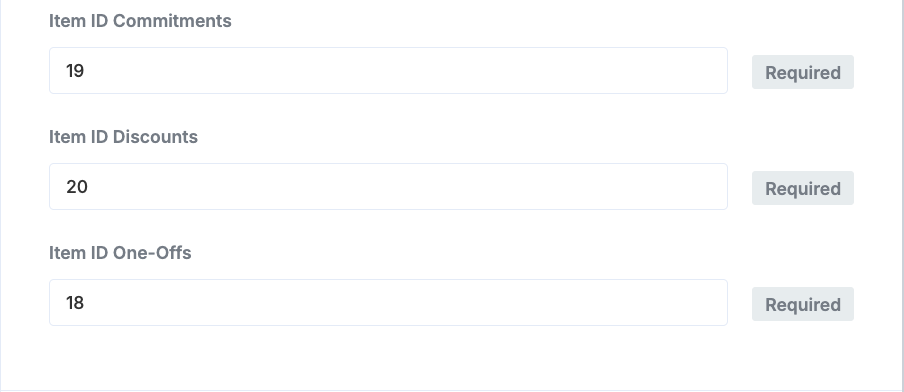
Next to the Tax Types/Codes, the items created to represent the Commitments, Discounts or One Off lines should also have its IDs added as input in the configuration:
The invoices are synced with the following mapping:
| Solvimon Invoice Field | NetSuite Invoice Field |
|---|---|
| Customer | Customer |
| Billing Entity | Subsidiary |
| Invoice Date | Date |
| Due Date | Dues Date |
| Currency | Currency |
| Internal ID | Memo |
| PO Number | Ref No |
| item.Service Period Start Date | Revenue Recognition Start Date* |
| item.Service Period End Date | Revenue Recognition End Date* |
| item.Name | Description |
| item.Amount Excluding Tax | Amount |
| item.Tax Amount | Tax Amount |
| item.Tax Rate** | Tax Rate |
| item. Tax Type** | Tax Type |
| item. Tax Code** | Tax Code |
*Only consumed by NetSuite if the Revenue Recognition Module is enabled
** Information based on the input values in the configuration portal. Only consumed by NetSuite if the Suitetax Module is enabled
We Recommend the following steps
To gain the most value from the accounting integration, follow the below steps:
- Import your customers from NetSuite to Solvimon
- Use Solvimon to create Draft Invoices
- Review and Edit invoices within Solvimon Desk as needed
- Finalise and send invoices to customers using Solvimon
- Invoices are automatically synced with NetSuite for revenue recognition and general accounting purposes
Once the integration is in place there can be multiple ways to setup the synchronisation. Its by default trigger based for updating the list but custom triggers can also be handled and for such requirements you can reach out to your sales executive for further assistance.
You can now view your desired data on the Solvimon Desk and vice versa on your NetSuite platform based on the integrations chosen.
🎉 You're now all set and have enabled synchronisation!
Updated 3 months ago