
Quickbooks
Connect your Quickbooks ERP account to Solvimon's Desk for seamless billing and invoicing
To connect your Quickbooks Account to Solvimon, go to the integration panel on Solvimon Desk under Menu → Settings → Integrations → Quickbooks
Getting Started
Requirements
To set up an integration with Solvimon Desk and Quickbooks, you will need an active Quickbooks account (for Sandbox environment, a Quickbooks developer account)
Step 1 : Connect to your Quickbooks Account
Login to your Solvimon Desk and click on Connect to Quickbooks under Integrations
Once you click on Connect to Quickbooks, you will see a pop-up like the one shown below
Once you click on Connect you'll see a window opening up where you need to login with your Quickbooks Account credentials
On Authenticating your credentials, you will be navigated to a screen where you get to select Allow Access to connect your Quickbooks application to Solvimon
Step 2 : Setup configurations and Enable Integration
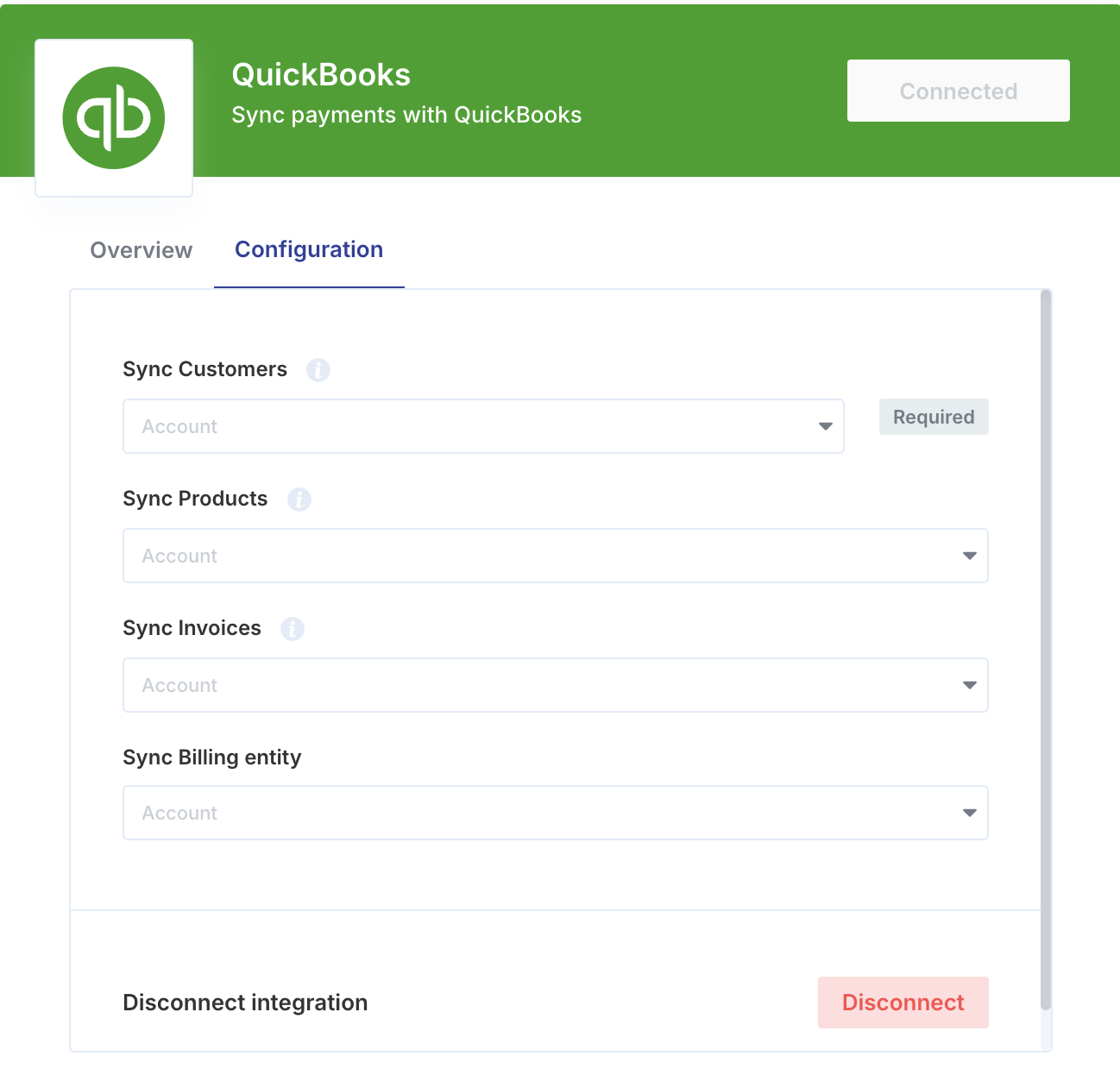
Once authenticated, you can view the configurations tab to enable the workflows you'd like to enable in your Quickbooks Platform. Currently, the supported and out of the box workflows are listed under configuration but if you don't see the one you're looking for, you could reach out to your Sales Executive
Step 3 : Synchronise your data
Import Customers
You can import your Customers from Quickbooks to Solvimon to speed up your onboarding process.
Every Organisation entity in Quickbooks is treated as a Platform for Solvimon
So Contacts in Quickbooks become Customers in Solvimon which is equivalent to Accounts and their contact details are synced under Contacts in Solvimon
Import Billing Entities
You can import details of your billing entities (read more about billing entities here)
Every Organisation entity is treated as a Billing Entity in Solvimon, created and synced automatically on running the integration.
You can add more than one Billing Entity to your platform on Solvimon. In order to be valid for invoicing in Solvimon every Billing Entity needs the following
- Name
- Tax ID
- Address
- First Line
- Postal Code
- City
- Country (read more about Country Code standardisation)
Import Products
Products configured on your Quickbooks account can be synced to Solvimon. The products would be created in the Products section in the settings menu under the category Quickbooks Products
This will include the product line items defined in the ERP along with it's metadata i.e. product code and Quickbooks resource ID
Import Invoices
Whenever an invoice is finalised in Solvimon, it will automatically get pushed to Quickbooks as an ACCREC Invoice
For Invoices pushed from Solvimon to Quickbooks, each Product will be treated as a line item in the Quickbooks Invoice along with it's usage, quantity, price and tax
Configuration of lines sent on an Invoice -
- Number
- Invoice ID
- Customer Details
- Billing Entity Details
- Invoice Line Items
- Item Name
- Unit Price
- Currency
- Invoice Total
- Taxes
- Discounts
- Commitments
We Recommend the following steps
To gain the most value from the accounting integration, follow the below steps:
- Import your customers from Quickbooks to Solvimon
- Use Solvimon to create Draft Invoices
- Review and Edit invoices within Solvimon Desk as needed
- Finalise and send invoices to customers using Solvimon
- Invoices are automatically synced with Quickbooks for revenue recognition and general accounting purposes
Once the integration is in place there can be multiple ways to setup the synchronisation. Its by default trigger based for updating the list but custom triggers can also be handled and for such requirements you can reach out to your sales executive for further assistance
You can now view your desired data on the Solvimon Desk and vice versa on your Quickbooks platform based on the integrations chosen.
🎉 You're now all set and have enabled synchronisation!
Updated 9 months ago