Quotes
Quoting is available on our Growth and Enterprise tiers. If you do not have this enabled in your tenant, reach out to your account executive.
With the Solvimon quoting tool you can compile a pricing quote for a possible customer, or a customer that wants to start using new products or move to a new plan.
The Quoting functionality looks a lot like the Subscription management functionality: it is possible to create multiple schedules with a pricing plan version, start- and end-date, discounts, commitments and (if applicable) custom pricing.

There are a few differences: a quote also has an owner, which is a user of your Solvimon platform account. This can be a sales person, for example.
Quote versions
Quotes can consist of multiple versions, that are essentially their own proposal for a subscription with all configurations that are available once a prospect decides to become your customer. Pricing can be adjusted, discounts and commitments set, and multiple schedules can be created to align with ramp-up agreements.
Creating a schedule on a quote version requires QUOTE_PRICING_PLAN_SCHEDULE.CREATE rather than PRICING_PLAN_SCHEDULE.CREATE, and is only accepted while the quote version is DRAFT. This keeps schedule creation on a quote scoped to the permission a sales representative actually needs, separate from the broader permission that governs changing live subscriptions. Adding a schedule to a quote version that has left DRAFT is rejected with a validation error on quote_version_id; a change to agreed terms belongs in a new quote version instead.
The custom fields set on a quote version carry over to the next version created from it, so a link a CRM establishes through a custom field, an opportunity ID in particular, survives a quote being rejected or returned to draft and continued as a new version. See the Salesforce quotes integration.
Quote version statuses
A quote version is in DRAFT status when created, but will have other statuses once the customer deal moves through the pipeline.
Once a customer has accepted the quote, the Solvimon Desk user gets the option to transform the quote into a regular subscription.
If a customer has rejected a quote, a new version can be created and the adjusted pricing, additional agreements or prospect feedback can be implemented in the new offer.
Creating a quote
Set up the pre-requisites
Before configuring quotes in the system, ensure the following information is set up on your platform:
- Billing entity details.
- The customer for whom you want to create the quote.
- Default subscription settings in the Settings menu (optional).
Configure the terms
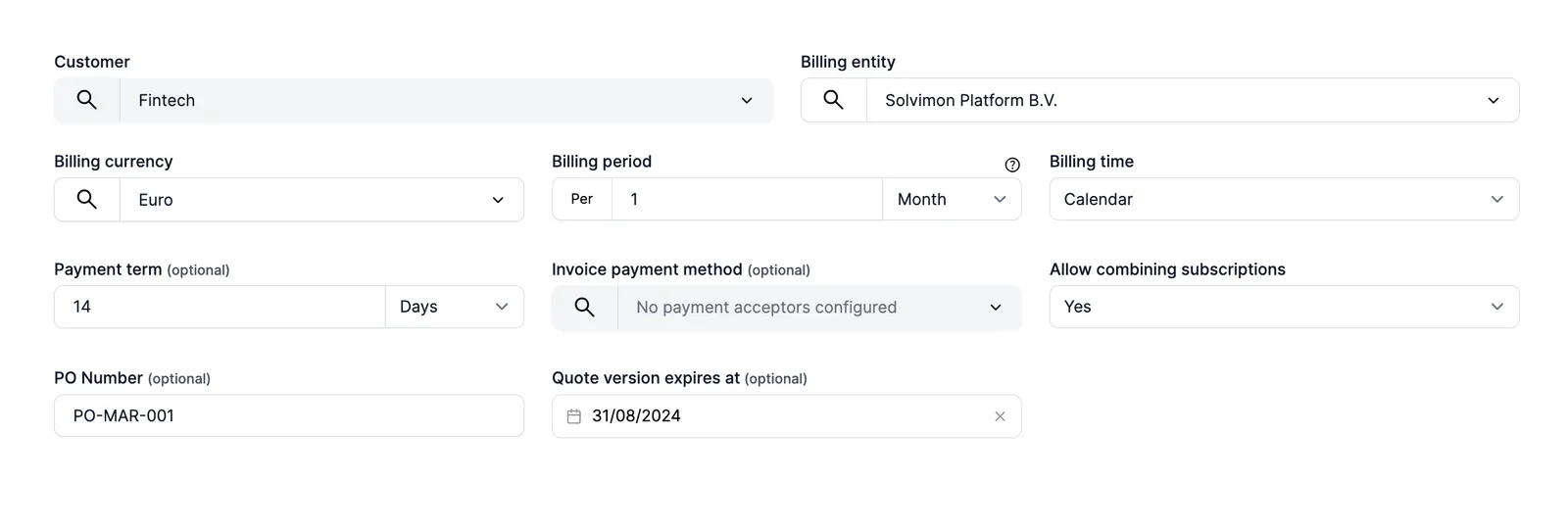
You will see a form to set up subscription terms. If you’ve already configured the default subscription settings, they will appear pre-filled.
If your team sends similar quotes repeatedly, you can also select a quote template to pre-fill the pricing plan, subscription terms, content and attachments.