
Generate an invoice for one-time or ad-hoc charges that are outside a customer’s regular subscription, and bill one or several add-ons immediately.
Why this matters
Not every charge fits a subscription’s billing cycle: a consulting engagement, a hardware shipment, or a charge for a customer who has no subscription at all. A one-off invoice lets you bill these directly, with invoice lines you compose yourself.
For one-time charges that belong to a subscription’s pricing plan, such as a setup fee or an add-on the customer buys on the spot, use on-demand charges instead.
How it works
A one-off invoice is created empty in Draft and On Hold status. You then add one or more invoice lines to it, each with its own billing period, product item (or free-text pricing name), and price. When the invoice is complete, move it to Final manually; the invoice number is generated at that point. See the invoice lifecycle for the status flow.
Creating a one-off invoice
Via API
Create the invoice with POST /v1/invoices, setting type to ONE_OFF:
curl -X POST https://test.api.solvimon.com/v1/invoices \-H "X-API-KEY: <apiKey>" \-H "Content-Type: application/json" \-d '{"type": "ONE_OFF","customer_id": "cust_UwDeeN0vxxHxMTCJeF1K","due_date": "2026-11-08T00:00:00Z","pricing_amount_type": "EXCLUDING_TAX","payment_acceptor_ids": ["paya_XwDeeN0vxxHylgCKvD1n"]}'
{"object_type": "string","id": "string","invoice_number": "string","purchase_order_number": "string","platform_id": "string","customer_id": "string","customer_reference": "string","sales_tax_percentage": "string","customer": {"object_type": "string","id": "string","created_at": "string","parent_customer_id": "string","parent_customer_ids": ["string"],"reference": "string","status": "DRAFT","timezone": "string","type": "ORGANIZATION","email": "string","notification_preferences": [{"type": "INVOICE","channels": [{"type": "EMAIL","enabled": true}]}],"locale": "string","individual": {"name": {"first_name": "string","last_name": "string","infix": "string"},"residential_address": {"line1": "string","line2": "string","city": "string","postal_code": "string","state": "string","country": "AD"}},"organization": {"legal_name": "string","tax_id": "string","tax_ids": [{"id": "string","type": "GENERIC_TAX_ID","display_name": "string","tax_id_validation_result": {"id": "string","validation_date": "string","source": "string","valid": "VALID","message": "string"}}],"registration_number": "string","tax_exempt": true,"tax_exempt_note": "string","registered_address": {"line1": "string","line2": "string","city": "string","postal_code": "string","state": "string","country": "AD"},"tax_registrations": [{"id": "string","description": "string","tax_id": "string","tax_ids": [{"id": "string","type": "GENERIC_TAX_ID","display_name": "string","tax_id_validation_result": {"id": "string","validation_date": "string","source": "string","valid": "VALID","message": "string"}}],"registration_number": "string","registered_address": {"line1": "string","line2": "string","city": "string","postal_code": "string","state": "string","country": "AD"}}]},"custom_fields": [{"id": "string","reference": "string","value": "string","values": ["string"],"integration_details": {"id": "string","reference": "string","payment_gateway_variant": "ADYEN","adyen": {"recurring_detail_reference": "string"},"stripe": {"payment_method_id": "string"}},"integration_id": "string"}],"pricing_plan_subscription_selector": {"data": [{"field": "BILLING_ENTITY_REGISTERED_ADDRESS_COUNTRY","value": "string"}],"rules": [{"field": "BILLING_ENTITY_REGISTERED_ADDRESS_COUNTRY","type": "EQUALS"}],"filters": [{"field": "BILLING_ENTITY_REGISTERED_ADDRESS_COUNTRY","type": "EQUALS","value": "string"}],"fallback": "LATEST"},"linked_integrations": [{"id": "string","link_details": [{"url": "string","custom_field_name": "string"}]}],"roles": ["DEFAULT"],"seller_details": {"default_billing_entity_id": "string"},"processing_only": true},"billing_entity": {"object_type": "string","id": "string","created_at": "string","reference": "string","status": "string","timezone": "string","legal_name": "string","tax_id": "string","tax_ids": [{"id": "string","type": "GENERIC_TAX_ID","display_name": "string","tax_id_validation_result": {"id": "string","validation_date": "string","source": "string","valid": "VALID","message": "string"}}],"registration_number": "string","registered_address": {"line1": "string","line2": "string","city": "string","postal_code": "string","state": "string","country": "AD"},"email": "string","tax_settings": {"apply_local_vat_for_missing_tax_id": true},"tax_registrations": [{"id": "string","description": "string","tax_id": "string","tax_ids": [{"id": "string","type": "GENERIC_TAX_ID","display_name": "string","tax_id_validation_result": {"id": "string","validation_date": "string","source": "string","valid": "VALID","message": "string"}}],"registration_number": "string","registered_address": {"line1": "string","line2": "string","city": "string","postal_code": "string","state": "string","country": "AD"}}],"custom_fields": [{"id": "string","reference": "string","value": "string","values": ["string"],"integration_details": {"id": "string","reference": "string","payment_gateway_variant": "ADYEN","adyen": {"recurring_detail_reference": "string"},"stripe": {"payment_method_id": "string"}},"integration_id": "string"}],"default_customer_country_selector": ["AD"],"default_billing_currency_selector": ["AED"],"linked_integrations": [{"id": "string","link_details": [{"url": "string","custom_field_name": "string"}]}]},"status": "string","on_hold": true,"type": "STANDARD","created_at": "string","updated_at": "string","invoice_date": "2024-01-15T09:30:00Z","delivery_date": "string","due_date": "2024-01-15T09:30:00Z","billing_period_date": "string","billing_currency": "string","invoice_amount_including_tax": {"quantity": "string","currency": "AED"},"open_invoice_amount": {"quantity": "string","currency": "AED"},"closed_invoice_amount": {"quantity": "string","currency": "AED"},"paid_invoice_amount": {"quantity": "string","currency": "AED"},"timezone": "string","billing_period": {"type": "DAY","value": 1},"pricing_plan_subscription_ids": ["string"],"pricing_plan_schedule_ids": ["string"],"pricing_amount_type": "EXCLUDING_TAX","periods": [{"period_order": 1,"amount_excluding_tax": {"quantity": "string","currency": "AED"},"amount_including_tax": {"quantity": "string","currency": "AED"},"billing_period": {"type": "DAY","value": 1},"start_at": "string","end_at": "string","tax_categories": [{"base_amount": {"quantity": "string","currency": "AED"},"tax_amount": {"quantity": "string","currency": "AED"},"total_amount": {"quantity": "string","currency": "AED"},"category": "string","local_amounts": {"base_amount": {"quantity": "string","currency": "AED"},"tax_amount": {"quantity": "string","currency": "AED"},"total_amount": {"quantity": "string","currency": "AED"},"used_exchange_rate": {"currency": "string","base_currency": "string","rate_timestamp": "string","rate": "string","source": "string"},"display": true},"notes": ["string"],"rates": [{"name": "string","percentage": "string","tax_amount": {"quantity": "string","currency": "AED"}}],"percentage": "string","name": "string"}],"groups": [{"group_order": 1,"amount_excluding_tax": {"quantity": "string","currency": "AED"},"amount_including_tax": {"quantity": "string","currency": "AED"},"billing_period": {"type": "DAY","value": 1},"start_at": "string","end_at": "string","type": "string","product_category": {"object_type": "string","id": "string","name": "string","reference": "string","description": "string","tax_category": "STANDARD","display_order": 1,"customer_id": "string"},"products": [{"object_type": "string","id": "string","category_id": "string","category": {"object_type": "string","id": "string","name": "string","reference": "string","description": "string","tax_category": "STANDARD","display_order": 1,"customer_id": "string"},"parent_product_id": "string","name": "string","reference": "string","description": "string","status": "DRAFT","product_type": "DEFAULT","tax_category": "STANDARD","features": [{"id": "string","reference": "string"}],"custom_fields": [{"id": "string","reference": "string","value": "string","values": ["string"],"integration_details": {"id": "string","reference": "string","payment_gateway_variant": "ADYEN","adyen": {"recurring_detail_reference": "string"},"stripe": {"payment_method_id": "string"}},"integration_id": "string"}],"display_order": 1,"linked_integrations": [{"id": "string","link_details": [{"url": "string","custom_field_name": "string"}]}],"billing_entity_id": "string","customer_id": "string","agent_context": {"guidance": "string"}}],"pricing": {"id": "string","name": "string"},"description": "string","pricing_plan_subscription_id": "string","pricing_plan_schedule_id": "string","forwarded_from_customer_id": "string","tax_categories": [{"base_amount": {"quantity": "string","currency": "AED"},"tax_amount": {"quantity": "string","currency": "AED"},"total_amount": {"quantity": "string","currency": "AED"},"category": "string","local_amounts": {"base_amount": {"quantity": "string","currency": "AED"},"tax_amount": {"quantity": "string","currency": "AED"},"total_amount": {"quantity": "string","currency": "AED"},"used_exchange_rate": {"currency": "string","base_currency": "string","rate_timestamp": "string","rate": "string","source": "string"},"display": true},"notes": ["string"],"rates": [{"name": "string","percentage": "string","tax_amount": {"quantity": "string","currency": "AED"}}],"percentage": "string","name": "string"}],"lines": [{"id": "string","line_order": 1,"description": "string","pricing_item_id": "string","pricing_item_config_id": "string","product_items": [{"object_type": "string","id": "string","product_id": "string","product": {"object_type": "string","id": "string","category_id": "string","category": {"object_type": "string","id": "string","name": "string","reference": "string","description": "string","tax_category": "STANDARD","display_order": 1,"customer_id": "string"},"parent_product_id": "string","name": "string","reference": "string","description": "string","status": "DRAFT","product_type": "DEFAULT","tax_category": "STANDARD","features": [{"id": "string","reference": "string"}],"custom_fields": [{"id": "string","reference": "string","value": "string","values": ["string"],"integration_details": {"id": "string","reference": "string","payment_gateway_variant": "ADYEN","adyen": {"recurring_detail_reference": "string"},"stripe": {"payment_method_id": "string"}},"integration_id": "string"}],"display_order": 1,"linked_integrations": [{"id": "string","link_details": [{"url": "string","custom_field_name": "string"}]}],"billing_entity_id": "string","customer_id": "string","agent_context": {"guidance": "string"}},"name": "string","status": "DRAFT","reference": "string","description": "string","type": "REVENUE","model_type": "USAGE_BASED","usage_based": {"meter_value_calculation_id": "string","meter_value_calculation": {"object_type": "string","id": "string","reference": "string","name": "string","description": "string","calculation_type": "SUM","persist": true,"meter_id": "string","meter": {"object_type": "string","id": "string","reference": "string","name": "string","description": "string","status": "DRAFT","meter_values": [{"id": "string","object": {"object_type": "string","id": "string","reference": "string","name": "string","description": "string","status": "DRAFT","type": "NUMBER"},"required": true}],"meter_properties": [{"id": "string","object": {"object_type": "string","id": "string","reference": "string","name": "string","description": "string","status": "DRAFT","type": "NUMBER","enum_values": ["string"]},"required": true}]},"meter_value_id": "string","meter_value": {"object_type": "string","id": "string","reference": "string","name": "string","description": "string","status": "DRAFT","type": "NUMBER"},"meter_property_id": "string","meter_property": {"object_type": "string","id": "string","reference": "string","name": "string","description": "string","status": "DRAFT","type": "NUMBER","enum_values": ["string"]}},"tiering_meter_value_calculation_id": "string","tiering_meter_value_calculation": {"object_type": "string","id": "string","reference": "string","name": "string","description": "string","calculation_type": "SUM","persist": true,"meter_id": "string","meter": {"object_type": "string","id": "string","reference": "string","name": "string","description": "string","status": "DRAFT","meter_values": [{"id": "string","object": {"object_type": "string","id": "string","reference": "string","name": "string","description": "string","status": "DRAFT","type": "NUMBER"},"required": true}],"meter_properties": [{"id": "string","object": {"object_type": "string","id": "string","reference": "string","name": "string","description": "string","status": "DRAFT","type": "NUMBER","enum_values": ["string"]},"required": true}]},"meter_value_id": "string","meter_value": {"object_type": "string","id": "string","reference": "string","name": "string","description": "string","status": "DRAFT","type": "NUMBER"},"meter_property_id": "string","meter_property": {"object_type": "string","id": "string","reference": "string","name": "string","description": "string","status": "DRAFT","type": "NUMBER","enum_values": ["string"]}},"report_meter_value_calculation_ids": ["string"],"conditions": {"name": "string","expression": {"operator": "AND","operands": [{"meter_property": {"id": "string","reference": "string","meter_property": {"object_type": "string","id": "string","reference": "string","name": "string","description": "string","status": "DRAFT","type": "NUMBER","enum_values": ["string"]},"value": "string","values": ["string"],"meter_property_variable_id": "string","meter_property_variable": {"object_type": "string","id": "string","reference": "string","name": "string","description": "string","meter_property_id": "string","type": "LIST","status": "DRAFT","value_count": 1,"created_at": "string","updated_at": "string"},"comparator": "EQUALS"},"expression": {}}]},"meter_properties": [{"id": "string","reference": "string","meter_property": {"object_type": "string","id": "string","reference": "string","name": "string","description": "string","status": "DRAFT","type": "NUMBER","enum_values": ["string"]},"value": "string","values": ["string"],"meter_property_variable_id": "string","meter_property_variable": {"object_type": "string","id": "string","reference": "string","name": "string","description": "string","meter_property_id": "string","type": "LIST","status": "DRAFT","value_count": 1,"created_at": "string","updated_at": "string"},"comparator": "EQUALS"}]}},"credits": {"credit_type_id": "string","credit_type": {"object_type": "string","id": "string","reference": "string","status": "DRAFT","name": "string","description": "string","unit_name": {"singular": "string","plural": "string"},"created_at": "string","updated_at": "string"}},"meter_value_calculation": {"object_type": "string","id": "string","reference": "string","name": "string","description": "string","calculation_type": "SUM","persist": true,"meter_id": "string","meter": {"object_type": "string","id": "string","reference": "string","name": "string","description": "string","status": "DRAFT","meter_values": [{"id": "string","object": {"object_type": "string","id": "string","reference": "string","name": "string","description": "string","status": "DRAFT","type": "NUMBER"},"required": true}],"meter_properties": [{"id": "string","object": {"object_type": "string","id": "string","reference": "string","name": "string","description": "string","status": "DRAFT","type": "NUMBER","enum_values": ["string"]},"required": true}]},"meter_value_id": "string","meter_value": {"object_type": "string","id": "string","reference": "string","name": "string","description": "string","status": "DRAFT","type": "NUMBER"},"meter_property_id": "string","meter_property": {"object_type": "string","id": "string","reference": "string","name": "string","description": "string","status": "DRAFT","type": "NUMBER","enum_values": ["string"]}},"tax_category": "STANDARD","display_order": 1,"unit_name": {"singular": "string","plural": "string"},"custom_fields": [{"id": "string","reference": "string","value": "string","values": ["string"],"integration_details": {"id": "string","reference": "string","payment_gateway_variant": "ADYEN","adyen": {"recurring_detail_reference": "string"},"stripe": {"payment_method_id": "string"}},"integration_id": "string"}],"customer_id": "string","agent_context": {"guidance": "string"},"meter_value_calculation_id": "string","report_meter_value_calculation_ids": ["string"]}],"type": "string","pricing_type": "string","commitment_type": "string","discount_type": "string","coupon_data": {"coupon_id": "string","promotion_code_id": "string"},"tax_categories": [{"base_amount": {"quantity": "string","currency": "AED"},"tax_amount": {"quantity": "string","currency": "AED"},"total_amount": {"quantity": "string","currency": "AED"},"category": "string","local_amounts": {"base_amount": {"quantity": "string","currency": "AED"},"tax_amount": {"quantity": "string","currency": "AED"},"total_amount": {"quantity": "string","currency": "AED"},"used_exchange_rate": {"currency": "string","base_currency": "string","rate_timestamp": "string","rate": "string","source": "string"},"display": true},"notes": ["string"],"rates": [{"name": "string","percentage": "string","tax_amount": {"quantity": "string","currency": "AED"}}],"percentage": "string","name": "string"}],"amount_excluding_tax": {"quantity": "string","currency": "AED"},"amount_including_tax": {"quantity": "string","currency": "AED"},"conditions": {"name": "string","expression": {"operator": "AND","operands": [{"meter_property": {"id": "string","reference": "string","meter_property": {"object_type": "string","id": "string","reference": "string","name": "string","description": "string","status": "DRAFT","type": "NUMBER","enum_values": ["string"]},"value": "string","values": ["string"],"meter_property_variable_id": "string","meter_property_variable": {"object_type": "string","id": "string","reference": "string","name": "string","description": "string","meter_property_id": "string","type": "LIST","status": "DRAFT","value_count": 1,"created_at": "string","updated_at": "string"},"comparator": "EQUALS"},"expression": {}}]},"meter_properties": [{"id": "string","reference": "string","meter_property": {"object_type": "string","id": "string","reference": "string","name": "string","description": "string","status": "DRAFT","type": "NUMBER","enum_values": ["string"]},"value": "string","values": ["string"],"meter_property_variable_id": "string","meter_property_variable": {"object_type": "string","id": "string","reference": "string","name": "string","description": "string","meter_property_id": "string","type": "LIST","status": "DRAFT","value_count": 1,"created_at": "string","updated_at": "string"},"comparator": "EQUALS"}]},"meter_value": {"reference": "string","type": "string","number": "string","amount": {"quantity": "string","currency": "AED"}},"details": {"amount": {"quantity": "string","currency": "AED"},"pricing_currency": "string","pricing_amount": {"quantity": "string","currency": "AED"},"conversion": {"credits": {"quantity": "string","credit_type_id": "string","credit_type": {"object_type": "string","id": "string","reference": "string","status": "DRAFT","name": "string","description": "string","unit_name": {"singular": "string","plural": "string"},"created_at": "string","updated_at": "string"}},"convert_from_meter_value_id": "string"},"band": {"amount": {"quantity": "string","currency": "AED"},"percentage": "string","credits": {"quantity": "string","credit_type_id": "string","credit_type": {"object_type": "string","id": "string","reference": "string","status": "DRAFT","name": "string","description": "string","unit_name": {"singular": "string","plural": "string"},"created_at": "string","updated_at": "string"}},"maximum_amount": {"quantity": "string","currency": "AED"},"minimum_amount": {"quantity": "string","currency": "AED"},"maximum_number": "string","minimum_number": "string","block_size": {"number": "string","amount": {"quantity": "string","currency": "AED"},"count": "string"},"tier_lower_bound": {"number": "string","amount": {"quantity": "string","currency": "AED"},"count": "string"},"tier_top_bound": {"number": "string","amount": {"quantity": "string","currency": "AED"},"count": "string"},"volume_share": "string","included_volume": {"number": "string","amount": {"quantity": "string","currency": "AED"},"count": "string"}},"meter_value": {"id": "string","reference": "string","number": "string","amount": {"quantity": "string","currency": "AED"},"count": "string","ratio": "string","type": "NUMBER"},"tiering_meter_value": {"id": "string","reference": "string","number": "string","amount": {"quantity": "string","currency": "AED"},"count": "string","ratio": "string","type": "NUMBER"},"price_bound": "string","meter_values": [{"number": "string","amount": {"quantity": "string","currency": "AED"},"amount_in_pricing_currency": {"quantity": "string","currency": "AED"},"count": 1,"ratio": "string"}],"report_meter_values": [{"meter_value_calculation_id": "string","number": "string","amount": {"quantity": "string","currency": "AED"},"amount_in_pricing_currency": {"quantity": "string","currency": "AED"},"count": "string","ratio": "string"}],"description": "string","used_exchange_rates": [{"currency": "string","base_currency": "string","rate_timestamp": "string","rate": "string","source": "string"}],"included_volume_details": {"included_volume": {"id": "string","reference": "string","number": "string","amount": {"quantity": "string","currency": "AED"},"count": "string","ratio": "string","type": "NUMBER"},"available_included_volume": {"id": "string","reference": "string","number": "string","amount": {"quantity": "string","currency": "AED"},"count": "string","ratio": "string","type": "NUMBER"},"period_volume": {"id": "string","reference": "string","number": "string","amount": {"quantity": "string","currency": "AED"},"count": "string","ratio": "string","type": "NUMBER"}},"wallet_balance_details": {"used_wallet_credits": {"quantity": "string","credit_type_id": "string","credit_type": {"object_type": "string","id": "string","reference": "string","status": "DRAFT","name": "string","description": "string","unit_name": {"singular": "string","plural": "string"},"created_at": "string","updated_at": "string"}},"left_wallet_credits": {"quantity": "string","credit_type_id": "string","credit_type": {"object_type": "string","id": "string","reference": "string","status": "DRAFT","name": "string","description": "string","unit_name": {"singular": "string","plural": "string"},"created_at": "string","updated_at": "string"}},"available_wallet_credits": {"quantity": "string","credit_type_id": "string","credit_type": {"object_type": "string","id": "string","reference": "string","status": "DRAFT","name": "string","description": "string","unit_name": {"singular": "string","plural": "string"},"created_at": "string","updated_at": "string"}}},"wallet_balances": [{"wallet_id": "string","used_balance": {"credits": {"quantity": "string","credit_type_id": "string","credit_type": {"object_type": "string","id": "string","reference": "string","status": "DRAFT","name": "string","description": "string","unit_name": {"singular": "string","plural": "string"},"created_at": "string","updated_at": "string"}},"amount": {"quantity": "string","currency": "AED"}},"left_balance": {"credits": {"quantity": "string","credit_type_id": "string","credit_type": {"object_type": "string","id": "string","reference": "string","status": "DRAFT","name": "string","description": "string","unit_name": {"singular": "string","plural": "string"},"created_at": "string","updated_at": "string"}},"amount": {"quantity": "string","currency": "AED"}},"available_balance": {"credits": {"quantity": "string","credit_type_id": "string","credit_type": {"object_type": "string","id": "string","reference": "string","status": "DRAFT","name": "string","description": "string","unit_name": {"singular": "string","plural": "string"},"created_at": "string","updated_at": "string"}},"amount": {"quantity": "string","currency": "AED"}}}],"used_wallet_grants": [{"wallet_id": "string","wallet_grant_id": "string","used_balance": {"credits": {"quantity": "string","credit_type_id": "string","credit_type": {"object_type": "string","id": "string","reference": "string","status": "DRAFT","name": "string","description": "string","unit_name": {"singular": "string","plural": "string"},"created_at": "string","updated_at": "string"}},"amount": {"quantity": "string","currency": "AED"}},"balance_at": "string","paid_at": "string"}],"split_pricing": {"meter_properties": [{"id": "string","reference": "string","value": "string","meter_property": {"object_type": "string","id": "string","reference": "string","name": "string","description": "string","status": "DRAFT","type": "NUMBER","enum_values": ["string"]}}]},"meter_value_share_of_total": "string","meter_value_share_of_processing_only_customer_total": "string"},"sub_lines": [{"sub_line_order": 1,"details": {"amount": {"quantity": "string","currency": "AED"},"pricing_currency": "string","pricing_amount": {"quantity": "string","currency": "AED"},"conversion": {"credits": {"quantity": "string","credit_type_id": "string","credit_type": {"object_type": "string","id": "string","reference": "string","status": "DRAFT","name": "string","description": "string","unit_name": {"singular": "string","plural": "string"},"created_at": "string","updated_at": "string"}},"convert_from_meter_value_id": "string"},"band": {"amount": {"quantity": "string","currency": "AED"},"percentage": "string","credits": {"quantity": "string","credit_type_id": "string","credit_type": {"object_type": "string","id": "string","reference": "string","status": "DRAFT","name": "string","description": "string","unit_name": {"singular": "string","plural": "string"},"created_at": "string","updated_at": "string"}},"maximum_amount": {"quantity": "string","currency": "AED"},"minimum_amount": {"quantity": "string","currency": "AED"},"maximum_number": "string","minimum_number": "string","block_size": {"number": "string","amount": {"quantity": "string","currency": "AED"},"count": "string"},"tier_lower_bound": {"number": "string","amount": {"quantity": "string","currency": "AED"},"count": "string"},"tier_top_bound": {"number": "string","amount": {"quantity": "string","currency": "AED"},"count": "string"},"volume_share": "string","included_volume": {"number": "string","amount": {"quantity": "string","currency": "AED"},"count": "string"}},"meter_value": {"id": "string","reference": "string","number": "string","amount": {"quantity": "string","currency": "AED"},"count": "string","ratio": "string","type": "NUMBER"},"tiering_meter_value": {"id": "string","reference": "string","number": "string","amount": {"quantity": "string","currency": "AED"},"count": "string","ratio": "string","type": "NUMBER"},"price_bound": "string","meter_values": [{"number": "string","amount": {"quantity": "string","currency": "AED"},"amount_in_pricing_currency": {"quantity": "string","currency": "AED"},"count": 1,"ratio": "string"}],"report_meter_values": [{"meter_value_calculation_id": "string","number": "string","amount": {"quantity": "string","currency": "AED"},"amount_in_pricing_currency": {"quantity": "string","currency": "AED"},"count": "string","ratio": "string"}],"description": "string","used_exchange_rates": [{"currency": "string","base_currency": "string","rate_timestamp": "string","rate": "string","source": "string"}],"included_volume_details": {"included_volume": {"id": "string","reference": "string","number": "string","amount": {"quantity": "string","currency": "AED"},"count": "string","ratio": "string","type": "NUMBER"},"available_included_volume": {"id": "string","reference": "string","number": "string","amount": {"quantity": "string","currency": "AED"},"count": "string","ratio": "string","type": "NUMBER"},"period_volume": {"id": "string","reference": "string","number": "string","amount": {"quantity": "string","currency": "AED"},"count": "string","ratio": "string","type": "NUMBER"}},"wallet_balance_details": {"used_wallet_credits": {"quantity": "string","credit_type_id": "string","credit_type": {"object_type": "string","id": "string","reference": "string","status": "DRAFT","name": "string","description": "string","unit_name": {"singular": "string","plural": "string"},"created_at": "string","updated_at": "string"}},"left_wallet_credits": {"quantity": "string","credit_type_id": "string","credit_type": {"object_type": "string","id": "string","reference": "string","status": "DRAFT","name": "string","description": "string","unit_name": {"singular": "string","plural": "string"},"created_at": "string","updated_at": "string"}},"available_wallet_credits": {"quantity": "string","credit_type_id": "string","credit_type": {"object_type": "string","id": "string","reference": "string","status": "DRAFT","name": "string","description": "string","unit_name": {"singular": "string","plural": "string"},"created_at": "string","updated_at": "string"}}},"wallet_balances": [{"wallet_id": "string","used_balance": {"credits": {"quantity": "string","credit_type_id": "string","credit_type": {"object_type": "string","id": "string","reference": "string","status": "DRAFT","name": "string","description": "string","unit_name": {"singular": "string","plural": "string"},"created_at": "string","updated_at": "string"}},"amount": {"quantity": "string","currency": "AED"}},"left_balance": {"credits": {"quantity": "string","credit_type_id": "string","credit_type": {"object_type": "string","id": "string","reference": "string","status": "DRAFT","name": "string","description": "string","unit_name": {"singular": "string","plural": "string"},"created_at": "string","updated_at": "string"}},"amount": {"quantity": "string","currency": "AED"}},"available_balance": {"credits": {"quantity": "string","credit_type_id": "string","credit_type": {"object_type": "string","id": "string","reference": "string","status": "DRAFT","name": "string","description": "string","unit_name": {"singular": "string","plural": "string"},"created_at": "string","updated_at": "string"}},"amount": {"quantity": "string","currency": "AED"}}}],"used_wallet_grants": [{"wallet_id": "string","wallet_grant_id": "string","used_balance": {"credits": {"quantity": "string","credit_type_id": "string","credit_type": {"object_type": "string","id": "string","reference": "string","status": "DRAFT","name": "string","description": "string","unit_name": {"singular": "string","plural": "string"},"created_at": "string","updated_at": "string"}},"amount": {"quantity": "string","currency": "AED"}},"balance_at": "string","paid_at": "string"}],"split_pricing": {"meter_properties": [{"id": "string","reference": "string","value": "string","meter_property": {"object_type": "string","id": "string","reference": "string","name": "string","description": "string","status": "DRAFT","type": "NUMBER","enum_values": ["string"]}}]},"meter_value_share_of_total": "string","meter_value_share_of_processing_only_customer_total": "string"},"description": "string","processing_only_customer_id": "string","type": "USAGE_BASED_CONVERSION","usage_based_conversion": {"conditions": {"name": "string","expression": {"operator": "AND","operands": [{"meter_property": {"id": "string","reference": "string","meter_property": {"object_type": "string","id": "string","reference": "string","name": "string","description": "string","status": "DRAFT","type": "NUMBER","enum_values": ["string"]},"value": "string","values": ["string"],"meter_property_variable_id": "string","meter_property_variable": {"object_type": "string","id": "string","reference": "string","name": "string","description": "string","meter_property_id": "string","type": "LIST","status": "DRAFT","value_count": 1,"created_at": "string","updated_at": "string"},"comparator": "EQUALS"},"expression": {}}]},"meter_properties": [{"id": "string","reference": "string","meter_property": {"object_type": "string","id": "string","reference": "string","name": "string","description": "string","status": "DRAFT","type": "NUMBER","enum_values": ["string"]},"value": "string","values": ["string"],"meter_property_variable_id": "string","meter_property_variable": {"object_type": "string","id": "string","reference": "string","name": "string","description": "string","meter_property_id": "string","type": "LIST","status": "DRAFT","value_count": 1,"created_at": "string","updated_at": "string"},"comparator": "EQUALS"}]}},"processing_only_customer_resource_id": "string"}],"applicable_for_clauses": ["string"]}],"billing_customer_id": "string"}]}],"closed_periods": [{"period_order": 1,"amount_excluding_tax": {"quantity": "string","currency": "AED"},"amount_including_tax": {"quantity": "string","currency": "AED"},"billing_period": {"type": "DAY","value": 1},"start_at": "string","end_at": "string","tax_categories": [{"base_amount": {"quantity": "string","currency": "AED"},"tax_amount": {"quantity": "string","currency": "AED"},"total_amount": {"quantity": "string","currency": "AED"},"category": "string","local_amounts": {"base_amount": {"quantity": "string","currency": "AED"},"tax_amount": {"quantity": "string","currency": "AED"},"total_amount": {"quantity": "string","currency": "AED"},"used_exchange_rate": {"currency": "string","base_currency": "string","rate_timestamp": "string","rate": "string","source": "string"},"display": true},"notes": ["string"],"rates": [{"name": "string","percentage": "string","tax_amount": {"quantity": "string","currency": "AED"}}],"percentage": "string","name": "string"}],"groups": [{"group_order": 1,"amount_excluding_tax": {"quantity": "string","currency": "AED"},"amount_including_tax": {"quantity": "string","currency": "AED"},"billing_period": {"type": "DAY","value": 1},"start_at": "string","end_at": "string","type": "string","product_category": {"object_type": "string","id": "string","name": "string","reference": "string","description": "string","tax_category": "STANDARD","display_order": 1,"customer_id": "string"},"products": [{"object_type": "string","id": "string","category_id": "string","category": {"object_type": "string","id": "string","name": "string","reference": "string","description": "string","tax_category": "STANDARD","display_order": 1,"customer_id": "string"},"parent_product_id": "string","name": "string","reference": "string","description": "string","status": "DRAFT","product_type": "DEFAULT","tax_category": "STANDARD","features": [{"id": "string","reference": "string"}],"custom_fields": [{"id": "string","reference": "string","value": "string","values": ["string"],"integration_details": {"id": "string","reference": "string","payment_gateway_variant": "ADYEN","adyen": {"recurring_detail_reference": "string"},"stripe": {"payment_method_id": "string"}},"integration_id": "string"}],"display_order": 1,"linked_integrations": [{"id": "string","link_details": [{"url": "string","custom_field_name": "string"}]}],"billing_entity_id": "string","customer_id": "string","agent_context": {"guidance": "string"}}],"pricing": {"id": "string","name": "string"},"description": "string","pricing_plan_subscription_id": "string","pricing_plan_schedule_id": "string","forwarded_from_customer_id": "string","tax_categories": [{"base_amount": {"quantity": "string","currency": "AED"},"tax_amount": {"quantity": "string","currency": "AED"},"total_amount": {"quantity": "string","currency": "AED"},"category": "string","local_amounts": {"base_amount": {"quantity": "string","currency": "AED"},"tax_amount": {"quantity": "string","currency": "AED"},"total_amount": {"quantity": "string","currency": "AED"},"used_exchange_rate": {"currency": "string","base_currency": "string","rate_timestamp": "string","rate": "string","source": "string"},"display": true},"notes": ["string"],"rates": [{"name": "string","percentage": "string","tax_amount": {"quantity": "string","currency": "AED"}}],"percentage": "string","name": "string"}],"lines": [{"id": "string","line_order": 1,"description": "string","pricing_item_id": "string","pricing_item_config_id": "string","product_items": [{"object_type": "string","id": "string","product_id": "string","product": {"object_type": "string","id": "string","category_id": "string","category": {"object_type": "string","id": "string","name": "string","reference": "string","description": "string","tax_category": "STANDARD","display_order": 1,"customer_id": "string"},"parent_product_id": "string","name": "string","reference": "string","description": "string","status": "DRAFT","product_type": "DEFAULT","tax_category": "STANDARD","features": [{"id": "string","reference": "string"}],"custom_fields": [{"id": "string","reference": "string","value": "string","values": ["string"],"integration_details": {"id": "string","reference": "string","payment_gateway_variant": "ADYEN","adyen": {"recurring_detail_reference": "string"},"stripe": {"payment_method_id": "string"}},"integration_id": "string"}],"display_order": 1,"linked_integrations": [{"id": "string","link_details": [{"url": "string","custom_field_name": "string"}]}],"billing_entity_id": "string","customer_id": "string","agent_context": {"guidance": "string"}},"name": "string","status": "DRAFT","reference": "string","description": "string","type": "REVENUE","model_type": "USAGE_BASED","usage_based": {"meter_value_calculation_id": "string","meter_value_calculation": {"object_type": "string","id": "string","reference": "string","name": "string","description": "string","calculation_type": "SUM","persist": true,"meter_id": "string","meter": {"object_type": "string","id": "string","reference": "string","name": "string","description": "string","status": "DRAFT","meter_values": [{"id": "string","object": {"object_type": "string","id": "string","reference": "string","name": "string","description": "string","status": "DRAFT","type": "NUMBER"},"required": true}],"meter_properties": [{"id": "string","object": {"object_type": "string","id": "string","reference": "string","name": "string","description": "string","status": "DRAFT","type": "NUMBER","enum_values": ["string"]},"required": true}]},"meter_value_id": "string","meter_value": {"object_type": "string","id": "string","reference": "string","name": "string","description": "string","status": "DRAFT","type": "NUMBER"},"meter_property_id": "string","meter_property": {"object_type": "string","id": "string","reference": "string","name": "string","description": "string","status": "DRAFT","type": "NUMBER","enum_values": ["string"]}},"tiering_meter_value_calculation_id": "string","tiering_meter_value_calculation": {"object_type": "string","id": "string","reference": "string","name": "string","description": "string","calculation_type": "SUM","persist": true,"meter_id": "string","meter": {"object_type": "string","id": "string","reference": "string","name": "string","description": "string","status": "DRAFT","meter_values": [{"id": "string","object": {"object_type": "string","id": "string","reference": "string","name": "string","description": "string","status": "DRAFT","type": "NUMBER"},"required": true}],"meter_properties": [{"id": "string","object": {"object_type": "string","id": "string","reference": "string","name": "string","description": "string","status": "DRAFT","type": "NUMBER","enum_values": ["string"]},"required": true}]},"meter_value_id": "string","meter_value": {"object_type": "string","id": "string","reference": "string","name": "string","description": "string","status": "DRAFT","type": "NUMBER"},"meter_property_id": "string","meter_property": {"object_type": "string","id": "string","reference": "string","name": "string","description": "string","status": "DRAFT","type": "NUMBER","enum_values": ["string"]}},"report_meter_value_calculation_ids": ["string"],"conditions": {"name": "string","expression": {"operator": "AND","operands": [{"meter_property": {"id": "string","reference": "string","meter_property": {"object_type": "string","id": "string","reference": "string","name": "string","description": "string","status": "DRAFT","type": "NUMBER","enum_values": ["string"]},"value": "string","values": ["string"],"meter_property_variable_id": "string","meter_property_variable": {"object_type": "string","id": "string","reference": "string","name": "string","description": "string","meter_property_id": "string","type": "LIST","status": "DRAFT","value_count": 1,"created_at": "string","updated_at": "string"},"comparator": "EQUALS"},"expression": {}}]},"meter_properties": [{"id": "string","reference": "string","meter_property": {"object_type": "string","id": "string","reference": "string","name": "string","description": "string","status": "DRAFT","type": "NUMBER","enum_values": ["string"]},"value": "string","values": ["string"],"meter_property_variable_id": "string","meter_property_variable": {"object_type": "string","id": "string","reference": "string","name": "string","description": "string","meter_property_id": "string","type": "LIST","status": "DRAFT","value_count": 1,"created_at": "string","updated_at": "string"},"comparator": "EQUALS"}]}},"credits": {"credit_type_id": "string","credit_type": {"object_type": "string","id": "string","reference": "string","status": "DRAFT","name": "string","description": "string","unit_name": {"singular": "string","plural": "string"},"created_at": "string","updated_at": "string"}},"meter_value_calculation": {"object_type": "string","id": "string","reference": "string","name": "string","description": "string","calculation_type": "SUM","persist": true,"meter_id": "string","meter": {"object_type": "string","id": "string","reference": "string","name": "string","description": "string","status": "DRAFT","meter_values": [{"id": "string","object": {"object_type": "string","id": "string","reference": "string","name": "string","description": "string","status": "DRAFT","type": "NUMBER"},"required": true}],"meter_properties": [{"id": "string","object": {"object_type": "string","id": "string","reference": "string","name": "string","description": "string","status": "DRAFT","type": "NUMBER","enum_values": ["string"]},"required": true}]},"meter_value_id": "string","meter_value": {"object_type": "string","id": "string","reference": "string","name": "string","description": "string","status": "DRAFT","type": "NUMBER"},"meter_property_id": "string","meter_property": {"object_type": "string","id": "string","reference": "string","name": "string","description": "string","status": "DRAFT","type": "NUMBER","enum_values": ["string"]}},"tax_category": "STANDARD","display_order": 1,"unit_name": {"singular": "string","plural": "string"},"custom_fields": [{"id": "string","reference": "string","value": "string","values": ["string"],"integration_details": {"id": "string","reference": "string","payment_gateway_variant": "ADYEN","adyen": {"recurring_detail_reference": "string"},"stripe": {"payment_method_id": "string"}},"integration_id": "string"}],"customer_id": "string","agent_context": {"guidance": "string"},"meter_value_calculation_id": "string","report_meter_value_calculation_ids": ["string"]}],"type": "string","pricing_type": "string","commitment_type": "string","discount_type": "string","coupon_data": {"coupon_id": "string","promotion_code_id": "string"},"tax_categories": [{"base_amount": {"quantity": "string","currency": "AED"},"tax_amount": {"quantity": "string","currency": "AED"},"total_amount": {"quantity": "string","currency": "AED"},"category": "string","local_amounts": {"base_amount": {"quantity": "string","currency": "AED"},"tax_amount": {"quantity": "string","currency": "AED"},"total_amount": {"quantity": "string","currency": "AED"},"used_exchange_rate": {"currency": "string","base_currency": "string","rate_timestamp": "string","rate": "string","source": "string"},"display": true},"notes": ["string"],"rates": [{"name": "string","percentage": "string","tax_amount": {"quantity": "string","currency": "AED"}}],"percentage": "string","name": "string"}],"amount_excluding_tax": {"quantity": "string","currency": "AED"},"amount_including_tax": {"quantity": "string","currency": "AED"},"conditions": {"name": "string","expression": {"operator": "AND","operands": [{"meter_property": {"id": "string","reference": "string","meter_property": {"object_type": "string","id": "string","reference": "string","name": "string","description": "string","status": "DRAFT","type": "NUMBER","enum_values": ["string"]},"value": "string","values": ["string"],"meter_property_variable_id": "string","meter_property_variable": {"object_type": "string","id": "string","reference": "string","name": "string","description": "string","meter_property_id": "string","type": "LIST","status": "DRAFT","value_count": 1,"created_at": "string","updated_at": "string"},"comparator": "EQUALS"},"expression": {}}]},"meter_properties": [{"id": "string","reference": "string","meter_property": {"object_type": "string","id": "string","reference": "string","name": "string","description": "string","status": "DRAFT","type": "NUMBER","enum_values": ["string"]},"value": "string","values": ["string"],"meter_property_variable_id": "string","meter_property_variable": {"object_type": "string","id": "string","reference": "string","name": "string","description": "string","meter_property_id": "string","type": "LIST","status": "DRAFT","value_count": 1,"created_at": "string","updated_at": "string"},"comparator": "EQUALS"}]},"meter_value": {"reference": "string","type": "string","number": "string","amount": {"quantity": "string","currency": "AED"}},"details": {"amount": {"quantity": "string","currency": "AED"},"pricing_currency": "string","pricing_amount": {"quantity": "string","currency": "AED"},"conversion": {"credits": {"quantity": "string","credit_type_id": "string","credit_type": {"object_type": "string","id": "string","reference": "string","status": "DRAFT","name": "string","description": "string","unit_name": {"singular": "string","plural": "string"},"created_at": "string","updated_at": "string"}},"convert_from_meter_value_id": "string"},"band": {"amount": {"quantity": "string","currency": "AED"},"percentage": "string","credits": {"quantity": "string","credit_type_id": "string","credit_type": {"object_type": "string","id": "string","reference": "string","status": "DRAFT","name": "string","description": "string","unit_name": {"singular": "string","plural": "string"},"created_at": "string","updated_at": "string"}},"maximum_amount": {"quantity": "string","currency": "AED"},"minimum_amount": {"quantity": "string","currency": "AED"},"maximum_number": "string","minimum_number": "string","block_size": {"number": "string","amount": {"quantity": "string","currency": "AED"},"count": "string"},"tier_lower_bound": {"number": "string","amount": {"quantity": "string","currency": "AED"},"count": "string"},"tier_top_bound": {"number": "string","amount": {"quantity": "string","currency": "AED"},"count": "string"},"volume_share": "string","included_volume": {"number": "string","amount": {"quantity": "string","currency": "AED"},"count": "string"}},"meter_value": {"id": "string","reference": "string","number": "string","amount": {"quantity": "string","currency": "AED"},"count": "string","ratio": "string","type": "NUMBER"},"tiering_meter_value": {"id": "string","reference": "string","number": "string","amount": {"quantity": "string","currency": "AED"},"count": "string","ratio": "string","type": "NUMBER"},"price_bound": "string","meter_values": [{"number": "string","amount": {"quantity": "string","currency": "AED"},"amount_in_pricing_currency": {"quantity": "string","currency": "AED"},"count": 1,"ratio": "string"}],"report_meter_values": [{"meter_value_calculation_id": "string","number": "string","amount": {"quantity": "string","currency": "AED"},"amount_in_pricing_currency": {"quantity": "string","currency": "AED"},"count": "string","ratio": "string"}],"description": "string","used_exchange_rates": [{"currency": "string","base_currency": "string","rate_timestamp": "string","rate": "string","source": "string"}],"included_volume_details": {"included_volume": {"id": "string","reference": "string","number": "string","amount": {"quantity": "string","currency": "AED"},"count": "string","ratio": "string","type": "NUMBER"},"available_included_volume": {"id": "string","reference": "string","number": "string","amount": {"quantity": "string","currency": "AED"},"count": "string","ratio": "string","type": "NUMBER"},"period_volume": {"id": "string","reference": "string","number": "string","amount": {"quantity": "string","currency": "AED"},"count": "string","ratio": "string","type": "NUMBER"}},"wallet_balance_details": {"used_wallet_credits": {"quantity": "string","credit_type_id": "string","credit_type": {"object_type": "string","id": "string","reference": "string","status": "DRAFT","name": "string","description": "string","unit_name": {"singular": "string","plural": "string"},"created_at": "string","updated_at": "string"}},"left_wallet_credits": {"quantity": "string","credit_type_id": "string","credit_type": {"object_type": "string","id": "string","reference": "string","status": "DRAFT","name": "string","description": "string","unit_name": {"singular": "string","plural": "string"},"created_at": "string","updated_at": "string"}},"available_wallet_credits": {"quantity": "string","credit_type_id": "string","credit_type": {"object_type": "string","id": "string","reference": "string","status": "DRAFT","name": "string","description": "string","unit_name": {"singular": "string","plural": "string"},"created_at": "string","updated_at": "string"}}},"wallet_balances": [{"wallet_id": "string","used_balance": {"credits": {"quantity": "string","credit_type_id": "string","credit_type": {"object_type": "string","id": "string","reference": "string","status": "DRAFT","name": "string","description": "string","unit_name": {"singular": "string","plural": "string"},"created_at": "string","updated_at": "string"}},"amount": {"quantity": "string","currency": "AED"}},"left_balance": {"credits": {"quantity": "string","credit_type_id": "string","credit_type": {"object_type": "string","id": "string","reference": "string","status": "DRAFT","name": "string","description": "string","unit_name": {"singular": "string","plural": "string"},"created_at": "string","updated_at": "string"}},"amount": {"quantity": "string","currency": "AED"}},"available_balance": {"credits": {"quantity": "string","credit_type_id": "string","credit_type": {"object_type": "string","id": "string","reference": "string","status": "DRAFT","name": "string","description": "string","unit_name": {"singular": "string","plural": "string"},"created_at": "string","updated_at": "string"}},"amount": {"quantity": "string","currency": "AED"}}}],"used_wallet_grants": [{"wallet_id": "string","wallet_grant_id": "string","used_balance": {"credits": {"quantity": "string","credit_type_id": "string","credit_type": {"object_type": "string","id": "string","reference": "string","status": "DRAFT","name": "string","description": "string","unit_name": {"singular": "string","plural": "string"},"created_at": "string","updated_at": "string"}},"amount": {"quantity": "string","currency": "AED"}},"balance_at": "string","paid_at": "string"}],"split_pricing": {"meter_properties": [{"id": "string","reference": "string","value": "string","meter_property": {"object_type": "string","id": "string","reference": "string","name": "string","description": "string","status": "DRAFT","type": "NUMBER","enum_values": ["string"]}}]},"meter_value_share_of_total": "string","meter_value_share_of_processing_only_customer_total": "string"},"sub_lines": [{"sub_line_order": 1,"details": {"amount": {"quantity": "string","currency": "AED"},"pricing_currency": "string","pricing_amount": {"quantity": "string","currency": "AED"},"conversion": {"credits": {"quantity": "string","credit_type_id": "string","credit_type": {"object_type": "string","id": "string","reference": "string","status": "DRAFT","name": "string","description": "string","unit_name": {"singular": "string","plural": "string"},"created_at": "string","updated_at": "string"}},"convert_from_meter_value_id": "string"},"band": {"amount": {"quantity": "string","currency": "AED"},"percentage": "string","credits": {"quantity": "string","credit_type_id": "string","credit_type": {"object_type": "string","id": "string","reference": "string","status": "DRAFT","name": "string","description": "string","unit_name": {"singular": "string","plural": "string"},"created_at": "string","updated_at": "string"}},"maximum_amount": {"quantity": "string","currency": "AED"},"minimum_amount": {"quantity": "string","currency": "AED"},"maximum_number": "string","minimum_number": "string","block_size": {"number": "string","amount": {"quantity": "string","currency": "AED"},"count": "string"},"tier_lower_bound": {"number": "string","amount": {"quantity": "string","currency": "AED"},"count": "string"},"tier_top_bound": {"number": "string","amount": {"quantity": "string","currency": "AED"},"count": "string"},"volume_share": "string","included_volume": {"number": "string","amount": {"quantity": "string","currency": "AED"},"count": "string"}},"meter_value": {"id": "string","reference": "string","number": "string","amount": {"quantity": "string","currency": "AED"},"count": "string","ratio": "string","type": "NUMBER"},"tiering_meter_value": {"id": "string","reference": "string","number": "string","amount": {"quantity": "string","currency": "AED"},"count": "string","ratio": "string","type": "NUMBER"},"price_bound": "string","meter_values": [{"number": "string","amount": {"quantity": "string","currency": "AED"},"amount_in_pricing_currency": {"quantity": "string","currency": "AED"},"count": 1,"ratio": "string"}],"report_meter_values": [{"meter_value_calculation_id": "string","number": "string","amount": {"quantity": "string","currency": "AED"},"amount_in_pricing_currency": {"quantity": "string","currency": "AED"},"count": "string","ratio": "string"}],"description": "string","used_exchange_rates": [{"currency": "string","base_currency": "string","rate_timestamp": "string","rate": "string","source": "string"}],"included_volume_details": {"included_volume": {"id": "string","reference": "string","number": "string","amount": {"quantity": "string","currency": "AED"},"count": "string","ratio": "string","type": "NUMBER"},"available_included_volume": {"id": "string","reference": "string","number": "string","amount": {"quantity": "string","currency": "AED"},"count": "string","ratio": "string","type": "NUMBER"},"period_volume": {"id": "string","reference": "string","number": "string","amount": {"quantity": "string","currency": "AED"},"count": "string","ratio": "string","type": "NUMBER"}},"wallet_balance_details": {"used_wallet_credits": {"quantity": "string","credit_type_id": "string","credit_type": {"object_type": "string","id": "string","reference": "string","status": "DRAFT","name": "string","description": "string","unit_name": {"singular": "string","plural": "string"},"created_at": "string","updated_at": "string"}},"left_wallet_credits": {"quantity": "string","credit_type_id": "string","credit_type": {"object_type": "string","id": "string","reference": "string","status": "DRAFT","name": "string","description": "string","unit_name": {"singular": "string","plural": "string"},"created_at": "string","updated_at": "string"}},"available_wallet_credits": {"quantity": "string","credit_type_id": "string","credit_type": {"object_type": "string","id": "string","reference": "string","status": "DRAFT","name": "string","description": "string","unit_name": {"singular": "string","plural": "string"},"created_at": "string","updated_at": "string"}}},"wallet_balances": [{"wallet_id": "string","used_balance": {"credits": {"quantity": "string","credit_type_id": "string","credit_type": {"object_type": "string","id": "string","reference": "string","status": "DRAFT","name": "string","description": "string","unit_name": {"singular": "string","plural": "string"},"created_at": "string","updated_at": "string"}},"amount": {"quantity": "string","currency": "AED"}},"left_balance": {"credits": {"quantity": "string","credit_type_id": "string","credit_type": {"object_type": "string","id": "string","reference": "string","status": "DRAFT","name": "string","description": "string","unit_name": {"singular": "string","plural": "string"},"created_at": "string","updated_at": "string"}},"amount": {"quantity": "string","currency": "AED"}},"available_balance": {"credits": {"quantity": "string","credit_type_id": "string","credit_type": {"object_type": "string","id": "string","reference": "string","status": "DRAFT","name": "string","description": "string","unit_name": {"singular": "string","plural": "string"},"created_at": "string","updated_at": "string"}},"amount": {"quantity": "string","currency": "AED"}}}],"used_wallet_grants": [{"wallet_id": "string","wallet_grant_id": "string","used_balance": {"credits": {"quantity": "string","credit_type_id": "string","credit_type": {"object_type": "string","id": "string","reference": "string","status": "DRAFT","name": "string","description": "string","unit_name": {"singular": "string","plural": "string"},"created_at": "string","updated_at": "string"}},"amount": {"quantity": "string","currency": "AED"}},"balance_at": "string","paid_at": "string"}],"split_pricing": {"meter_properties": [{"id": "string","reference": "string","value": "string","meter_property": {"object_type": "string","id": "string","reference": "string","name": "string","description": "string","status": "DRAFT","type": "NUMBER","enum_values": ["string"]}}]},"meter_value_share_of_total": "string","meter_value_share_of_processing_only_customer_total": "string"},"description": "string","processing_only_customer_id": "string","type": "USAGE_BASED_CONVERSION","usage_based_conversion": {"conditions": {"name": "string","expression": {"operator": "AND","operands": [{"meter_property": {"id": "string","reference": "string","meter_property": {"object_type": "string","id": "string","reference": "string","name": "string","description": "string","status": "DRAFT","type": "NUMBER","enum_values": ["string"]},"value": "string","values": ["string"],"meter_property_variable_id": "string","meter_property_variable": {"object_type": "string","id": "string","reference": "string","name": "string","description": "string","meter_property_id": "string","type": "LIST","status": "DRAFT","value_count": 1,"created_at": "string","updated_at": "string"},"comparator": "EQUALS"},"expression": {}}]},"meter_properties": [{"id": "string","reference": "string","meter_property": {"object_type": "string","id": "string","reference": "string","name": "string","description": "string","status": "DRAFT","type": "NUMBER","enum_values": ["string"]},"value": "string","values": ["string"],"meter_property_variable_id": "string","meter_property_variable": {"object_type": "string","id": "string","reference": "string","name": "string","description": "string","meter_property_id": "string","type": "LIST","status": "DRAFT","value_count": 1,"created_at": "string","updated_at": "string"},"comparator": "EQUALS"}]}},"processing_only_customer_resource_id": "string"}],"applicable_for_clauses": ["string"]}],"billing_customer_id": "string"}]}],"tax_categories": [{"base_amount": {"quantity": "string","currency": "AED"},"tax_amount": {"quantity": "string","currency": "AED"},"total_amount": {"quantity": "string","currency": "AED"},"category": "string","local_amounts": {"base_amount": {"quantity": "string","currency": "AED"},"tax_amount": {"quantity": "string","currency": "AED"},"total_amount": {"quantity": "string","currency": "AED"},"used_exchange_rate": {"currency": "string","base_currency": "string","rate_timestamp": "string","rate": "string","source": "string"},"display": true},"notes": ["string"],"rates": [{"name": "string","percentage": "string","tax_amount": {"quantity": "string","currency": "AED"}}],"percentage": "string","name": "string"}],"tax_summary": {"base_amount": {"quantity": "string","currency": "AED"},"tax_amount": {"quantity": "string","currency": "AED"},"total_amount": {"quantity": "string","currency": "AED"},"local_amounts": {"base_amount": {"quantity": "string","currency": "AED"},"tax_amount": {"quantity": "string","currency": "AED"},"total_amount": {"quantity": "string","currency": "AED"},"used_exchange_rate": {"currency": "string","base_currency": "string","rate_timestamp": "string","rate": "string","source": "string"},"display": true},"notes": ["string"],"country_code": "string"},"dunning_actions": [{"payment_acceptor_id": "string","external_reference": "string","status": "CANCEL_PENDING","failure_reason": "string","first_payment_id": "string"}],"payment_acceptor_ids": ["string"],"payment_actions": [{"payment_acceptor_id": "string","payment_acceptor": {"object_type": "string","id": "string","billing_entity_id": "string","customer_id": "string","reference": "string","name": "string","description": "string","type": "BANK_ACCOUNT","bank_account": {"type": "IBAN","iban": "string","country": "string","bic": "string","bank_name": "string","bank_address": {"line1": "string","line2": "string","city": "string","postal_code": "string","state": "string","country": "AD"},"account_number_and_bic": {"account_number": "string","bank_code": "string","bic": "string"},"uk_local": {"account_number": "string","sort_code": "string"},"us_local": {"account_number": "string","account_type": "CHECKING","bank_code": "string","routing_number": "string"},"br_local": {"branch": "string","account_number": "string","bic": "string"},"ar_local": {"cbu": "string","account_number": "string","bic": "string"},"mx_local": {"clabe": "string","account_number": "string","bic": "string"},"account_number": "string","bank_code": "string","routing_number": "string","account_type": "CHECKING"},"payment_gateway": {"integration_id": "string","integration": {"object_type": "string","id": "string","reference": "string","name": "string","description": "string","status": "DRAFT","message": "string","type": "PAYMENT_GATEWAY","variant": "DEFAULT","paragon_settings": {"paragon_external_id": "string"},"authentication": {"api_key": {"header": "string","value": "string"},"client_credentials": {"client_id": "string","client_secret": "string"},"username_password": {"username": "string","password": "string"}},"payment_gateway": {"variant": "ADYEN","adyen": {"company_account": "string","environment": "LIVE","live_prefix": "string","merchant_accounts": ["string"],"public_key": "string","signing_secret": "string","ownership": "PLATFORM","system_ownership_details": {"account_holder_id": "string","balance_account_id": "string","legal_entity_id": "string","store_id": "string"},"balance_platform_details": {"account": "string","authentication": {"api_key": {"header": "string","value": "string"},"client_credentials": {"client_id": "string","client_secret": "string"},"username_password": {"username": "string","password": "string"}}},"legal_entity_manager_details": {"authentication": {"api_key": {"header": "string","value": "string"},"client_credentials": {"client_id": "string","client_secret": "string"},"username_password": {"username": "string","password": "string"}}},"enabled_payment_methods": ["string"]},"stripe": {"public_key": "string","signing_secret": "string"}},"e_invoicing": {"mandates": [{"name": "string","country": "string","mappings": [{"target": "string","source": "string","description": "string"}],"condition_groups": [{"conditions": [{"field": "string","comparator_type": "EQUALS","value": "string"}]}],"include_pdf_in_einvoice": true,"supported_file_formats": [{"type": "string","description": "string"}]}],"processor": "AVALARA"},"data_export": {"variant": "S3","s3": {"bucket_name": "string","bucket_path": "string","bucket_region": "string","authentication_type": "ACCESS_KEY_AND_SECRET","role_arn": "string","external_id": "string"},"bigquery": {"project_id": "string","dataset_id": "string","dataset_location": "string","gcs_bucket_name": "string","gcs_hmac_key_access_id": "string","gcs_hmac_key_secret": "string"},"gcs": {"bucket_region": "string","bucket_name": "string","bucket_path": "string","flattening": true},"snowflake": {"host": "string","role": "string","warehouse": "string","database": "string","schema": "string"},"transport_type": "string"},"tax_calculation": {"billing_entity_id": "string","variant": "AVATAX","ava_tax": {"company_code": "string"},"custom_tax_codes": [{"field": "INVOICE_COMMITMENT","value": "string"}],"enable_tax_filing": true},"linked_resources_configurations": [{"resource_type": "string","link_details": [{"base_url": "string","custom_field_reference": "string"}]}],"email_provider": {"variant": "SYSTEM","mailgun": {"domain": "string","region": "US","plan": "string"},"delivery_window": {"type": "DAY","value": 1}},"erp": {"variant": "XERO"}},"store_payment_method": true,"auto_charge_payment_method": true,"collection_type": "LINK","link": {"expiry_period": {"type": "DAY","value": 1}},"adyen": {"auto_rescue": {"enabled": true,"period": {"type": "DAY","value": 1}},"merchant_account": "string","allowed_payment_methods": ["string"]}},"custom_redirect": {"url": "string"},"status": "DRAFT"},"type": "string","bank_account": {"legal_name": "string","country_code": "string","iban": "string","bic": "string","bank_name": "string","account_number": "string","bank_code": "string","sort_code": "string","reference": "string","routing_number": "string","account_type": "string","type": "string","bank_address": {"line1": "string","line2": "string","city": "string","postal_code": "string","state": "string","country": "AD"},"branch": "string","cbu": "string","clabe": "string"},"payment_gateway": {"variant": "string","collection_type": "string","adyen": {"id": "string","session_data": "string"},"stripe": {"payment_intent_id": "string","client_secret": "string"}},"custom_redirect": {"url": "string"}}],"pay_invoice_link": {"expiry_period": {"type": "MINUTE","value": 1},"portal_url_id": "string","url": "string"},"notes": ["string"],"linked_invoices": [{"id": "string","link_type": "string","note": "string","invoice_number": "string","amount": {"quantity": "string","currency": "AED"},"invoice_date": "string"}],"custom_fields": [{"id": "string","reference": "string","value": "string","values": ["string"],"integration_details": {"id": "string","reference": "string","payment_gateway_variant": "ADYEN","adyen": {"recurring_detail_reference": "string"},"stripe": {"payment_method_id": "string"}},"integration_id": "string"}],"other_custom_fields": [{"resource": {"type": "PLATFORM","id": "string"},"id": "string","reference": "string","name": "string","value": "string","values": ["string"]}],"credit": {"original_invoice_info": {"id": "string","invoice_number": "string"},"note": "string","credit_details_source": "CURRENT","original_invoice_id": "string"},"e_invoices": [{"external_reference": "string","applied_mandate": "string","processor": "string","status": {"status": "string","timestamp": "string","message": "string"},"status_history": [{"status": "string","timestamp": "string","message": "string"}],"supported_file_formats": [{"type": "string","description": "string"}]}],"used_exchange_rates": [{"currency": "string","base_currency": "string","rate_timestamp": "string","rate": "string","source": "string"}],"processing_only_customers": [{"object_type": "string","id": "string","created_at": "string","parent_customer_id": "string","parent_customer_ids": ["string"],"reference": "string","status": "DRAFT","timezone": "string","type": "ORGANIZATION","email": "string","notification_preferences": [{"type": "INVOICE","channels": [{"type": "EMAIL","enabled": true}]}],"locale": "string","individual": {"name": {"first_name": "string","last_name": "string","infix": "string"},"residential_address": {"line1": "string","line2": "string","city": "string","postal_code": "string","state": "string","country": "AD"}},"organization": {"legal_name": "string","tax_id": "string","tax_ids": [{"id": "string","type": "GENERIC_TAX_ID","display_name": "string","tax_id_validation_result": {"id": "string","validation_date": "string","source": "string","valid": "VALID","message": "string"}}],"registration_number": "string","tax_exempt": true,"tax_exempt_note": "string","registered_address": {"line1": "string","line2": "string","city": "string","postal_code": "string","state": "string","country": "AD"},"tax_registrations": [{"id": "string","description": "string","tax_id": "string","tax_ids": [{"id": "string","type": "GENERIC_TAX_ID","display_name": "string","tax_id_validation_result": {"id": "string","validation_date": "string","source": "string","valid": "VALID","message": "string"}}],"registration_number": "string","registered_address": {"line1": "string","line2": "string","city": "string","postal_code": "string","state": "string","country": "AD"}}]},"custom_fields": [{"id": "string","reference": "string","value": "string","values": ["string"],"integration_details": {"id": "string","reference": "string","payment_gateway_variant": "ADYEN","adyen": {"recurring_detail_reference": "string"},"stripe": {"payment_method_id": "string"}},"integration_id": "string"}],"pricing_plan_subscription_selector": {"data": [{"field": "BILLING_ENTITY_REGISTERED_ADDRESS_COUNTRY","value": "string"}],"rules": [{"field": "BILLING_ENTITY_REGISTERED_ADDRESS_COUNTRY","type": "EQUALS"}],"filters": [{"field": "BILLING_ENTITY_REGISTERED_ADDRESS_COUNTRY","type": "EQUALS","value": "string"}],"fallback": "LATEST"},"linked_integrations": [{"id": "string","link_details": [{"url": "string","custom_field_name": "string"}]}],"roles": ["DEFAULT"],"seller_details": {"default_billing_entity_id": "string"},"processing_only": true}],"meter_values": [{"object_type": "string","id": "string","reference": "string","name": "string","description": "string","status": "DRAFT","type": "NUMBER"}],"credit_types": [{"object_type": "string","id": "string","reference": "string","status": "DRAFT","name": "string","description": "string","unit_name": {"singular": "string","plural": "string"},"created_at": "string","updated_at": "string"}],"meter_property_variables": [{"id": "string","reference": "string","name": "string","type": "LIST"}],"display_invoice_sub_lines_per_processing_only_customer": true,"show_original_customer_invoice_line": true,"show_tax_per_line_item": true,"forwarded_from_customers": [{"object_type": "string","id": "string","created_at": "string","parent_customer_id": "string","parent_customer_ids": ["string"],"reference": "string","status": "DRAFT","timezone": "string","type": "ORGANIZATION","email": "string","notification_preferences": [{"type": "INVOICE","channels": [{"type": "EMAIL","enabled": true}]}],"locale": "string","individual": {"name": {"first_name": "string","last_name": "string","infix": "string"},"residential_address": {"line1": "string","line2": "string","city": "string","postal_code": "string","state": "string","country": "AD"}},"organization": {"legal_name": "string","tax_id": "string","tax_ids": [{"id": "string","type": "GENERIC_TAX_ID","display_name": "string","tax_id_validation_result": {"id": "string","validation_date": "string","source": "string","valid": "VALID","message": "string"}}],"registration_number": "string","tax_exempt": true,"tax_exempt_note": "string","registered_address": {"line1": "string","line2": "string","city": "string","postal_code": "string","state": "string","country": "AD"},"tax_registrations": [{"id": "string","description": "string","tax_id": "string","tax_ids": [{"id": "string","type": "GENERIC_TAX_ID","display_name": "string","tax_id_validation_result": {"id": "string","validation_date": "string","source": "string","valid": "VALID","message": "string"}}],"registration_number": "string","registered_address": {"line1": "string","line2": "string","city": "string","postal_code": "string","state": "string","country": "AD"}}]},"custom_fields": [{"id": "string","reference": "string","value": "string","values": ["string"],"integration_details": {"id": "string","reference": "string","payment_gateway_variant": "ADYEN","adyen": {"recurring_detail_reference": "string"},"stripe": {"payment_method_id": "string"}},"integration_id": "string"}],"pricing_plan_subscription_selector": {"data": [{"field": "BILLING_ENTITY_REGISTERED_ADDRESS_COUNTRY","value": "string"}],"rules": [{"field": "BILLING_ENTITY_REGISTERED_ADDRESS_COUNTRY","type": "EQUALS"}],"filters": [{"field": "BILLING_ENTITY_REGISTERED_ADDRESS_COUNTRY","type": "EQUALS","value": "string"}],"fallback": "LATEST"},"linked_integrations": [{"id": "string","link_details": [{"url": "string","custom_field_name": "string"}]}],"roles": ["DEFAULT"],"seller_details": {"default_billing_entity_id": "string"},"processing_only": true}],"validation_result": [{"status": "string","details": "string"}],"reprocess": {"to_be_reprocessed_at": "string","reprocess_status": "string","reprocess_id": "string"},"used_tax_registration": {"id": "string","description": "string","tax_id": "string","tax_ids": [{"id": "string","type": "GENERIC_TAX_ID","display_name": "string","tax_id_validation_result": {"id": "string","validation_date": "string","source": "string","valid": "VALID","message": "string"}}],"registration_number": "string","registered_address": {"line1": "string","line2": "string","city": "string","postal_code": "string","state": "string","country": "AD"}},"footnote": "string","approval_status": "PENDING_REVIEW","updated_to_final_at": "string","has_usage_based_pricing": true,"coupons": [{"coupon_id": "string","coupon_name": "string"}],"promotion_codes": [{"promotion_code_details": {"promotion_code_id": "string","code": "string"},"coupon_id": "string"}],"linked_integrations": [{"id": "string","link_details": [{"url": "string","custom_field_name": "string"}]}],"billing_type": "DEFAULT","payment_status": "UNPAID","paid": true,"auto_rescues": [{"payment_acceptor_id": "string","external_reference": "string","status": "CANCEL_PENDING","failure_reason": "string","first_payment_id": "string"}],"linked_invoices_ids": ["string"],"to_be_reprocessed": true,"to_be_reprocessed_at": "string"}
Then add lines with POST /v1/invoices/{id}/add-line. Each line specifies the billing period (start_at/end_at, which can be a single day or an entire period), a product_item_id, or a free-text pricing_name if you don’t want to select an existing product, and the price:
curl -X POST https://test.api.solvimon.com/v1/invoices//add-line \-H "X-API-KEY: <apiKey>" \-H "Content-Type: application/json" \-d '{"pricing_type": "FIXED","product_item_id": "proi_ZwDeeN0vxxHxUQCHhy1J","pricing_name": "Solutions engineering onboarding – Oct 2026","start_at": "2026-10-01T00:00:00-07:00","end_at": "2026-11-01T00:00:00-07:00","pricing_band": {"fixed_amount": {"quantity": "7500.00","currency": "USD"}}}'
Remove a line again with POST /v1/invoices/{id}/delete-line.
Via Desk
Go to Invoices > Create one-off invoice:

Fill in the details such as the customer and billing entity. Once you’ve created the invoice, add one or several invoice lines to it:
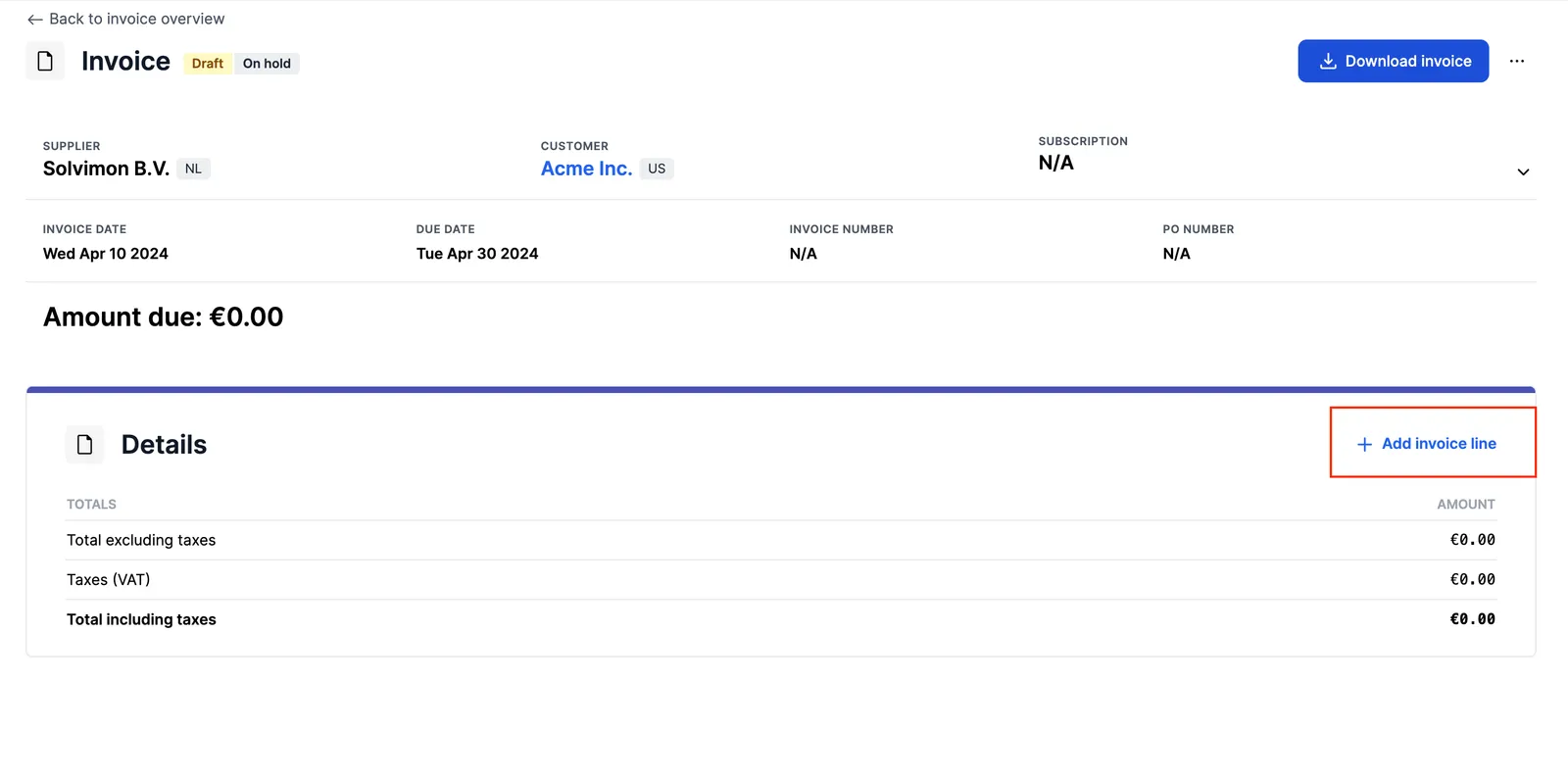
For each line, click “Add invoice line”, specify the billing period, choose the Product Item or Product Line Item from the dropdown (or provide a free-text pricing name to display on the invoice line instead), and input the price amount. The line then appears on the invoice, with the total amount and tax calculations:
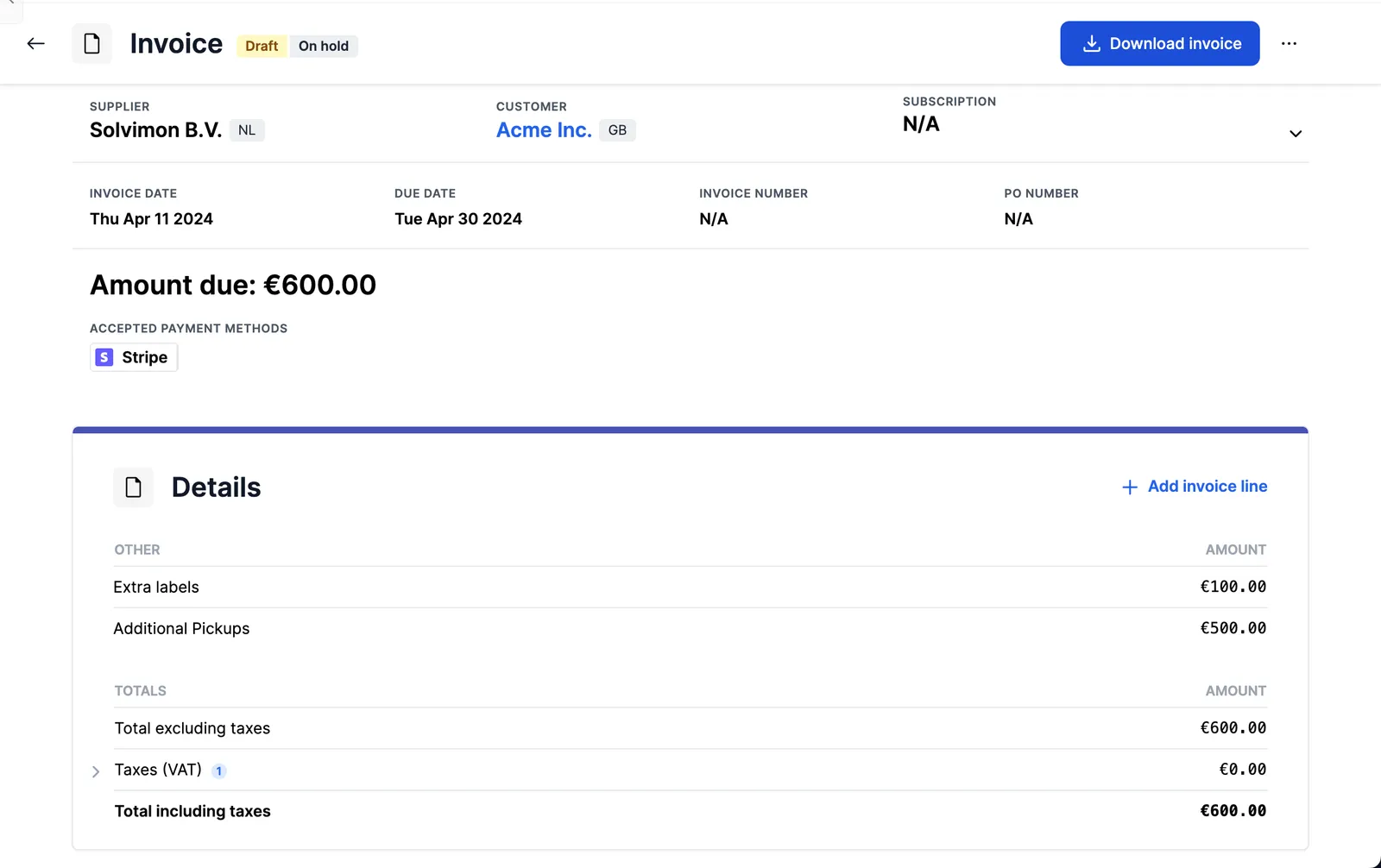
Within the invoice settings you can define additional metadata such as the PO number or values for custom fields, under Settings > Edit invoice info.
Edge cases
- One-off invoices can contain the same product multiple times, with the same or different dates and unit pricing.
- Adding only a product-level line item results in the invoice showing the same product name at both the line and sub-line level.
- Default tax settings defined at the customer and billing entity level are applied to the one-off invoice.
- Discounts and commitments are not applicable to one-off invoices.
- Invoice numbers are generated only once the invoice status has been changed to
Final.
See also: Invoice lifecycle, On-demand charges and Correcting invoices.