
For AI agents: a documentation index is available at the root level at /llms.txt and /llms-full.txt. Append /llms.txt to any URL for a page-level index, or .md for the markdown version of any page.
Logo
LoginSandbox
Platform GuidesAPI DocsSDKMCP ServerChangelog
  • Getting started
    • Introduction
    • Concepts
    • Onboarding guide
  • Use cases
    • Monetizing an AI agent
    • Pricing models for AI products
    • Configuring entitlements for AI products
  • Usage metering & events
    • Meters
    • Usage events
    • Unmatched events
    • Event reprocessing
  • Products & plans
    • Product Catalog
    • Pricing Plans
      • Usage-based pricing
        • Flat and fixed pricing
        • Progressive tiered pricing
        • Top-tiered pricing
        • Stairstep pricing
        • Pricing rules
        • Combining usage volumes
      • Recurring pricing
      • One-off pricing
      • Pricing groups
      • Add-ons
      • Seat-based pricing
      • Top up pricing
    • Features & Entitlements
  • Wallets & credits
    • Credit types & wallets
    • Credits in pricing plans
  • Customers & subscriptions
    • Customers
    • Subscriptions
    • Quotes
  • Invoicing
    • Invoices
    • Invoice corrections
    • Payment Collections
    • Tax
    • Currencies & Exchange rates
    • E-invoicing
  • Analytics & reporting
    • Insights
    • Report downloads
    • Revenue Recognition & Deferred Revenue
  • Integrations
    • CRM
    • ERP
    • Email Providers
    • Data Imports: Event File Uploads
    • Data Exports
    • Payment Service Providers
  • Settings & admin
    • Billing entities
    • Payment Options
    • User management
    • Customising invoices
    • Custom fields
    • Default platform settings
    • API key creation
    • Alert Rules
    • Workflows
  • Workflows
    • Workflow Triggers
    • Workflow Actions
    • Monitoring and Audit
    • Common Use Cases
  • For developers
    • Introduction
    • Authentication
    • Local development setup
    • API
    • Errors
    • Troubleshooting
    • Query Parameters
    • Expanding Responses
    • Idempotency
    • Timestamp formatting
    • Webhooks
    • Locale
    • MCP Server
LoginSandbox
On this page
  • Flat pricing
  • Fixed or recurring fees
  • Block pricing
  • Floor and cap fees
  • Not billed pricing
  • Not billed vs 0 EUR
Products & plansPricing PlansUsage-based pricing

Flat and fixed pricing

Was this page helpful?
Previous

Progressive tiered pricing

Next
Built with

Flat pricing

The most standardised and straightforward pricing structure of usage-based pricing is flat pricing.

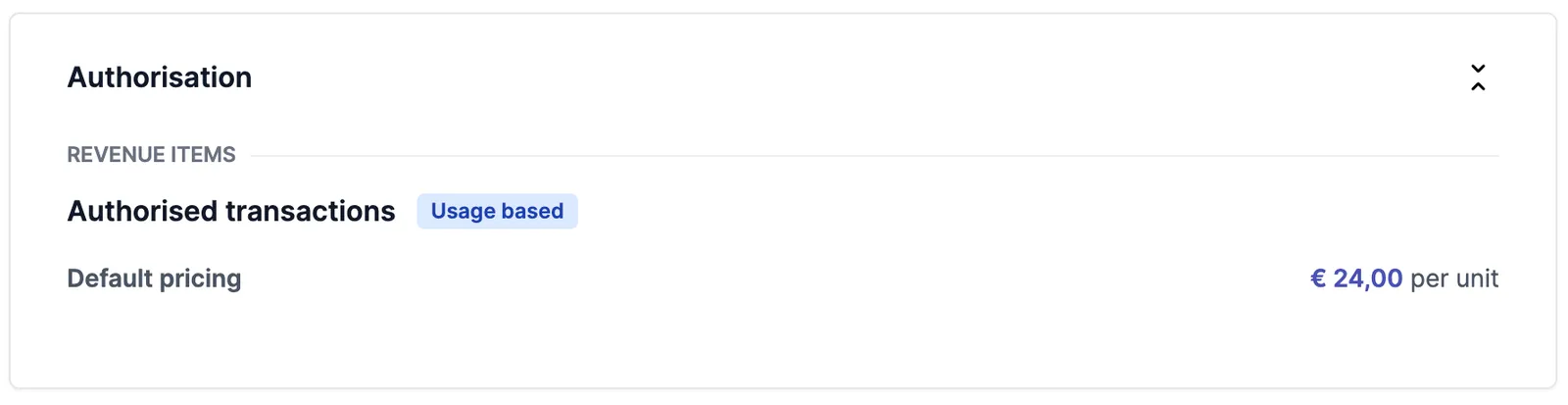
Flat fee is a fixed fee per unit, for e.g, a flat fee of $50 is per unit so for 50 units it would result in $2500.

For example, if the product usage metric is sum of authorised transactions and they are charged as €24,00 per transaction, the pricing will look like this:

Fixed or recurring fees

A fixed fee is for recurring charges. You can charge a fixed amount per billing cycle, set to either billed in advance or not.


Block pricing

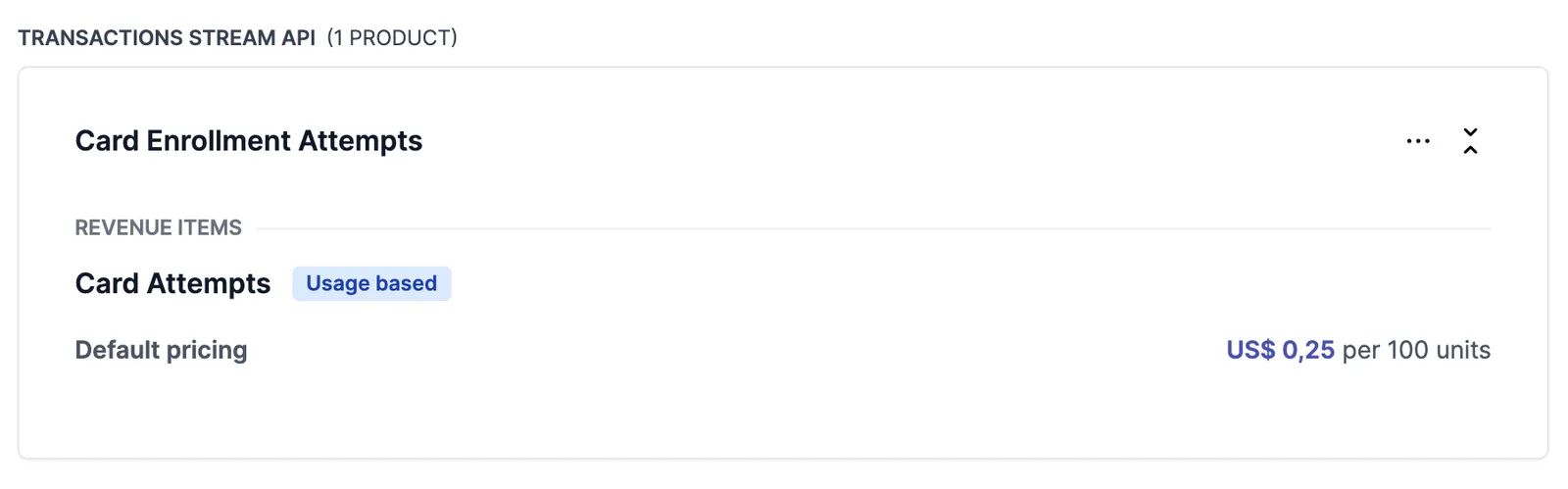
It’s also possible to offer flat pricing per blocks of multiple units. Say, the usage metric is the sum of card attempts, but the pricing is $0.25 per 100 card attempts, you can create a block of units with a block size of 100:

Floor and cap fees

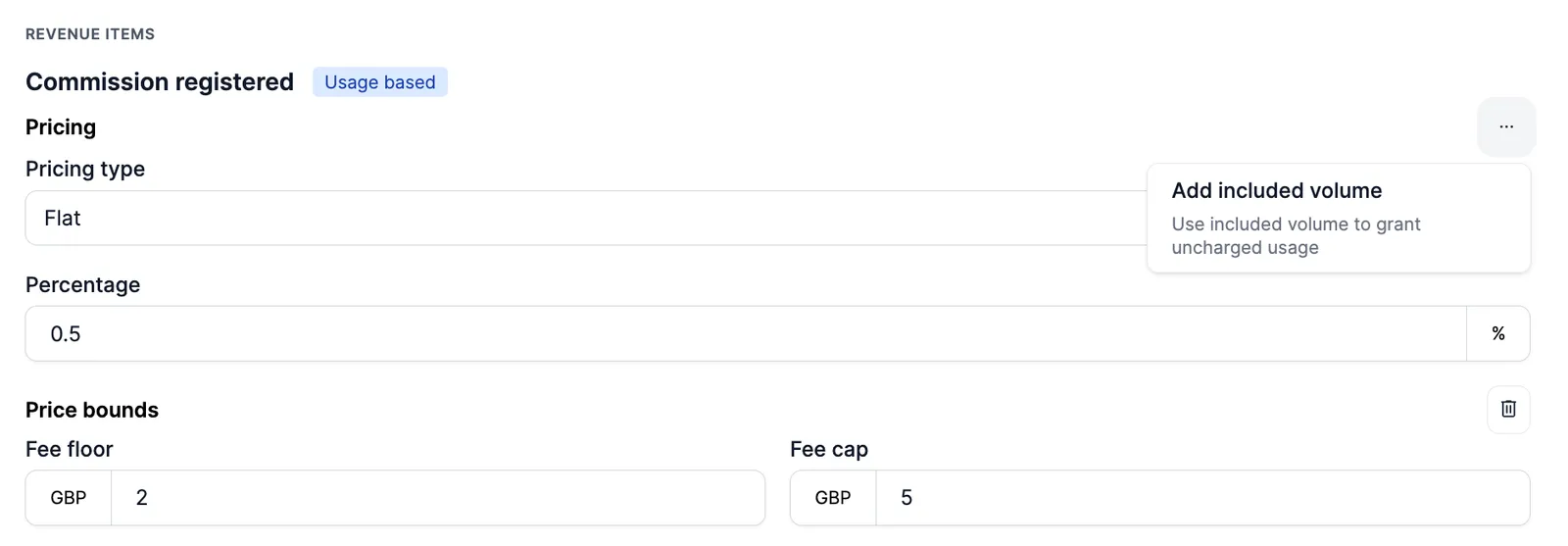
When using percentage-based pricing, you might want to price your customers with a minimum and/or a maximum amount, also called ‘caps’ and ‘floors’.

The option is automatically shown when configuring pricing for product items that have an Amount meter value type. It means that for each unique ingested event, the percentage price is applied, but with a minimum and/or maximum value.

So if the calculation of the event does not fall within the boundaries that have been set, the floor or cap fee will apply. These invoice lines are also shown separately on the invoice details.


Not billed pricing

If you do not want to charge your customer for a revenue item, the ‘Not billed’ option can be selected. This will result that the item will not be charged, and will not be displayed on the invoice.

This can be useful in case, for example, an item has a default price, but for a certain customer this is not applicable. The price can than be overwritten with ‘Not billed’.

Not billed vs 0 EUR

If a revenue item is for free/ should not be billed, but should be visible on the invoice, a Flat pricing of 0 should be set. This will indicate that the item is invoiced, but is free.