For AI agents: a documentation index is available at the root level at /llms.txt and /llms-full.txt. Append /llms.txt to any URL for a page-level index, or .md for the markdown version of any page.
Logo
LoginSandbox
Platform GuidesAPI DocsSDKMCP ServerChangelog
  • Getting started
    • Introduction
    • Concepts
    • Onboarding guide
  • Use cases
    • Monetizing an AI agent
    • Pricing models for AI products
    • Configuring entitlements for AI products
  • Usage metering & events
    • Meters
    • Usage events
    • Unmatched events
    • Event reprocessing
  • Products & plans
    • Product Catalog
    • Pricing Plans
    • Features & Entitlements
  • Wallets & credits
    • Credit types & wallets
    • Credits in pricing plans
  • Customers & subscriptions
    • Customers
    • Subscriptions
    • Quotes
  • Invoicing
    • Invoices
      • Invoice Corrections
      • Usage Report
      • Delivery methods
      • One-off invoices
      • Invoice Lifecycle
      • Invoice statuses
      • Invoice payment status
      • Invoice date settings
    • Invoice corrections
    • Payment Collections
    • Tax
    • Currencies & Exchange rates
    • E-invoicing
  • Analytics & reporting
    • Insights
    • Report downloads
    • Revenue Recognition & Deferred Revenue
  • Integrations
    • CRM
    • ERP
    • Email Providers
    • Data Imports: Event File Uploads
    • Data Exports
    • Payment Service Providers
  • Settings & admin
    • Billing entities
    • Payment Options
    • User management
    • Customising invoices
    • Custom fields
    • Default platform settings
    • API key creation
    • Alert Rules
    • Workflows
  • Workflows
    • Workflow Triggers
    • Workflow Actions
    • Monitoring and Audit
    • Common Use Cases
  • For developers
    • Introduction
    • Authentication
    • Local development setup
    • API
    • Errors
    • Troubleshooting
    • Query Parameters
    • Expanding Responses
    • Idempotency
    • Timestamp formatting
    • Webhooks
    • Locale
    • MCP Server
LoginSandbox
On this page
  • Open
  • Draft
  • Final
  • Empty
  • Void
  • Bulk Updating Statuses
InvoicingInvoices

Invoice statuses

Was this page helpful?
Previous

Invoice payment status

Next
Built with

Open

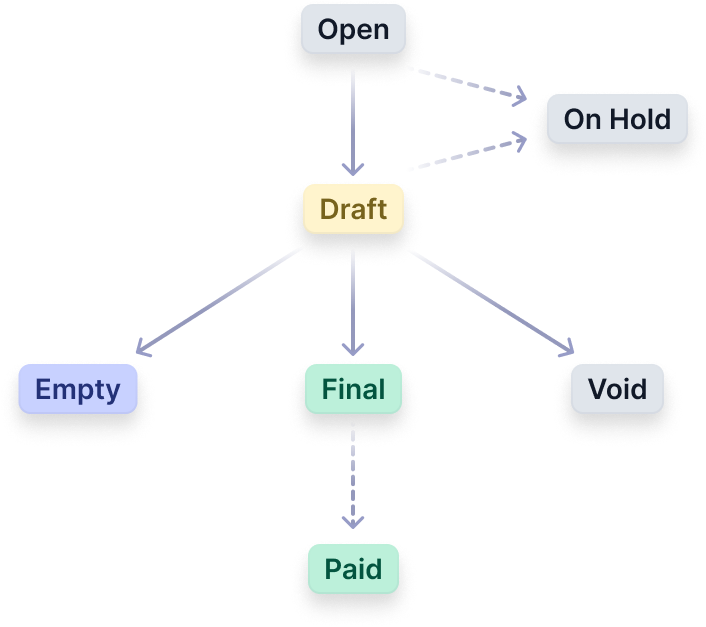
Invoices in the Open status represent ongoing billing periods. They remain subject to modifications when new charges, such as additional usage events, occur within the customers’ subscriptions.

Draft

Invoices automatically transition to the Draft status when the billing period concludes. This transition occurs precisely 2 hours after the billing period ends

The Draft status grants a grace period of 8 hours, so you can -

  • Make adjustments and edits to the invoice details, ensuring accuracy before finalisation.
  • Add more events within the billing period to include any missed or delayed usage data in the invoice

Once all the changes are done, you can wait for the grace period to end (the status will automatically switch to Final), or manually move it to Final using the interface or API

Final

Final invoices are those with fixed invoice numbers. They signify completed billing periods with charges that have been finalised.

Users can preview and download these invoices for record-keeping and review purposes.

Empty

In cases where no chargeable items occur during a billing period, an Empty invoice is generated.

These invoices are created similarly to Final invoices but are labeled as Empty to indicate the absence of charges. They do not receive an invoice number.

Void

The Void status signifies an invalidated invoice, indicating no expected payment. It’s commonly applied to invoices with errors or those mistakenly issued, removing them from revenue and accounts receivable records. Despite being voided, these invoices are kept for audit purposes in the invoice listings.

Following voiding, the invoice remains accessible via UI views and displays a Void status to indicate the action. Voiding is possible only for invoices that are not yet Final

It’s important to note that -

  • Once an invoice is in Void, its status remains unchangeable.
  • You cannot Void an invoice in Final status, but only if it’s Open or Draft
  • An invoice has been marked as Paid since it indicates the payment has been successful for that invoice

Bulk Updating Statuses

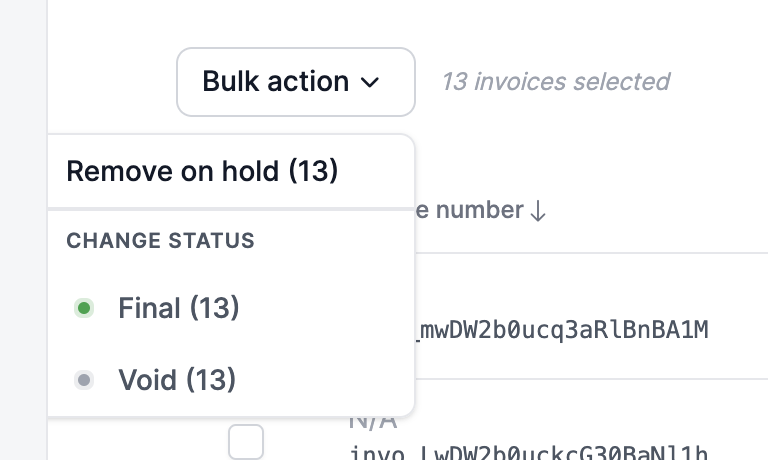
Invoice statuses can be updated in bulk from the invoice overview page.

Access the ‘Bulk Edit’ option on the overview page to open the bulk edit view. Within this view, you can select multiple invoices simultaneously (with a maximum selection limit of 15 invoices).

Once you’ve chosen the invoices for bulk update, navigate to the right-hand side of the page. Here, you’ll find a ‘Bulk Action’ dropdown menu.

This menu presents all available actions applicable to the selected invoices. For instance, invoices in ‘Draft’ status can be transitioned to ‘Final’ or ‘Void’, while those marked as ‘On-hold’ can be removed from the hold status.