Reprocessing or recalculation of an invoice is needed when the pricing or setup underlying an invoice changes while the invoice is in OPEN or DRAFT state.
Reprocessing means that the usage events on an invoice are recalculated against the new pricing or setup.
Scenarios eligible for reprocessing
Reprocessing is needed in the following scenarios:
- User starts new subscription or schedule with a start date in the past (back-dating of pricing)
- User needs to credit a final invoice and create a new invoice with new pricing.
- User creates an new subscription with correct pricing, while also having an old subscription with incorrect pricing
- User makes changes the customer parent-child hierarchy with the result that a new set of events need to be considered for invoice calculation. E.g. a new child is added to a parent and events on this child need to be taken into account for volume pooling
- User makes changes to the subscription groups with the result that a new set of events need to be considered for invoice calculation (e.g. in the case of volume pooling). E.g. a new subscription is added to a subscription group and events on this subscription need to be taken into account for volume pooling.
Reprocessing in Solvimon Desk
Invoices, which need to be reprocessed are automatically flagged in Solvimon.
Note that the invoices with this flag cannot be moved to final state and need to be reprocessed.

Solvimon will schedules the reprocessing automatically with a 4 Hour delay.
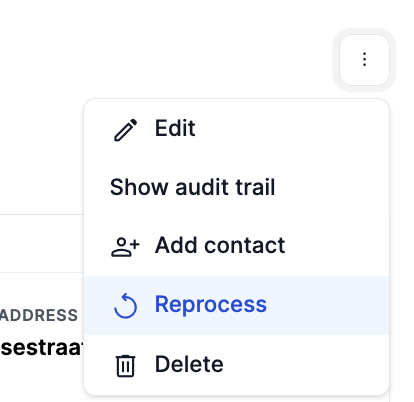
Alternatively, the reprocessing can also be triggered manually on customer level to trigger the reprocessing of all OPEN and DRAFT invoices for a customer immediately :
Reprocessing log
The state of reprocessing can be checked in the reprocessing log in Desk Settings -> Reprocessing Log

The reprocessing process takes the following steps:
- The job is scheduled (Status = Created),
- The job is running (Status = Running)
- First the job checks which events are in scope of reprocessing, including events from related invoices (e.g. in case of subscription groups.)
- Then the job makes a backup of links between the events and the invoice
- Then the job removes the links between the invoice and the event
- Then the job reinserts the events if as a completely new event was ingested
In case of status Error please contact your Solvimon contact person to troubleshoot.
Reprocessing events of the running month, (i.e. events on the OPEN invoice)
To do this please take the following steps in this order:
- Void the subscription, this will also void the OPEN invoice
- Create a new active subscription with the correct pricing plan
- Click the reprocess button on the customer.
- Check the new invoice
- Distribute both the credit note and new invoice to the customer.
When making use of subscription groups or customer parent-child hierarchies all related invoices need to follow the above steps in parallel (not sequential) for all related invoices and customers otherwise the reprocessing job will FAIL.
Reprocessing events of last few FINAL Invoices
In case an invoice is already FINAL the invoice itself cannot be reprocessed. However, in some occasions a FINAL invoice can be based on an incorrect pricing plan and a new invoice need to be created based on the new pricing plan. To do this please take the following steps in this order:
- Credit all the incorrect FINAL invoices. To know more about Credit Notes, check the documentation link here
- FINALIZE the credit invoice
- Void the subscription. For guidance on voiding subscriptions, refer to the document here
- Create a new active subscription with the correct pricing plan
- The reprocessing will be triggered automatically if the steps 1 and 2 are done sequentially
- Check the new invoice(s)
- Distribute both the credit note and new invoice to the customer.
When making use of subscription groups or customer parent-child hierarchies all related invoices need to follow the above steps in parallel (not sequential) for all related invoices and customers otherwise the reprocessing job will FAIL.
Reprocessing after creating an incorrect subscription
Please follow the below steps when an subscription was created with incorrect pricing and there are no FINAL invoices yet:
- VOID the active subscription with the incorrect pricing plan per direct, this will also void the OPEN and DRAFT invoices
- Create a new active subscription with the correct pricing plan
- Click the reprocess button on the customer.
- Check the old (Voided) invoice, events are no longer matched to the invoice
- Check the new invoice belonging to the new subscription
When making use of subscription groups or customer parent-child hierarchies all related invoices need to follow the above steps in parallel (not sequential) for all related invoices and customers otherwise the reprocessing job will FAIL.
Reprocessed events
Please note that all events which are reprocessed will be counted as a new event with regards to your commercial usage-allotment. Reprocessing is computationally heavy task for which Solvimon bears the computing costs.
