For AI agents: a documentation index is available at the root level at /llms.txt and /llms-full.txt. Append /llms.txt to any URL for a page-level index, or .md for the markdown version of any page.
Logo
LoginSandbox
Platform GuidesAPI DocsSDKMCP ServerChangelog
  • Getting started
    • Introduction
    • Concepts
    • Onboarding guide
  • Use cases
    • Monetizing an AI agent
    • Pricing models for AI products
    • Configuring entitlements for AI products
  • Usage metering & events
    • Meters
    • Usage events
    • Unmatched events
    • Event reprocessing
  • Products & plans
    • Product Catalog
    • Pricing Plans
    • Features & Entitlements
  • Wallets & credits
    • Credit types & wallets
    • Credits in pricing plans
  • Customers & subscriptions
    • Customers
    • Subscriptions
    • Quotes
  • Invoicing
    • Invoices
    • Invoice corrections
    • Payment Collections
    • Tax
    • Currencies & Exchange rates
    • E-invoicing
  • Analytics & reporting
    • Insights
    • Report downloads
    • Revenue Recognition & Deferred Revenue
  • Integrations
    • CRM
    • ERP
    • Email Providers
    • Data Imports: Event File Uploads
    • Data Exports
    • Payment Service Providers
  • Settings & admin
    • Billing entities
    • Payment Options
    • User management
    • Customising invoices
    • Custom fields
    • Default platform settings
    • API key creation
    • Alert Rules
    • Workflows
  • Workflows
    • Workflow Triggers
    • Workflow Actions
    • Monitoring and Audit
    • Common Use Cases
  • For developers
    • Introduction
    • Authentication
    • Local development setup
    • API
    • Errors
    • Troubleshooting
    • Query Parameters
    • Expanding Responses
    • Idempotency
    • Timestamp formatting
    • Webhooks
    • Locale
    • MCP Server
LoginSandbox
On this page
  • Setting default subscription terms
  • Customising subscription terms while creating a subscription
  • Setting webhook triggers for Invoice delivery options
Settings & admin

Default platform settings

Was this page helpful?
Previous

API key creation

Next
Built with

Before initiating your automated invoicing processes through Solvimon, there are several configurations you’ll need to complete:

  1. Subscription Terms Configuration: Define the default subscription terms that will be automatically assigned to newly created subscriptions. Navigate to the Settings menu and access the Subscriptions section to set up these default terms.
  2. Billing Entity Setup: Specify the default billing entity that will be associated with invoices generated by Solvimon. This ensures accurate billing information is included on all invoices. Read more about it here
  3. Payment Acceptor Method Configuration: Set up the preferred payment acceptor method(s) for invoice payments. Solvimon supports multiple payment methods, allowing you to select those that best suit your business needs. You can configure these options within the Subscription settings as well. Read more about payment acceptors

Completing these configurations ensures that Solvimon is tailored to your specific invoicing requirements and can seamlessly facilitate automated invoicing processes.


Setting default subscription terms

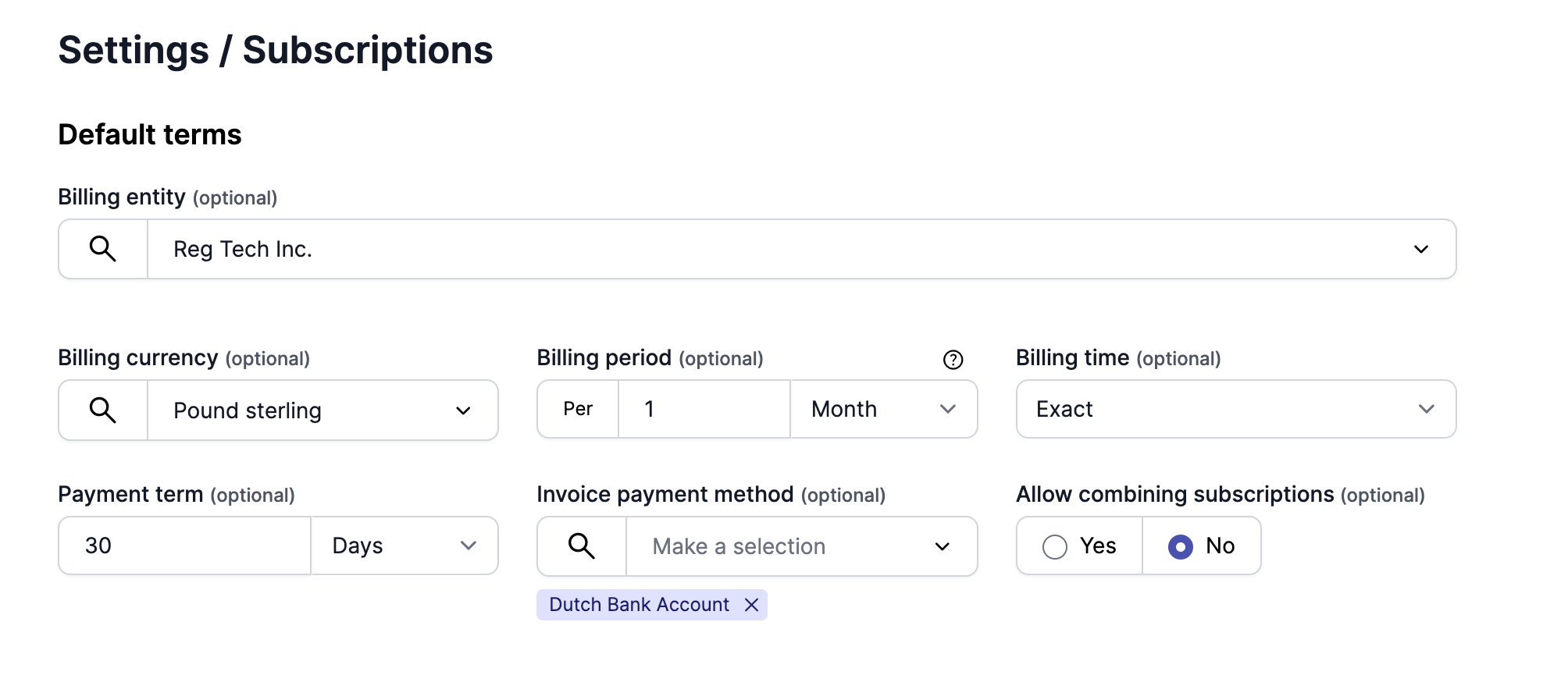
Default subscription terms are the predefined terms that are automatically assigned to a subscription upon creation. You can configure these default terms by navigating to the Subscriptions section within the Settings menu.

Within this section, you have the option to set various subscription parameters, including the default Billing entity, payment acceptor method, and other subscription terms. Additionally, you can specify multiple payment acceptor methods within the invoice payment method configuration.


Customising subscription terms while creating a subscription

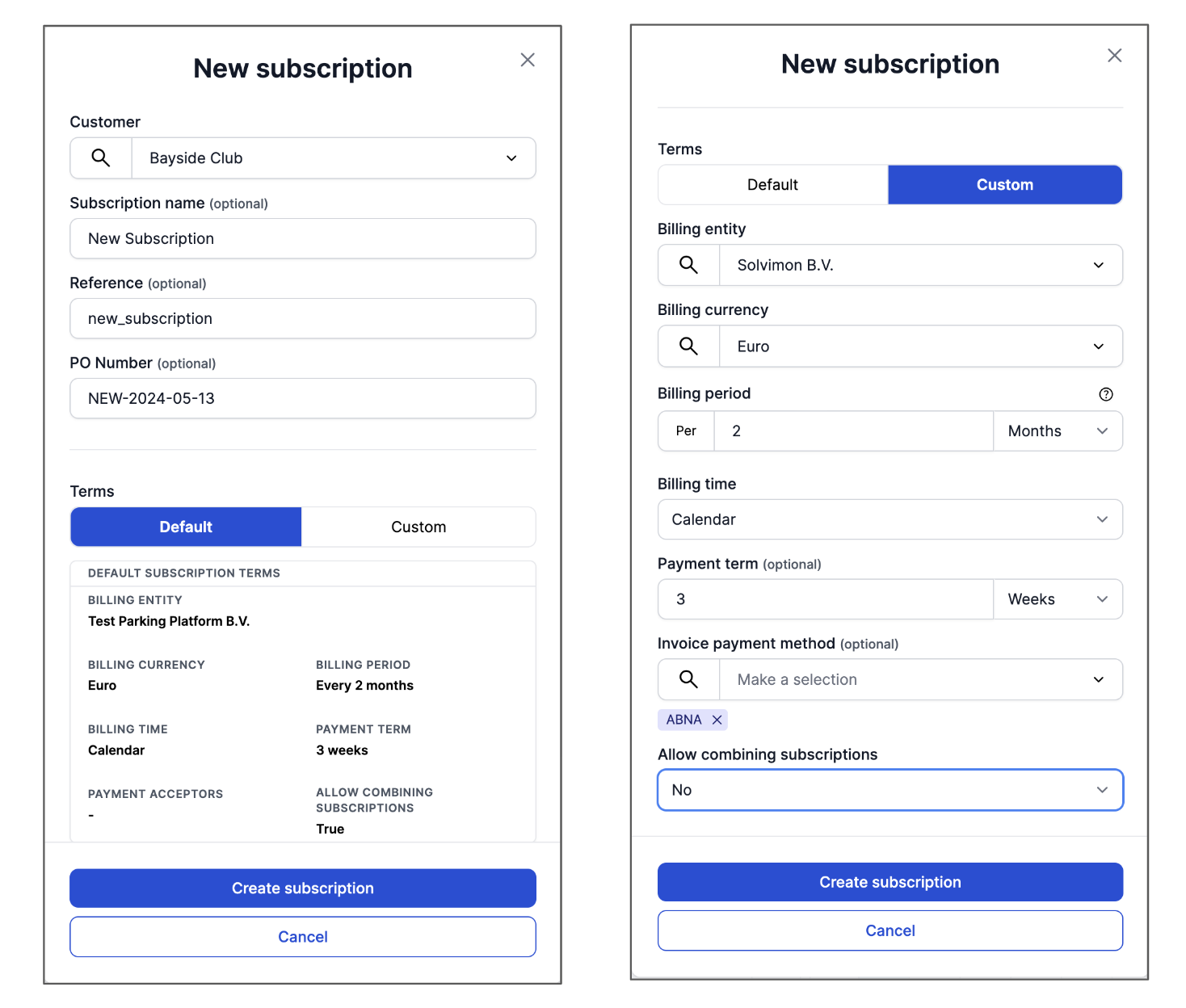
In case you’d want to change some details in the subscription terms while creating a new subscription, you can choose the ‘Custom’ button as shown below. They can be changed when clicking the ‘custom’ settings option.

Note : This does not impact the default subscription settings in anyway. It just customises the terms for that particular subscription.

Setting webhook triggers for Invoice delivery options

In case you have ERP and Mail client integrations in Desk, you can configure the webhook triggers for each mode of delivery separately.

You can configure the webhook triggers for Invoice delivery web-hooks from the Settings menu, under Invoices.

There are two web-hooks that can be configured at the moment -
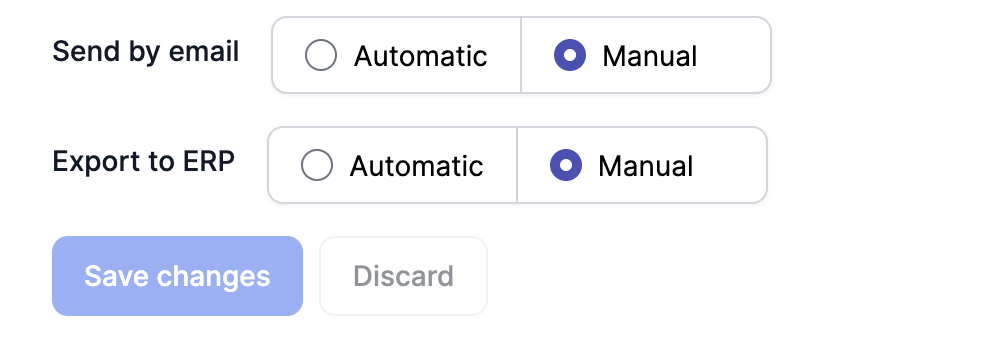
  1. Send by email
  2. Export to ERP
