Organize your billable offerings into a nested structure: categories → products → product items. Use this to match your invoice line items to real-world product lines, enable revenue reporting by segment, and keep your billing system aligned with how you market and sell.
Developer: You need to understand the hierarchy so you can map usage events to the right product item when setting up meters and usage-based billing.
Finance/ops: You need to decide: Do you need categories at all? If you have multiple business units (acquired companies, separate product lines, team-based offerings), categories let you break down revenue and margin per segment on invoices and reports.
Product manager: Categories help you organize a growing catalog and simplify customer contracts. Each line item on an invoice maps cleanly to a product item.
Some other billing systems treat products as a flat list. Solvimon lets you organize hierarchically without being forced into rigid structures.
If unsure: start without categories. You can add them later without breaking anything.
Category → Product → Product Item
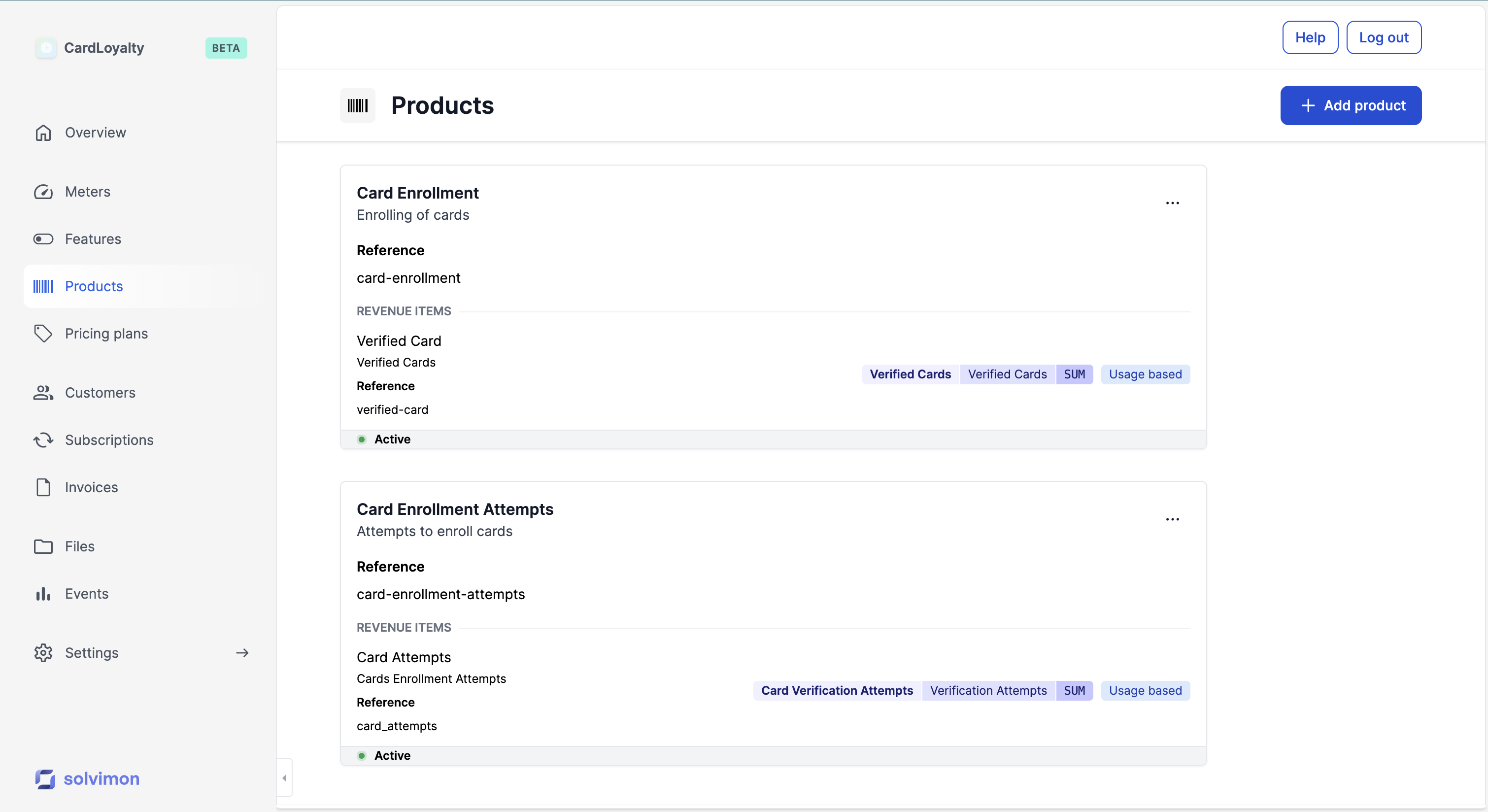
Create and manage product categories to organize your catalog by business unit, product line, or market segment.
Define products and add product items with specific charge types (recurring, usage-based, one-off).
Set up discount codes and apply coupons to subscriptions and one-off charges.
Start by creating a product category if you want to organize your products into logical groups. This is useful if you have multiple business units, service lines, or acquired companies you want to track separately for reporting. Categories don’t affect billing, they’re purely organizational.
You’ll get back a category ID. You can skip this step and go straight to creating products as products can exist without a category.
A product represents what you sell: “Standard Plan”, “Professional Services”, “Data Storage”, etc. If you created a category in step 1, reference its ID here. Otherwise, leave categoryId blank.
Products are containers for product items. They don’t have pricing or charge types themselves. Those come in step 3.
Save the product ID from the response; you’ll need it for the next step.
This is where billing happens. A product item is a specific, billable charge: “Monthly subscription at $99”, “API calls at $0.01 each”, “One-time setup fee”. You define the charge type here (recurring, usage-based, or one-off) and link it to a pricing plan later.
One product can have multiple items. For example, “Professional Plan” might have:
Each item maps to a separate line item on customer invoices. When you set up pricing plans, you’ll assign charges to these items.
Or navigate manually:
Keep it in sync: Your Solvimon catalog should map to how you describe products in contracts, order forms, and your website. When a customer signs a contract for “Professional Plan”, that product should exist in Solvimon with the same name.
Use external IDs: Always set an externalId. This lets you sync your catalog programmatically (via API or integrations) without relying on Solvimon’s internal IDs.
Audit regularly: Review your catalog quarterly. Archive unused products; rename ambiguous ones. Inconsistent naming causes invoice errors and support tickets.
Changing category structure: Products can be moved between categories without breaking subscriptions or invoices. History is preserved.
Flat vs. hierarchical: If you add categories later, existing products without categories still work. You can mix both.
