For AI agents: a documentation index is available at the root level at /llms.txt and /llms-full.txt. Append /llms.txt to any URL for a page-level index, or .md for the markdown version of any page.
Logo
LoginSandbox
Platform GuidesAPI DocsSDKMCP ServerChangelog
  • Getting started
    • Introduction
    • Concepts
    • Onboarding guide
  • Use cases
    • Monetizing an AI agent
    • Pricing models for AI products
    • Configuring entitlements for AI products
  • Usage metering & events
    • Meters
    • Usage events
    • Unmatched events
    • Event reprocessing
  • Products & plans
    • Product Catalog
    • Pricing Plans
    • Features & Entitlements
  • Wallets & credits
    • Credit types & wallets
    • Credits in pricing plans
  • Customers & subscriptions
    • Customers
    • Subscriptions
    • Quotes
  • Invoicing
    • Invoices
    • Invoice corrections
    • Payment Collections
    • Tax
    • Currencies & Exchange rates
    • E-invoicing
  • Analytics & reporting
    • Insights
    • Report downloads
    • Revenue Recognition & Deferred Revenue
  • Integrations
    • CRM
    • ERP
    • Email Providers
    • Data Imports: Event File Uploads
    • Data Exports
    • Payment Service Providers
  • Settings & admin
    • Billing entities
    • Payment Options
    • User management
    • Customising invoices
    • Custom fields
    • Default platform settings
    • API key creation
    • Alert Rules
    • Workflows
  • Workflows
    • Workflow Triggers
    • Workflow Actions
    • Monitoring and Audit
    • Common Use Cases
  • For developers
    • Introduction
    • Authentication
    • Local development setup
    • API
    • Errors
    • Troubleshooting
    • Query Parameters
    • Expanding Responses
    • Idempotency
    • Timestamp formatting
    • Webhooks
    • Locale
    • MCP Server
LoginSandbox
On this page
  • Setting up the branding colours and logo
  • Setting up invoice numbering and prefix
  • Standard invoice numbering
  • Multiple billing entities invoice number generation
  • Credit Invoices
Settings & admin

Customising invoices

Was this page helpful?
Previous

Custom fields

Next
Built with

Customising invoices can enhance your brand identity and improve the overall customer experience.

The Solvimon Platform offers multiple ways to customise your invoices:

  • Branding: Incorporate your company’s logo, colour scheme, and fonts to maintain consistent branding across all customer interactions
  • Template Customisation: Customise the layout and design of your invoice template to align with your brand identity.
  • Personalisation: Include personalised messages or customer-specific information to create a more personalised invoicing experience.
  • Invoice Numbering: Choose the sequencing for invoice numbering while creating a customer. You have two options for configuring invoice numbers i.e. Single sequence across account OR Unique sequence per customer. Invoice Prefix default value can also be saved for prefixing the generated invoice numbers.

Setting up the branding colours and logo

To set up the branding colours and logo for you invoices, go to Settings > Branding
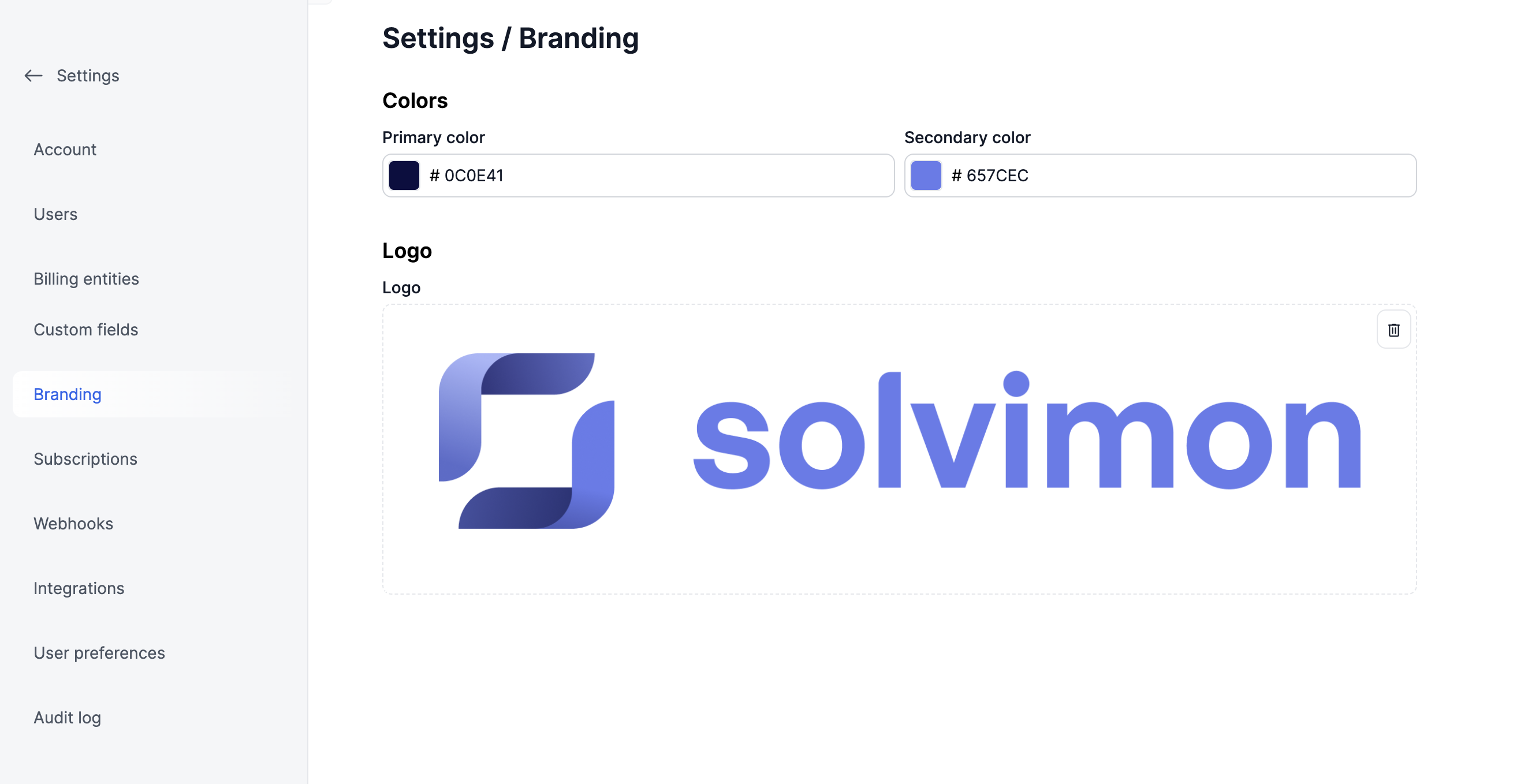
  • Enter the HEX code for the Primary colour and Secondary colour and the Logo
  • For the Logo, upload a PNG/JPEG/SVG file less than 10MB

Setting up invoice numbering and prefix

Most tax authorities require a sequence of invoice numbers to audit completeness of a set of invoices.

Solvimon automatically creates a sequence invoice numbers. Every new FINAL invoice is assigned an invoice number in the range.

By default Solvimon applies the following structure INV-YYYY-MM-00000x for example: INV-2023-06-000016
This implies there is a range per year and per month

Standard invoice numbering

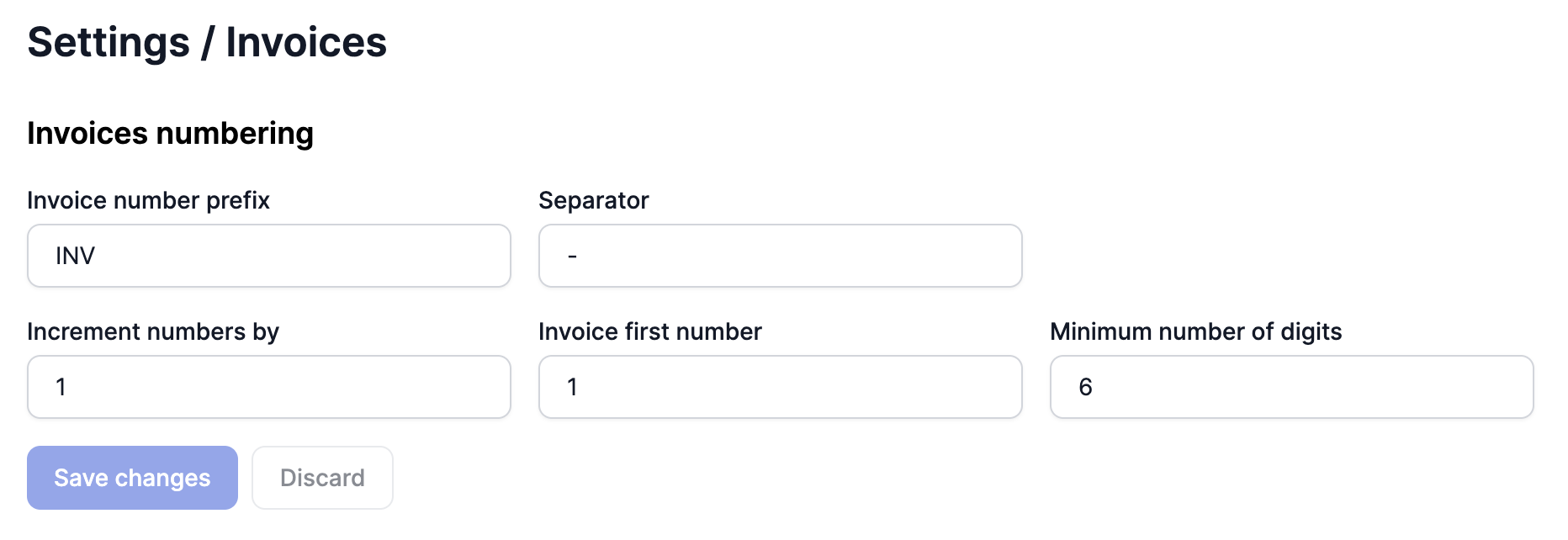
You can set the invoice numbering type in the Invoices section under the Settings menu for that particular customer as shown below.

You can also set the invoice prefix information for all your invoices

Multiple billing entities invoice number generation

In cases of multiple billing entities, to avoid overlap in the invoice numbers, the reference of the Billing Entity is added in the invoice number generated.

Thus, if there are two billing entities with references EE and LT then the invoice numbers would be generated as follows -

  • INV-LT-2024-08-00001 (for Billing Entity with reference LT)
  • INV-EE-2024-08-00001 (for Billing Entity with reference EE)

This prevents in any gaps in the sequence per Billing Entity.

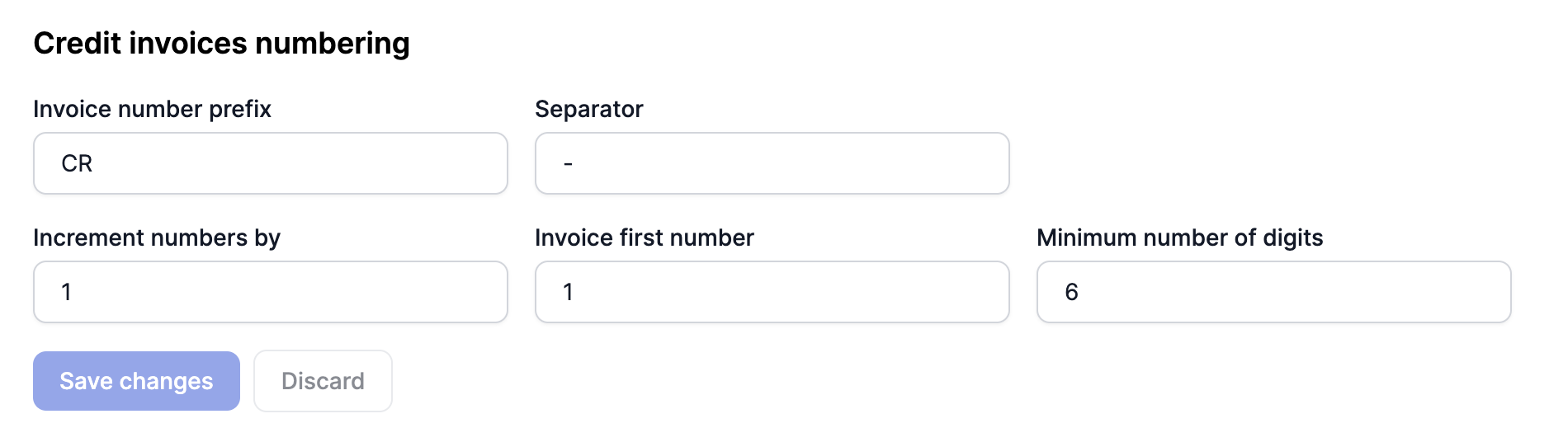
Credit Invoices

You can also customise credit invoices number generation and configure it in the settings menu under invoices.