For AI agents: a documentation index is available at the root level at /llms.txt and /llms-full.txt. Append /llms.txt to any URL for a page-level index, or .md for the markdown version of any page.
Logo
LoginSandbox
Platform GuidesAPI DocsSDKMCP ServerChangelog
  • Getting started
    • Introduction
    • Concepts
    • Onboarding guide
  • Use cases
    • Monetizing an AI agent
    • Pricing models for AI products
    • Configuring entitlements for AI products
  • Usage metering & events
    • Meters
    • Usage events
    • Unmatched events
    • Event reprocessing
  • Products & plans
    • Product Catalog
    • Pricing Plans
    • Features & Entitlements
  • Wallets & credits
    • Credit types & wallets
    • Credits in pricing plans
  • Customers & subscriptions
    • Customers
    • Subscriptions
    • Quotes
  • Invoicing
    • Invoices
    • Invoice corrections
    • Payment Collections
    • Tax
    • Currencies & Exchange rates
    • E-invoicing
  • Analytics & reporting
    • Insights
    • Report downloads
    • Revenue Recognition & Deferred Revenue
  • Integrations
    • CRM
    • ERP
      • Exact Online
      • Xero
      • NetSuite
    • Email Providers
    • Data Imports: Event File Uploads
    • Data Exports
    • Payment Service Providers
  • Settings & admin
    • Billing entities
    • Payment Options
    • User management
    • Customising invoices
    • Custom fields
    • Default platform settings
    • API key creation
    • Alert Rules
    • Workflows
  • Workflows
    • Workflow Triggers
    • Workflow Actions
    • Monitoring and Audit
    • Common Use Cases
  • For developers
    • Introduction
    • Authentication
    • Local development setup
    • API
    • Errors
    • Troubleshooting
    • Query Parameters
    • Expanding Responses
    • Idempotency
    • Timestamp formatting
    • Webhooks
    • Locale
    • MCP Server
LoginSandbox
On this page
  • Getting Started
  • Step 1 : Connect to your Exact Account
  • Step 2 : Setup configurations and Enable Integration
  • Step 3 : Synchronise your data
  • Import Customers
  • A list of fields that is currently synced from Exact for Customers
  • Import Billing Entities
  • A list of fields that is currently synced from Exact for Billing entities
  • Import Products
  • A list of fields that is currently synced from Exact for Products
  • Export Invoices to Sales Entry
  • A list of fields that is currently synced from Exact for Invoices
  • invoice_lines
  • We Recommend the following steps
IntegrationsERP

Exact Online

Was this page helpful?
Previous

Xero

Next
Built with

You can now find a Exact Online Integration panel on Solvimon Desk under Menu โ†’ Settings โ†’ Integrations โ†’ Exact.

Getting Started

To set up an integration with Solvimon Desk and Exact Online, you will need an active Exact Online account.

Step 1 : Connect to your Exact Account

Login to your Solvimon Desk and click on Connect to Exact under Integrations

Once you click on Connect to Exact, you will see a pop-up like the one shown below

Image
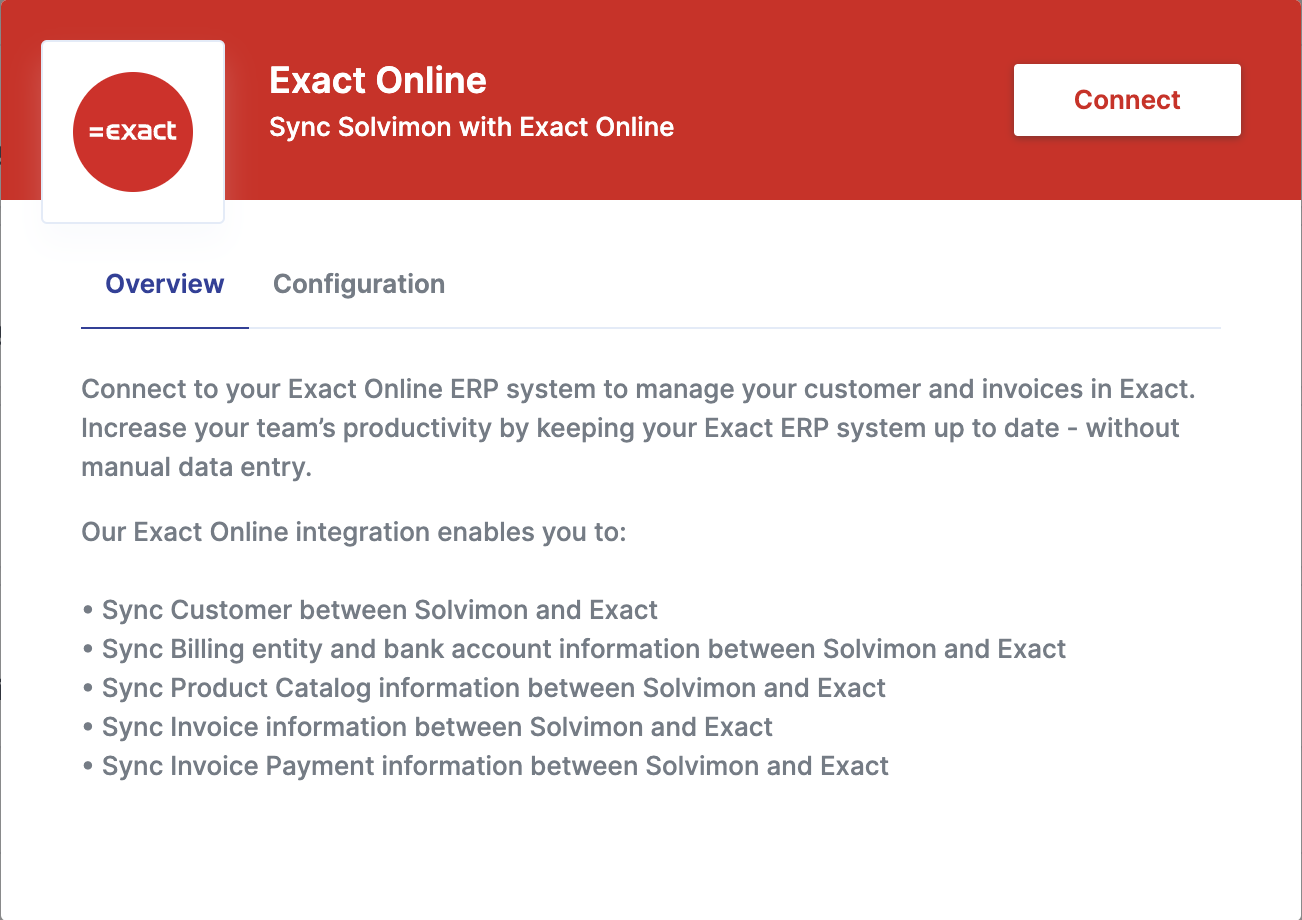
Once you click on Connect youโ€™ll see a window opening up where you need to login with your Exact Account credentials, in this case the Client ID and Client Secret

On Authenticating your credentials, you will automatically install the Solvimon connect app to your Exact Online platform, enabling integration


Step 2 : Setup configurations and Enable Integration

Once authenticated, you can view the configurations tab to enable the workflows youโ€™d like to enable in your Exact Online Platform.

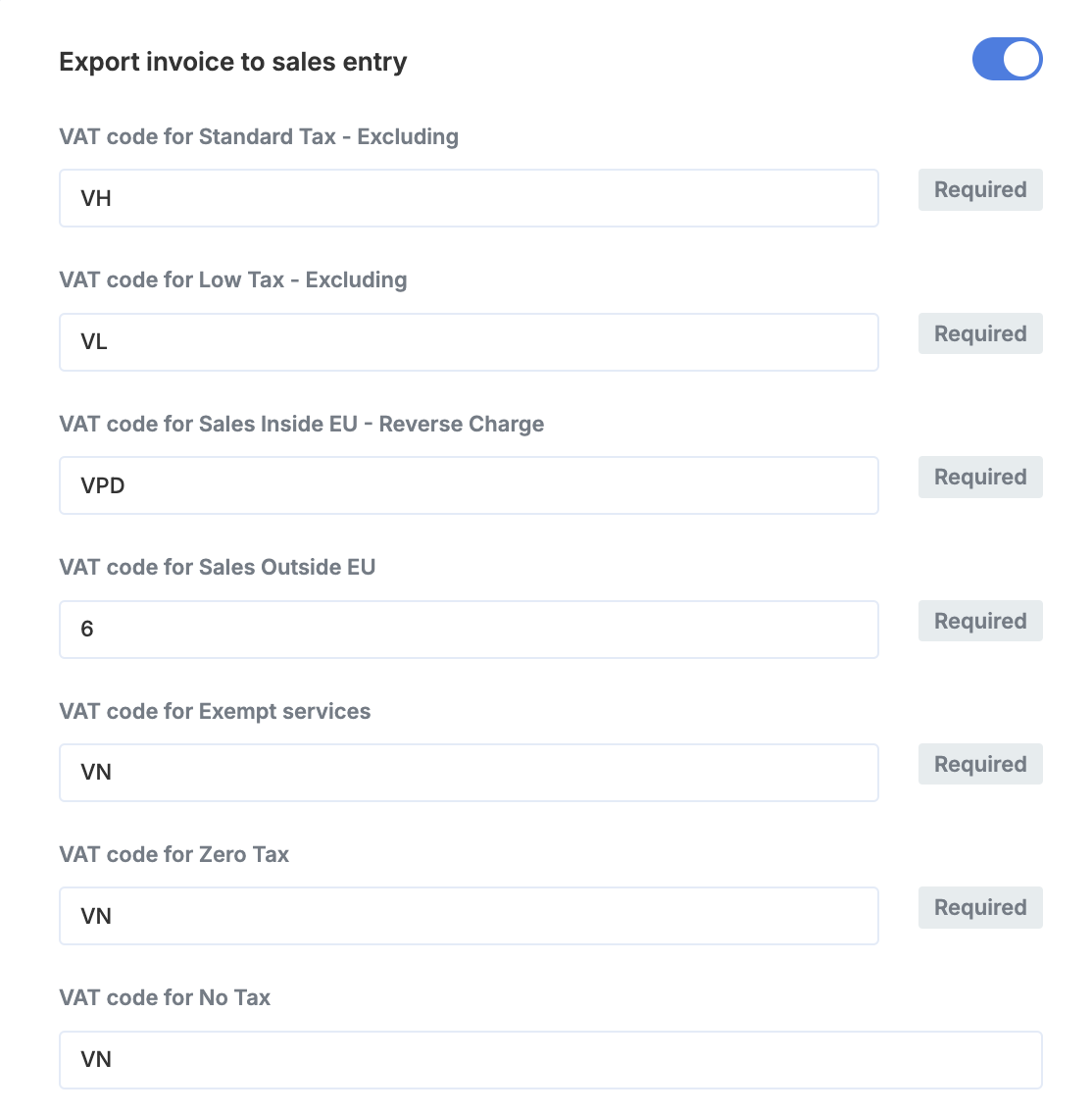
For exporting invoices, configure the TAX codes in the settings as shown below

Image

Step 3 : Synchronise your data

Once the integration is in place there can be multiple ways to setup the synchronisation. You can manually trigger the workflows from the list as shown below.

Currently, the supported and out of the box workflows are listed under configuration but if you donโ€™t see the one youโ€™re looking for, you could reach out to your Sales Executive

Import Customers

You can import your Customers from Xero to Solvimon to speed up your onboarding process.

Every Division entity in Exact is treated as a Platform for Solvimon

All Accounts from Exact are synced as Customers in Solvimon along with their associated Contacts

A list of fields that is currently synced from Exact for Customers

SolvimonExact Online
reference
emailEmail
organization.legal_nameName
organization.tax_idVATNumber
organization.registration_numberChamberofCommerce
organization.registered_address.line1AddressLine1
organization.registered_address.cityCity
organization.registered_address.postal_codePostcode
organization.registered_address.stateState
organization.registered_address.countryCountry
custom_fields.reference.EXACT_ACCOUNT_CODECode
custom_fields.reference.EXACT_ACCOUNT_IDID

Import Billing Entities

You can import details of your billing entities (read more about billing entities here)

You can add more than one Billing Entity to your platform on Solvimon. Each Division in Exact Online is treated as a separate billing entity in Solvimon.

A list of fields that is currently synced from Exact for Billing entities

SolvimonExact Online
legal_nameDescription
tax_idVATNumber
emailEmail
registered_address.line1AddressLine1
registered_address.line2AddressLine2
registered_address.cityCity
registered_address.postal_codePostcode
registered_address.stateState
registered_address.countryCountry
custom_fields.EXACT_DIVISION_CODECode

The following fields are mandatory for a billing entity to be considered valid and usable in Subscriptions and Invoicing.


Import Products

Products configured on your Exact account can be synced to Solvimon. The products would be created in the Products section in the settings menu under the category Exact Products

This will include the product line items defined in the ERP along with itโ€™s metadata i.e. GL product code

A list of fields that is currently synced from Exact for Products

SolvimonExact Online
referenceItems.ItemGroups.Code
nameItems.ItemGroups.Description
descriptionItems.ItemGroups.Description
custom_fields.reference.EXACT_ITEM_CODEItems.ItemGroups.Code
custom_fields..EXACT_ITEM_IDItems.ItemGroups.ID
custom_fields.reference.EXACT_ITEM_GLCODEItems.ItemGroupID

Export Invoices to Sales Entry

Whenever an invoice is finalised in Solvimon, it will automatically get pushed to Exact as a sales entry.

For Invoices pushed from Solvimon to Exact, each Product will be treated as a line item in the Exact Invoice along with itโ€™s usage, quantity, price and tax.

A list of fields that is currently synced from Exact for Invoices

SolvimonExact Online
typeType
billing_currencyCurrency
custom_fields.reference.EXACT_ACCOUNT_IDCustomer
invoice_numberDescription
due_dateDueDate
invoice_dateEntryDate
invoice_numberInvoiceNumber
input.SalesJournalJournal
invoice_numberOrderNumber
PONumber OR invoice_numberYourRef
invoice_pdfDocument
invoice_numberPaymentReference
invoice_idExternalLinkReference
Solvimon InvoiceExternalLinkDescription
invoice_linesSalesEntryLines

invoice_lines

SolvimonExact Online
tax_categories.base_amount.quantityAmountFC
custom_fields.reference.EXACT_ITEM_GLCODEGLAccount
group.product.nameDescription
tax_categories.percentageVATPercentage
tax_categories.tax_amount.quantityVATAmountFC
tax_categories.categoryVATCode
start_atFrom
end_atTo

Configuring the GL account codes for product or revenue items ensures that the corresponding line items from the invoice are booked to the mapped account.


We Recommend the following steps

To gain the most value from the accounting integration, follow the below steps:

  1. Import your customers from Exact to Solvimon
  2. Use Solvimon to create Draft Invoices
  3. Review and Edit invoices within Solvimon Desk as needed
  4. Finalise and send invoices to customers using Solvimon
  5. Invoices are automatically synced with Exact for revenue recognition and general accounting purposes

Once the integration is in place there can be multiple ways to setup the synchronisation. Its by default trigger based for updating the list but custom triggers can also be handled and for such requirements you can reach out to your sales executive for further assistance

You can now view your desired data on the Solvimon Desk and vice versa on your Exact platform based on the integrations chosen.

๐ŸŽ‰ Youโ€™re now all set and have enabled synchronisation!
