For AI agents: a documentation index is available at the root level at /llms.txt and /llms-full.txt. Append /llms.txt to any URL for a page-level index, or .md for the markdown version of any page.
Logo
LoginSandbox
Platform GuidesAPI DocsSDKMCP ServerChangelog
  • Getting started
    • Introduction
    • Concepts
    • Onboarding guide
  • Use cases
    • Monetizing an AI agent
    • Pricing models for AI products
    • Configuring entitlements for AI products
  • Usage metering & events
    • Meters
    • Usage events
      • Event ingestion API
      • Usage file uploads
      • Manual usage ingestion
      • Event cost prediction
    • Unmatched events
    • Event reprocessing
  • Products & plans
    • Product Catalog
    • Pricing Plans
    • Features & Entitlements
  • Wallets & credits
    • Credit types & wallets
    • Credits in pricing plans
  • Customers & subscriptions
    • Customers
    • Subscriptions
    • Quotes
  • Invoicing
    • Invoices
    • Invoice corrections
    • Payment Collections
    • Tax
    • Currencies & Exchange rates
    • E-invoicing
  • Analytics & reporting
    • Insights
    • Report downloads
    • Revenue Recognition & Deferred Revenue
  • Integrations
    • CRM
    • ERP
    • Email Providers
    • Data Imports: Event File Uploads
    • Data Exports
    • Payment Service Providers
  • Settings & admin
    • Billing entities
    • Payment Options
    • User management
    • Customising invoices
    • Custom fields
    • Default platform settings
    • API key creation
    • Alert Rules
    • Workflows
  • Workflows
    • Workflow Triggers
    • Workflow Actions
    • Monitoring and Audit
    • Common Use Cases
  • For developers
    • Introduction
    • Authentication
    • Local development setup
    • API
    • Errors
    • Troubleshooting
    • Query Parameters
    • Expanding Responses
    • Idempotency
    • Timestamp formatting
    • Webhooks
    • Locale
    • MCP Server
LoginSandbox
On this page
  • 1. Download template file
  • 2. Fill file with data
  • Formatting your data correctly
  • 3. Upload file
  • Timing of usage ingestion & billing periods
  • Invoice statuses and event processing
Usage metering & eventsUsage events

Usage file uploads

Was this page helpful?
Previous

Manual usage ingestion

Next
Built with

Ingestion via API is the most automated way of sending data to Solvimon, but Solvimon also allows you to upload (large) usage files via Desk.

See the step by step guide to upload usage events via the file upload method.


1. Download template file

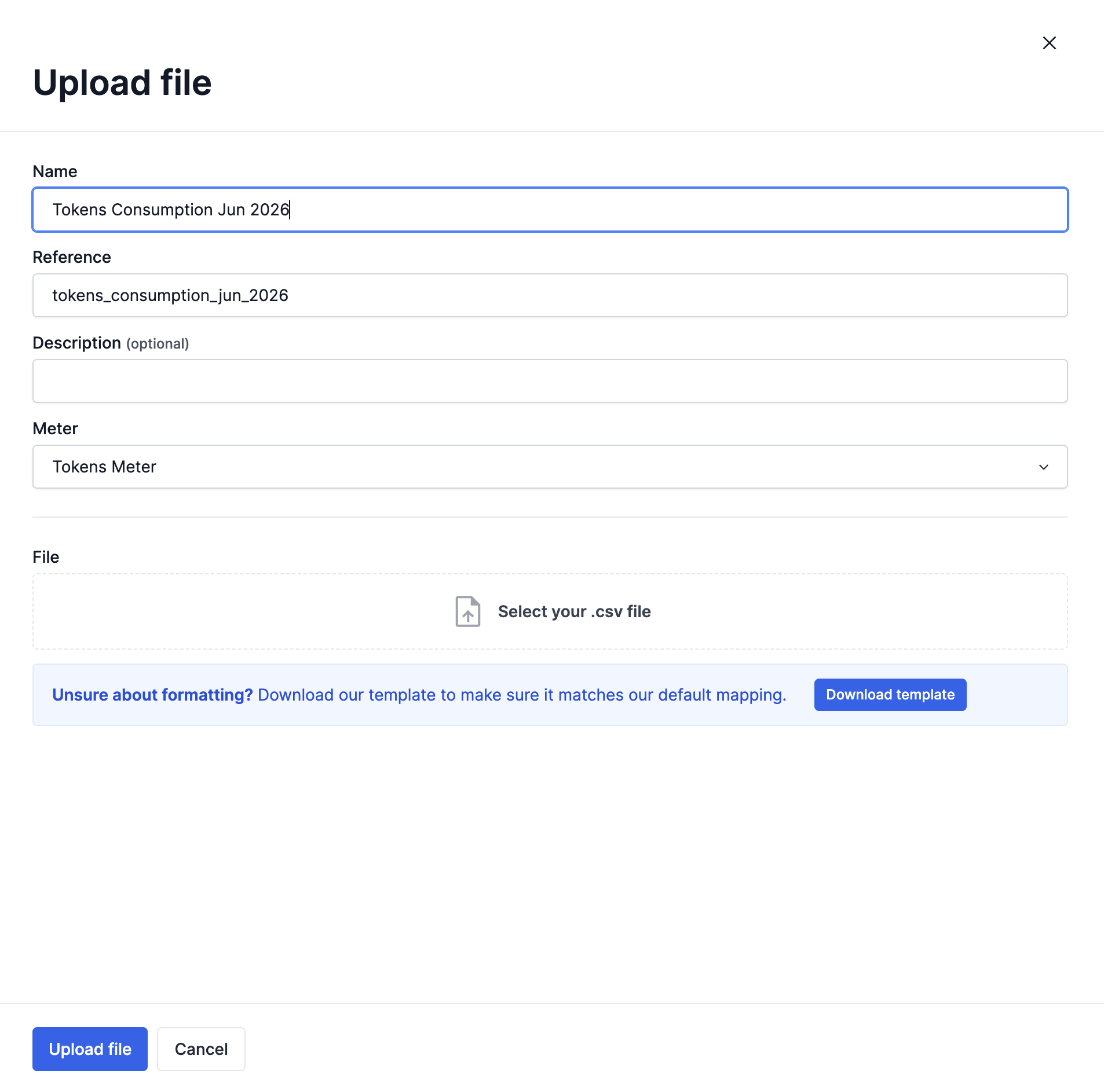
In Desk, go to Files > Upload file and download the .csv file template.

The column header indicates whether the field value is optional. If it is not set as optional, it is a required field.

The headers of the file consist of:
  • Customer reference
  • Pricing plan subscription id (optional) - used when a customer has multiple subscriptions
  • Pricing plan subscription reference (optional) - used when a customer has multiple subscriptions
  • Event reference (Unique event reference. Needs to be unique)
  • Timestamp (optional) - read about formatting here
  • meter value references
  • meter property references


2. Fill file with data

Fill the data you want to ingest into Solvimon and upload it. The file will be processed and once done, the events are ingested into the solvimon system. You can find these events by going to the Events page.

Formatting your data correctly

The file upload method is strictly validated, just like with the other methods. To make sure you format data in the right way check out our timestamp formatting or create an example usage event via the manual ingestion method to get the right formatting.

The file headers are important for the system to recognise what data to create in the Solvimon platform. Do not change the given headers of the template, or your file will not be accepted.


3. Upload file

Once you’ve updated the file with all the events you would like to upload, you can upload it in the File upload section of Desk.

File uploads usually have a name, description, reference, upload date and time, a number of records (e.g. rows) count, and a status.

The status can be:
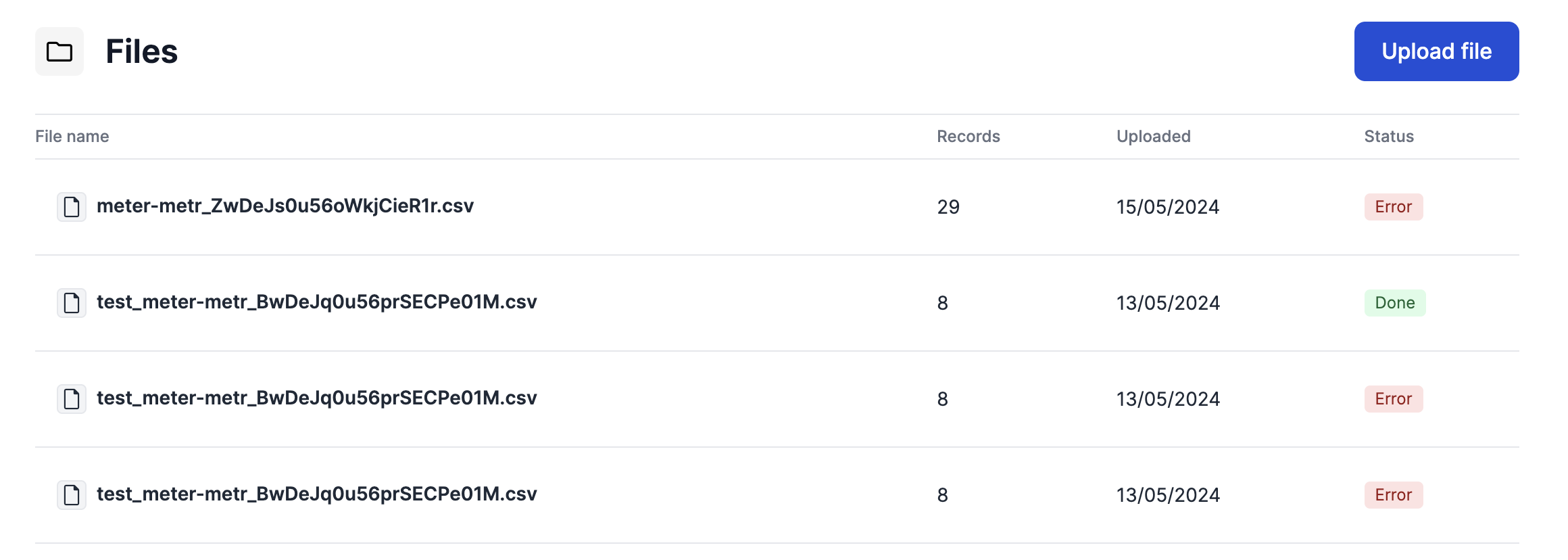
  • Processing: the system is working through the data and was not fully processed yet
  • Error: there are errors in the update file, it was not ingested
  • Done: the file and all its events were fully processed successfully


Timing of usage ingestion & billing periods

If your customers have usage events up until the moment the billing period cycle is closed (for example, the end of the month), you need to ingest their usage data after the end of the billing period end date.

Be cautious with using the file ingestion method as your standard way to upload usage event data.

Read more about invoice statuses and the standard grace periods here.

Invoice statuses and event processing

By default, Solvimon invoices are created during the billing period (status is OPEN), and are set to DRAFT once the billing period is open. The invoice is set to be updated to FINAL after 8 hours. This setting is a default setting and can be changed for your platform.

Once an invoice is FINAL and you have automations running (for example to send the invoice per email), you can no longer ingest usage data.

Therefore, if you are using the file upload mechanism, please ask the Solvimon support team to change the default DRAFT period to a longer time period or to even automatically set your invoices to the On Hold status, so you have enough time to upload usage data before manually setting invoices to FINAL.
