Sales managers often need to review quotes before they are sent to prospects. Automating the quote approval process ensures requested changes are quickly sent to sales representatives, streamlining approvals for contacts.
When a sales rep submits a record for approval, Solvimon evaluates all active approval rules linked to the resource. If any rules meet the specified conditions, an approval request is sent to the assigned approver or group of approvers.
Approval rules can be configured to trigger when all specified conditions are met. Here are a few examples:
Before implementing an approval process for quotes, it’s essential to define the workflow. This includes identifying who needs to approve the quote, the criteria it must meet, and how the process will be managed. Typically, the approval process involves multiple stakeholders such as sales representatives, managers, and executives.
Currently, in Solvimon, all approvers added to a policy must approve the quote for its status to change from Waiting approval to Final.
For an approval policy to be triggered, the following conditions must be met:
In Solvimon, under Settings > Approval policy, you can see an overview of approval policies. Click on Add policy
To create an approval policy, you need to select the following information -
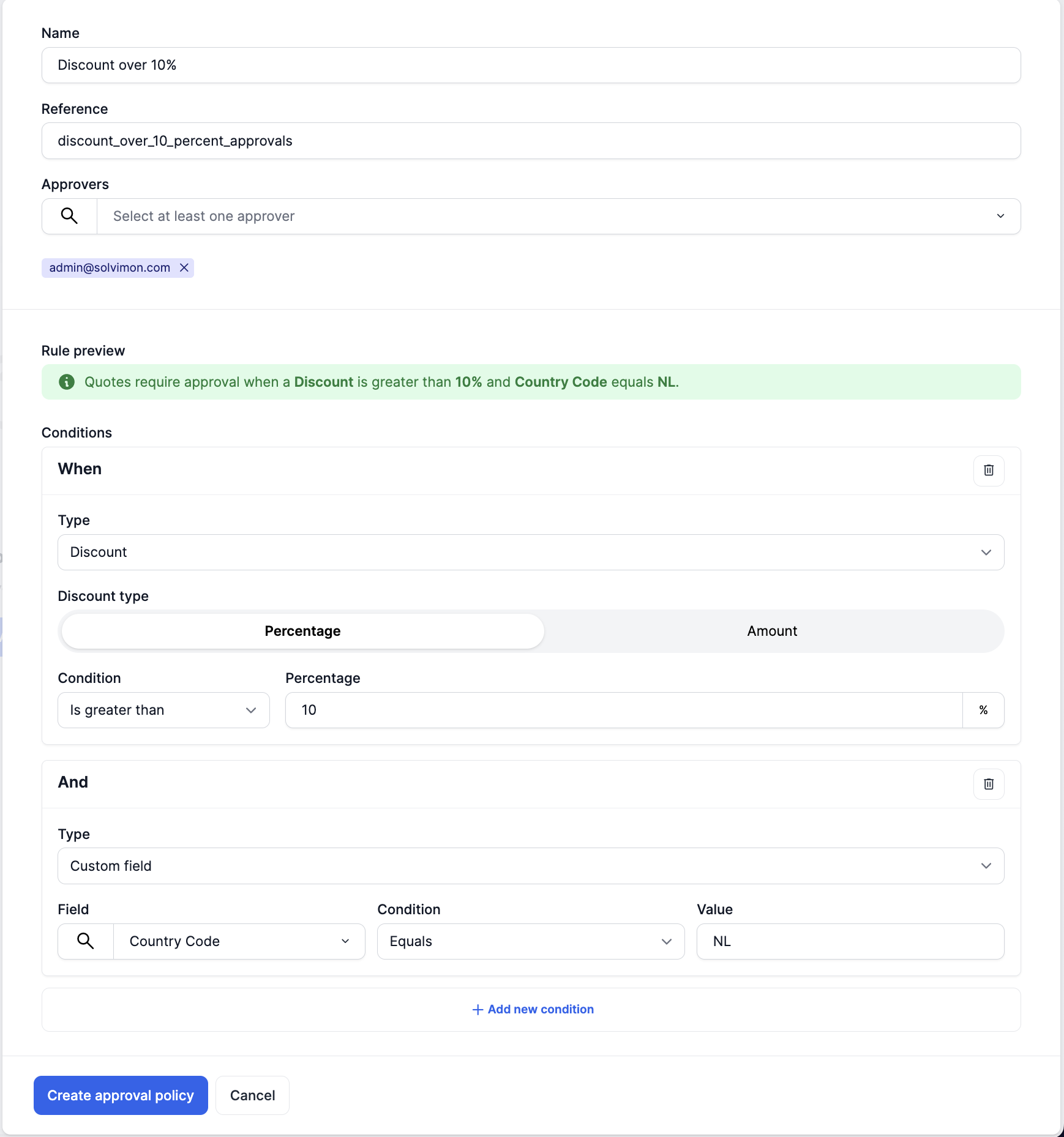
Rules are the parameters on which an approval request is triggered. Each rule comprises of a condition(s) and it is configured as follows -
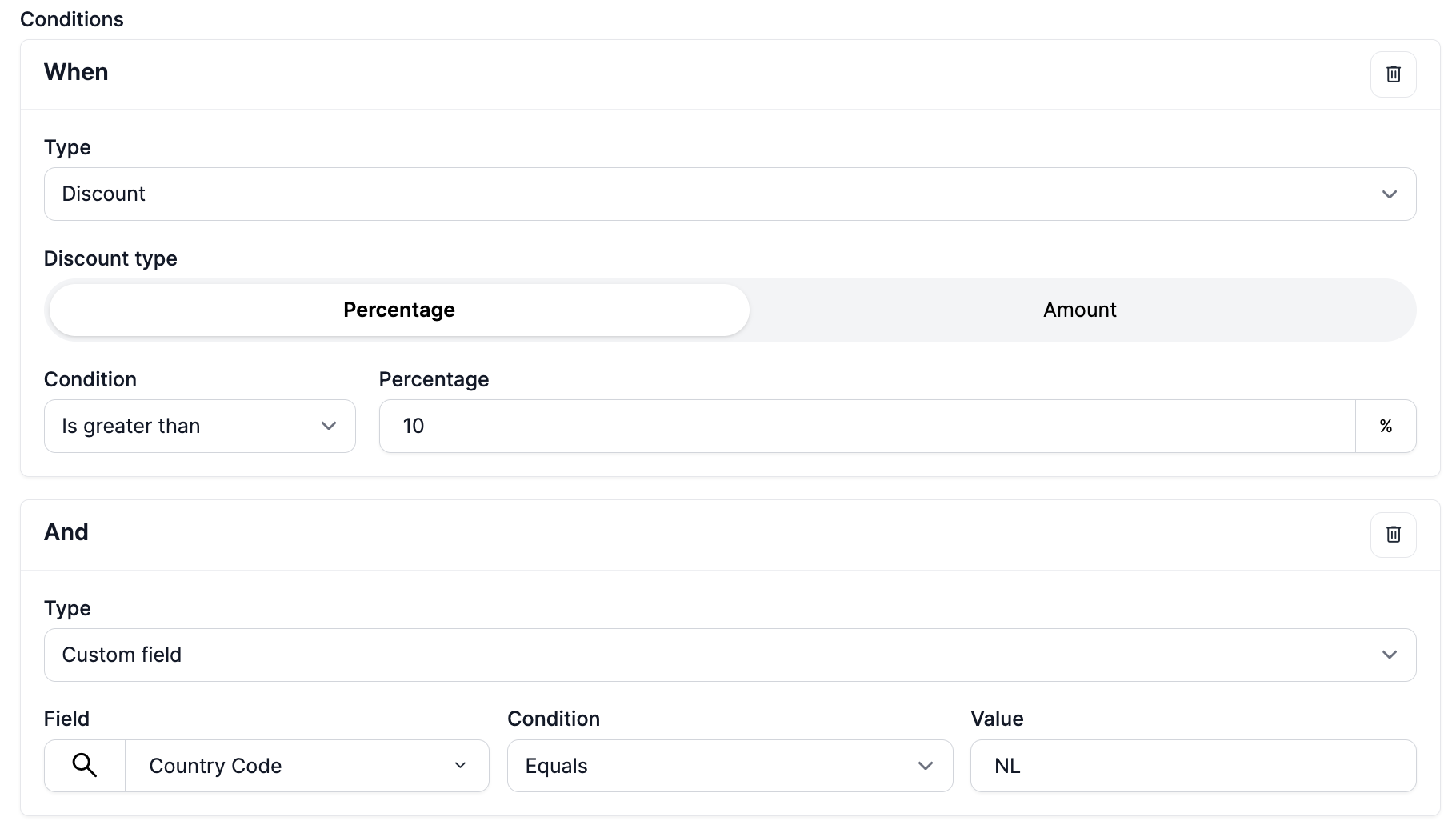
Every rule can have only one type and can have multiple conditions.
A rule can be of the following type Discount, Commitment, Pricing and Custom field.
Note: A rule can have only a single rule type i.e. Discount, Commitments and Pricing.
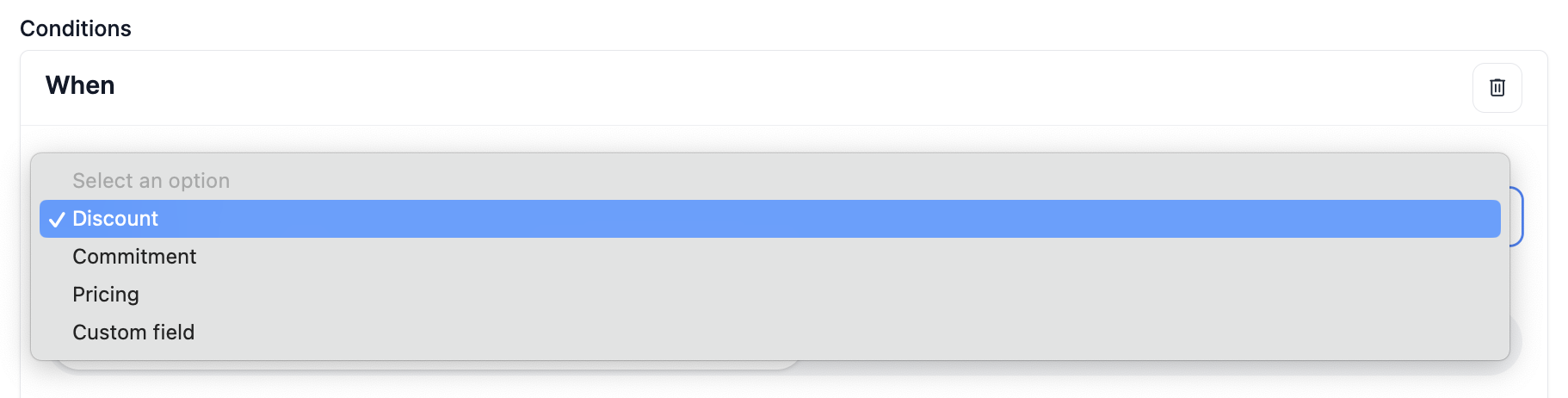
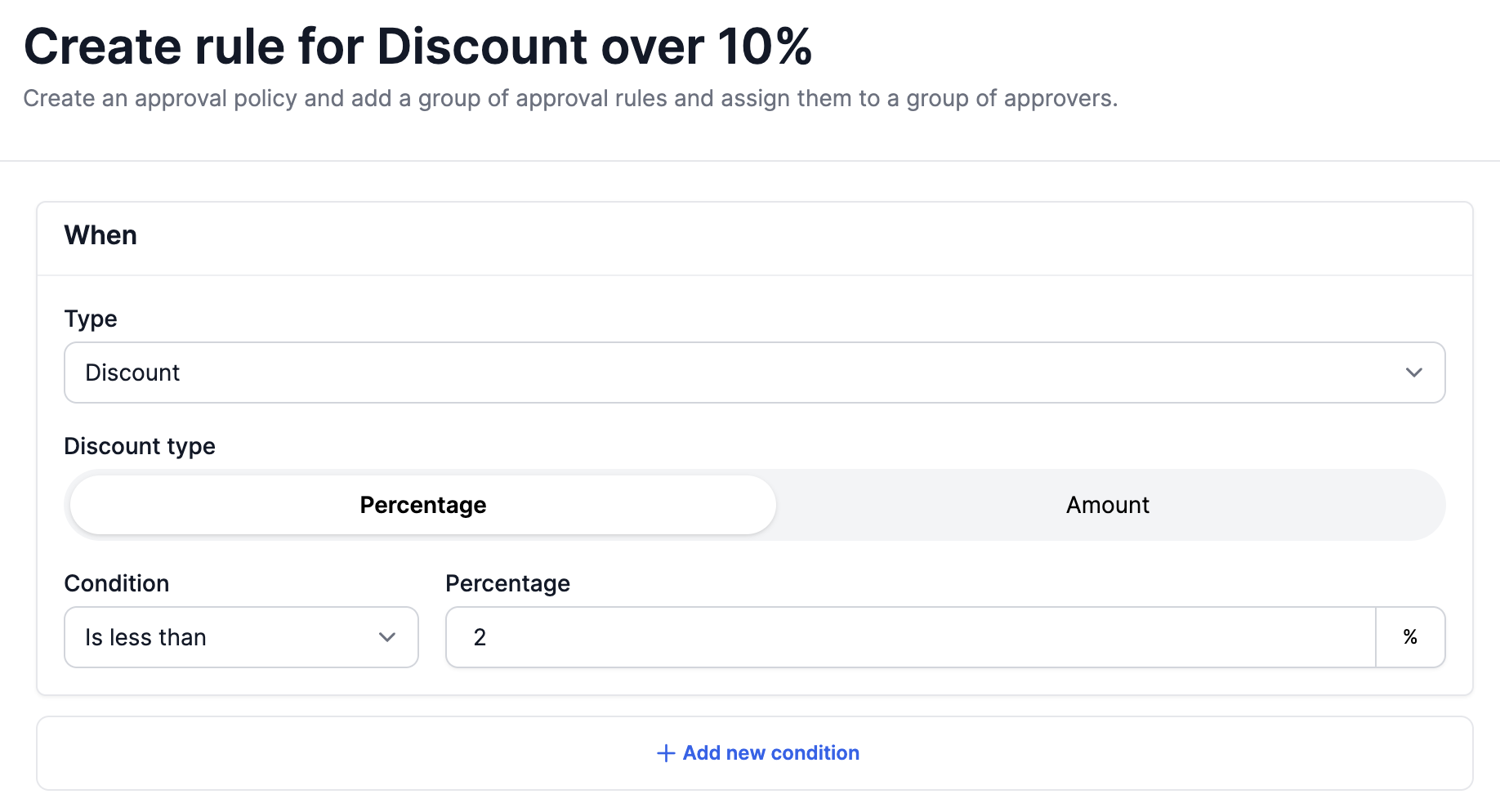
For a rule to be fulfilled, all the conditions need to be met. The conditions can be set as follows -

For a rule to be fulfilled, all conditions need to be met within a rule. For eg, in the image below, the rule would only be applicable if a Quote is configured with a discount of more than 10% and the custom field selected (could be on any resource type, read more about custom fields here) equals value Netherlands
Once you create an approval policy, you can view it in the overview page

For adding additional rules to an approval policy, you can click on the 3 dots on the right hand side and add rules
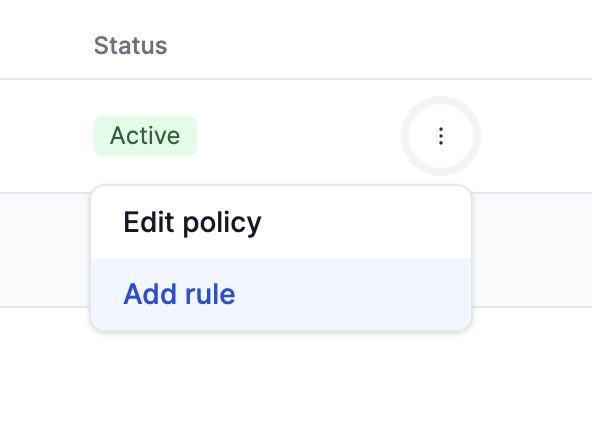
This will open up a form to add an additional rule(s) to the approval policy as shown in the image
In summary, an approval policy applies to all quotes created in Solvimon. When a quote is created and meets any of the defined rules, the approval policy is triggered.
Approvers can view the list of quotes requiring their action on their dashboard and either approve or reject them directly.
Once a quote is approved, its status changes to “Final” and it can be shared with the customer for acceptance.
If a quote is rejected, its status changes to “Rejected” and it can no longer be edited. In such cases, a new version of the quote must be created
