
HubSpot
The HubSpot integration imports your HubSpot companies as Solvimon customers once they’re ready to be billed, and adds Solvimon cards to HubSpot so your sales team can view subscriptions and invoices and create quotes without leaving the CRM.
Solvimon guides your first HubSpot setup. Contact your solutions engineer before you connect the integration.
Overview
With the HubSpot integration you can:
- Import HubSpot companies that meet the import conditions as Solvimon customers
- View a customer’s pricing and subscription details from HubSpot
- View the invoice list for a customer, open individual invoices and download them
- Create quotes, edit draft quotes and share them with your customers
How customers are imported
Solvimon imports a HubSpot company only when it’s ready to be billed. In HubSpot, a company is often a group or a lead (“Acme”). In Solvimon, a customer is an invoiceable legal entity with a country for tax (“Acme Nederland B.V.”). To keep leads out of your billing platform, a company is imported only when all of the following are true:
Only companies are imported. HubSpot contacts aren’t imported into Solvimon.
Always fill in Country/Region code, not only Country/Region. Solvimon tries to map a free-text country name to a code, but this fallback is unreliable and some flows only read the code. Without a valid code, the import usually doesn’t trigger.
The order doesn’t matter
Three flows listen for changes in HubSpot: company created, company updated and deal updated. Each flow can run more than once without creating duplicate customers, so you can work in any order. For example, you can create the company first and associate a deal later. Associating the deal counts as a company update, and the import runs as soon as every condition is met. If the company is already linked to a Solvimon customer, no new customer is created.
Imports run in the background and can take 2–3 minutes.
Imported customers start as Draft
Every imported customer is created with the status Draft. Before you create a subscription, check the customer’s legal name and address, and add the VAT number in Desk because it isn’t imported from HubSpot. Then activate the customer in Desk or from the Solvimon card in HubSpot.
Once a customer is active, you can’t delete it and some fields can no longer be changed.
Connect HubSpot to Solvimon
-
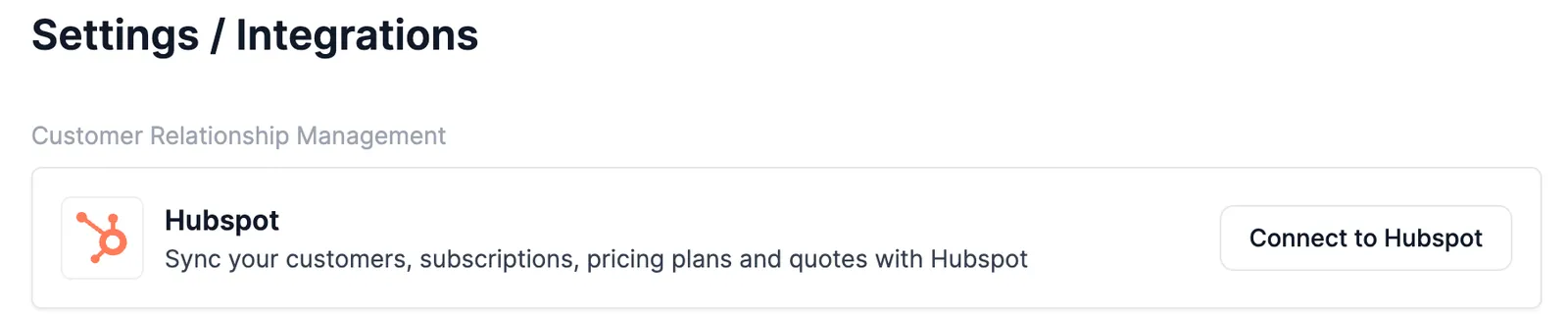
In Desk, go to Settings > Integrations. HubSpot is listed under Customer Relationship Management.
-
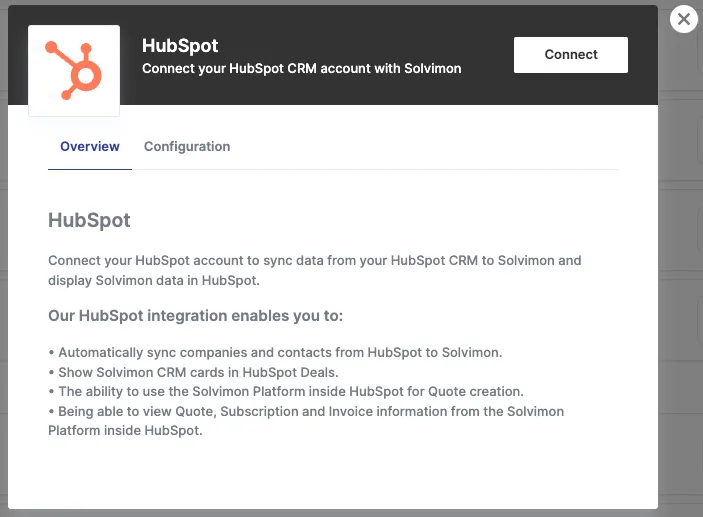
Click Connect to HubSpot. The Overview panel lists the actions the integration enables.
-
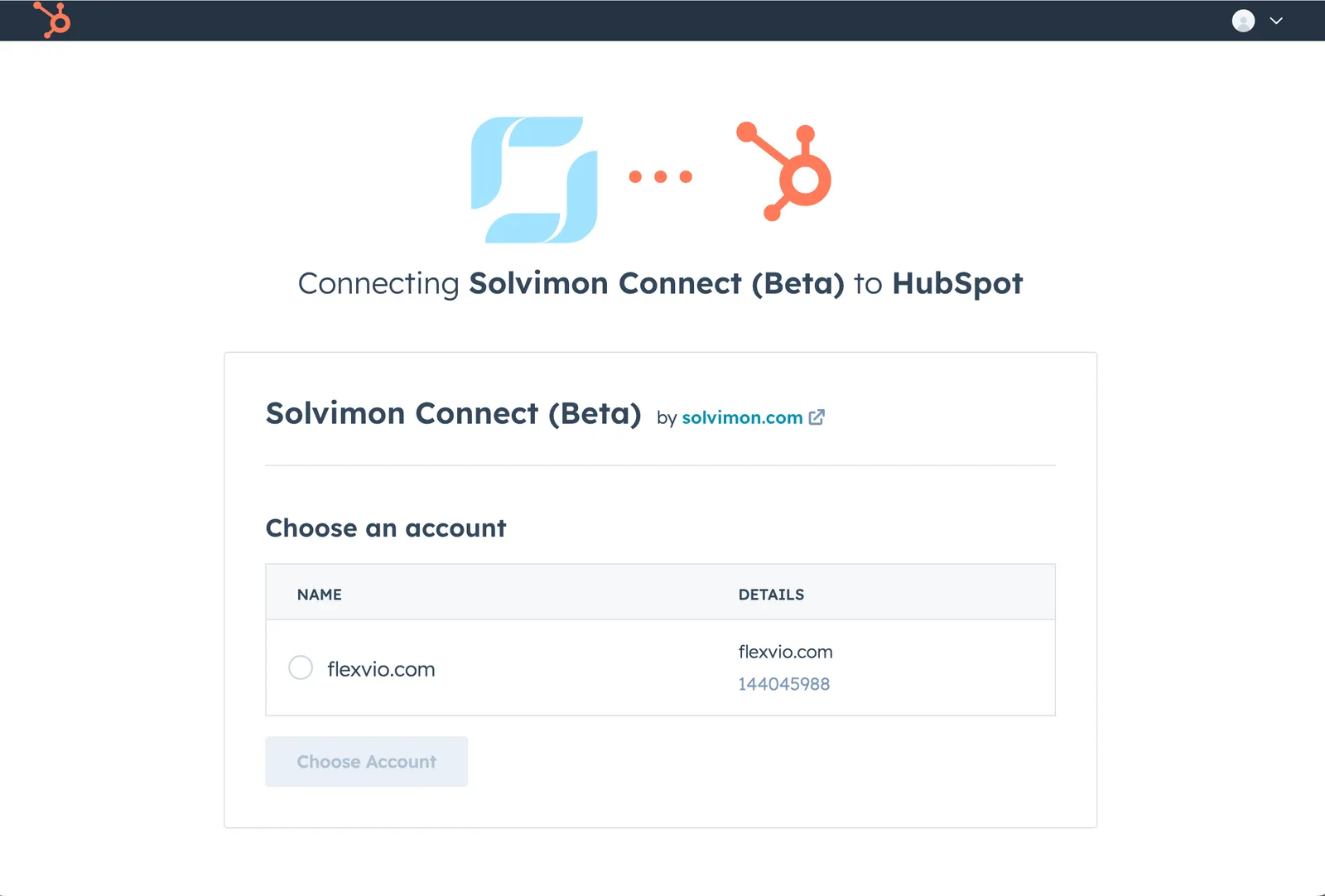
Choose the HubSpot account you want to connect and click Choose Account.
-
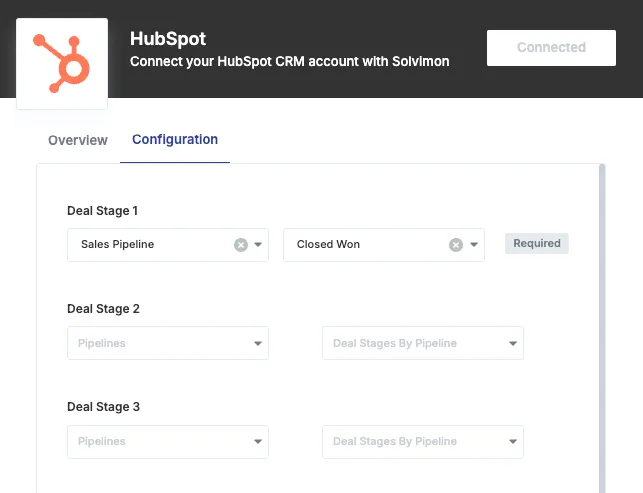
Configure the pipeline and deal stages and the import flows.
Connect your HubSpot sandbox to the Solvimon test environment, and your production HubSpot account to the live environment. If a connection drops, reconnect it from Settings > Integrations and let Solvimon support know.
Pipeline and deal stage settings
The pipeline and deal stages decide which companies are imported. Configure at least one pipeline with at least one deal stage. In most cases Closed Won is enough, but you can select more stages. You can add up to three pipeline and deal stage configurations.
Import flows
Each flow can be turned on or off. All flows apply the import conditions.
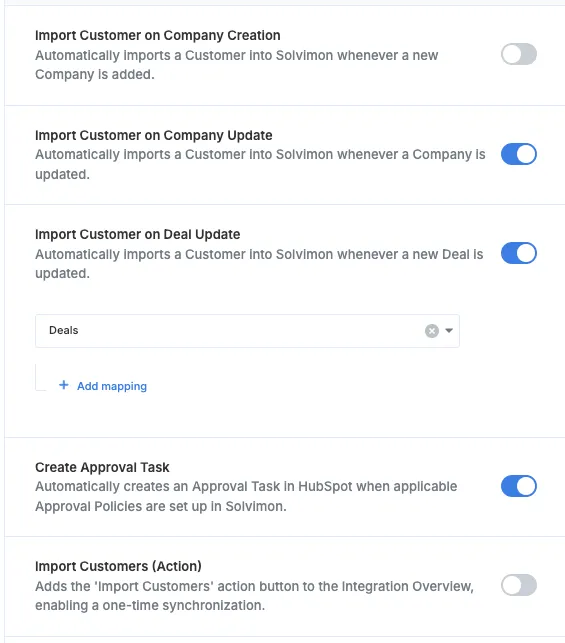
Field mapping
Each import flow (company creation, company update and deal update) has its own Map fields section, and each flow only reads its own mapping. Configure the mapping in all three sections.
- HubSpot side: only Company properties, standard or custom, are imported. The picker also lists properties of contacts, deals and other objects, but these are ignored.
- Solvimon side: customer custom fields. To map another HubSpot property, first create a custom field on customers in Desk. It then appears in the list.
Approval property
Use Require an approval property before sync to add a manual check before a company is imported into Solvimon. A typical example is a Finance approved checkbox on the deal, which your finance team ticks after checking the legal name and address.
- Select a boolean (true/false) HubSpot property. Any other property type, such as a number or text field, always fails the check, so no companies are imported.
- The company is imported only when the property is
true. - Leave the setting empty to import without an approval check.
This is different from Create approval task, which turns Solvimon approval flows into HubSpot tasks.
Run a manual import
To import all companies that meet the conditions in one go, go to Settings > Integrations, open the three-dot menu on HubSpot and select Sync Customers & Contacts. Despite the label, only companies are imported. The import runs in the background and can take up to 5 minutes.


Add the Solvimon cards to HubSpot
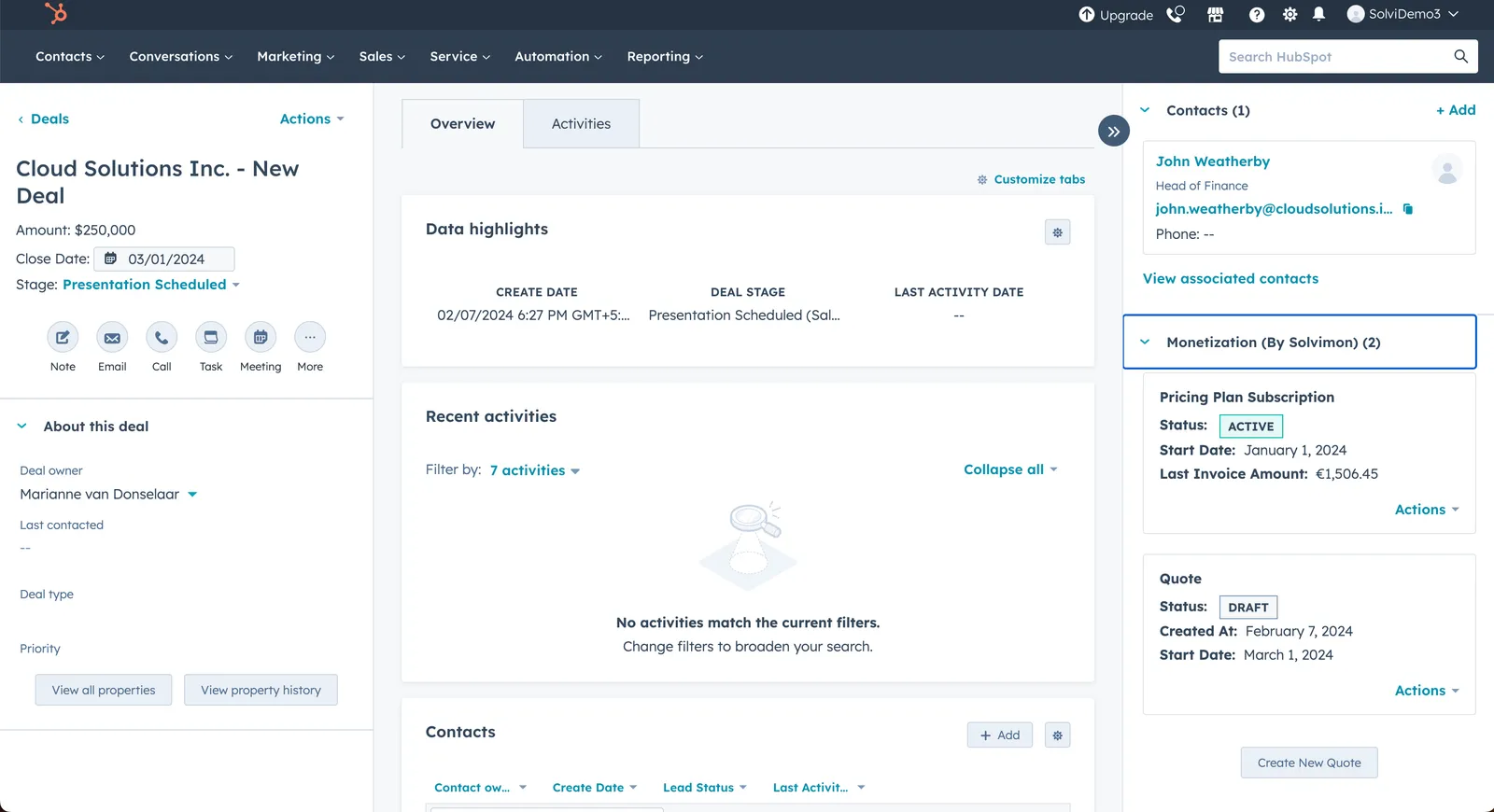
The Solvimon cards show Solvimon data on Company and Deal records in HubSpot. To add them, open a company or deal record, customise the record view, click + Card library and add Monetization by Solvimon. Repeat this for both record types.
The first time you open a card, sign in to Solvimon Desk.
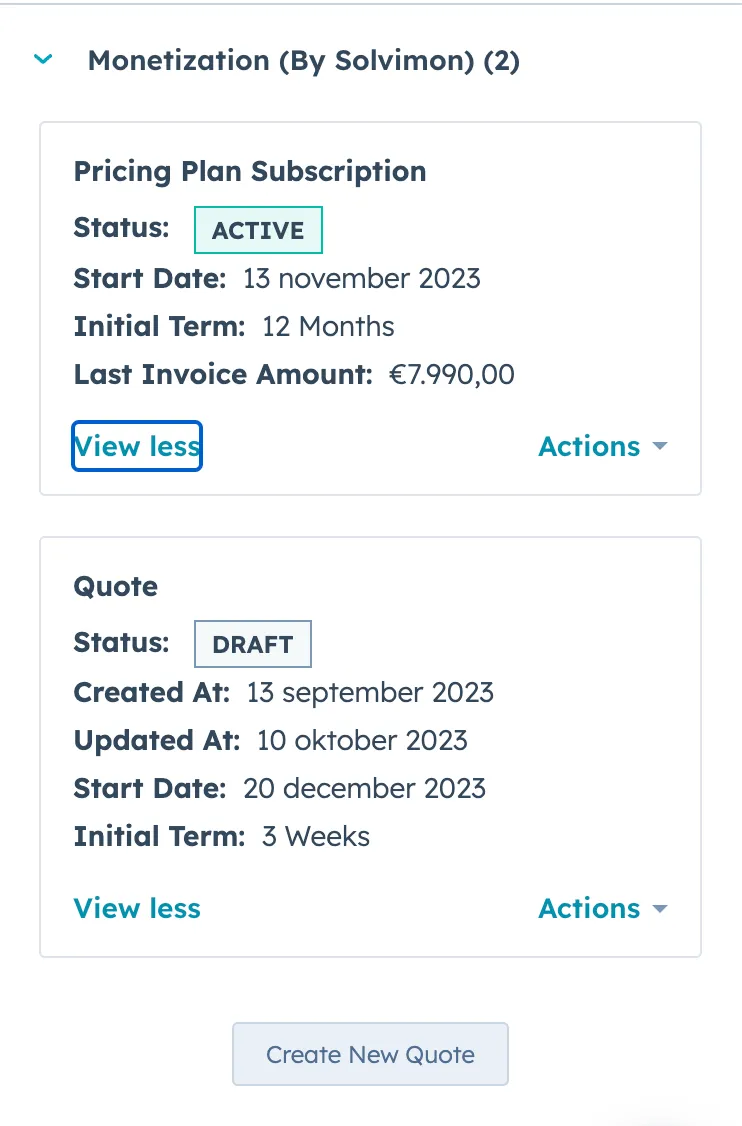
View customer details
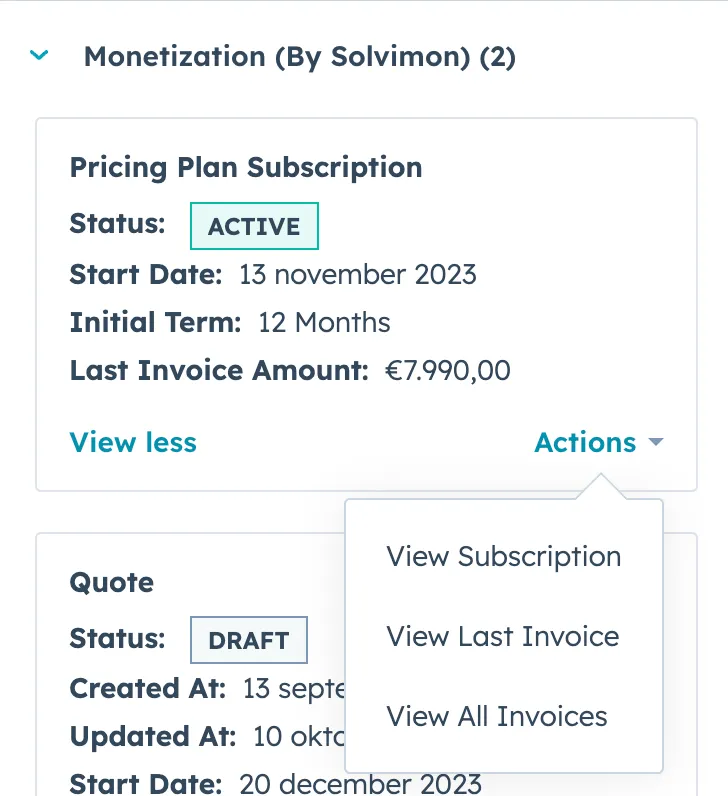
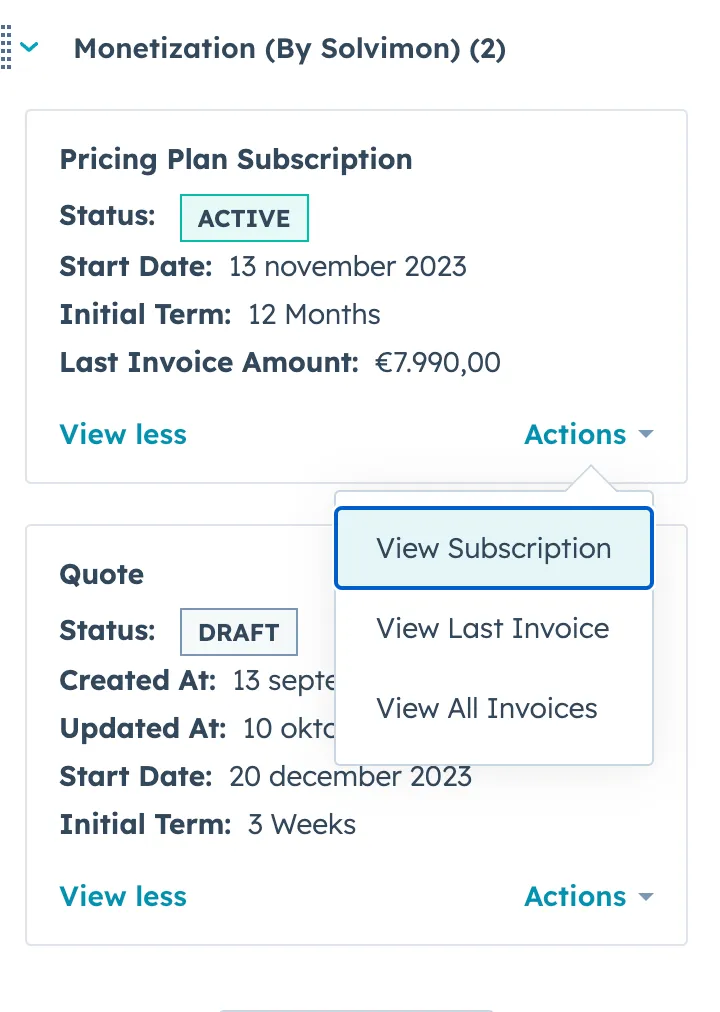
The card shows the customer’s subscriptions, including start date, initial term and last invoiced amount, and their quotes.
View subscriptions
Each active subscription has an Actions menu with View Subscription, View Last Invoice and View All Invoices.
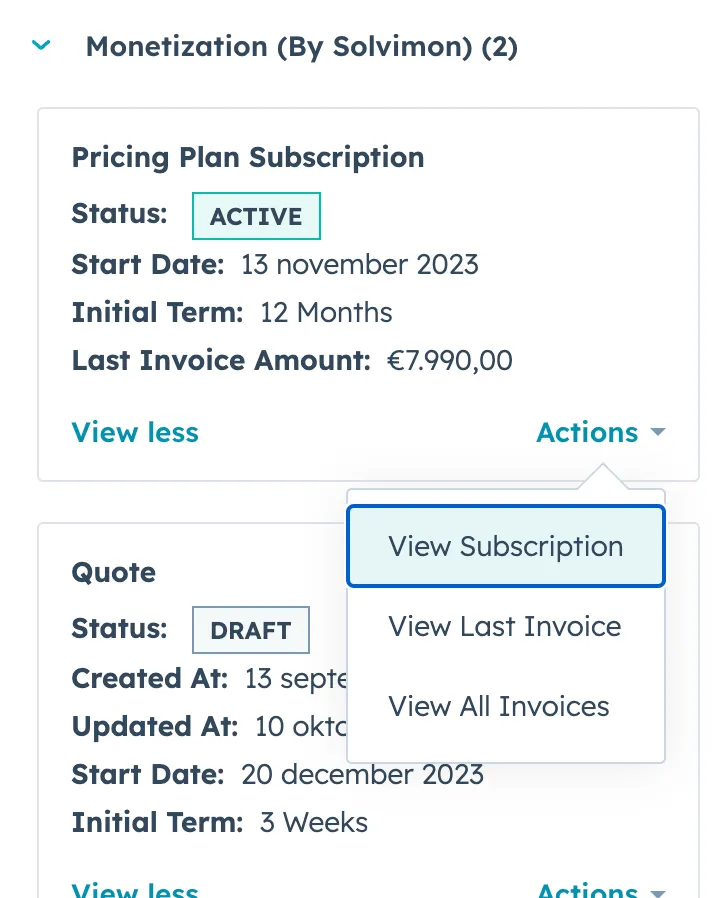
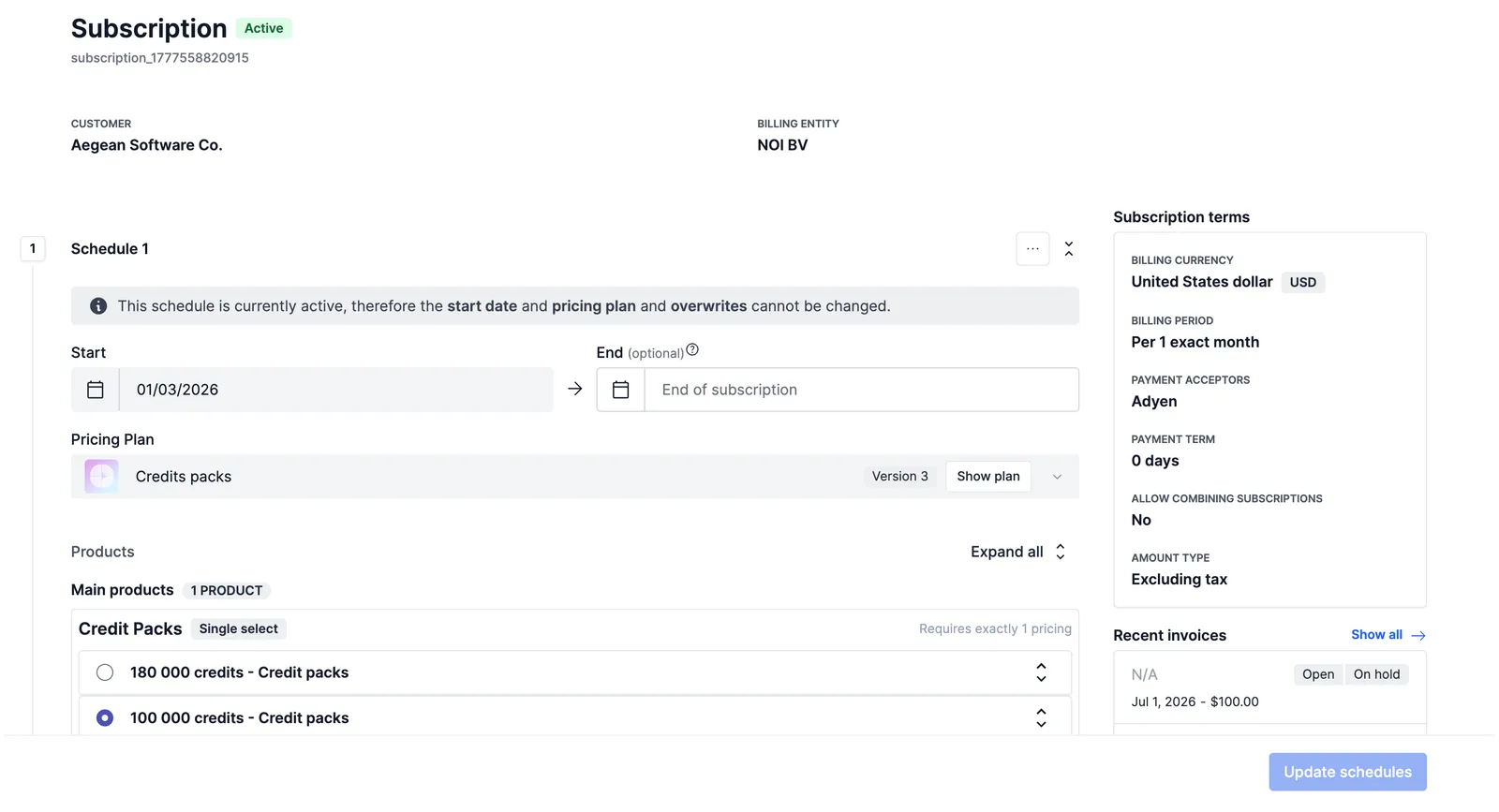
View Subscription opens the subscription from Solvimon Desk inside HubSpot, with its schedules, pricing plan, subscription terms and recent invoices.
View invoices
Select View All Invoices to open the customer’s invoice list. From there you can open an invoice, download the invoice PDF and usage report, and change the payment status.
Create and edit quotes
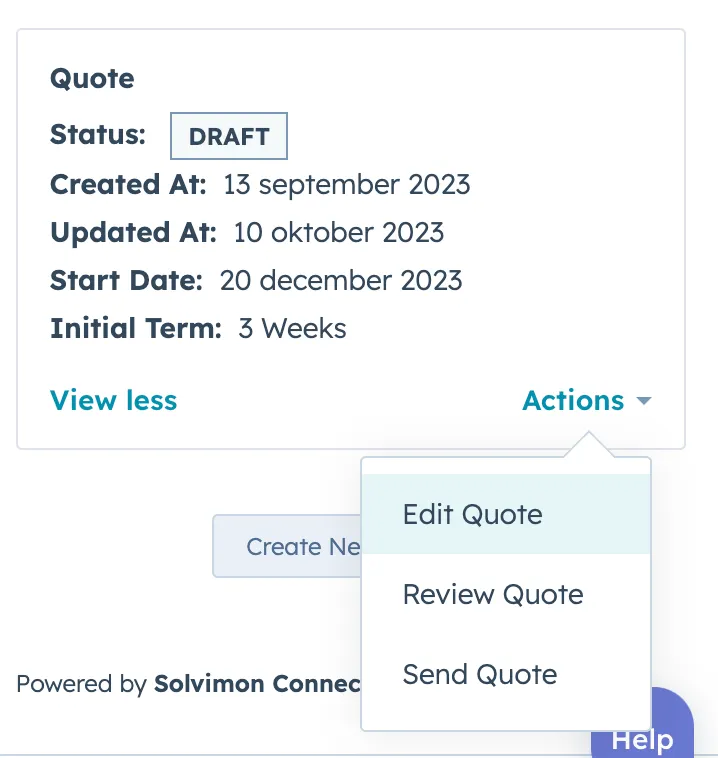
Click Create New Quote to create a quote, or edit a quote that is still in Draft. Once a quote is created, you can share it with your customer from HubSpot.
Show the Solvimon customer ID in HubSpot
To show the Solvimon customer ID on synced companies:
-
In HubSpot, go to CRM > Companies and open a synced company.
-
Click the settings icon.
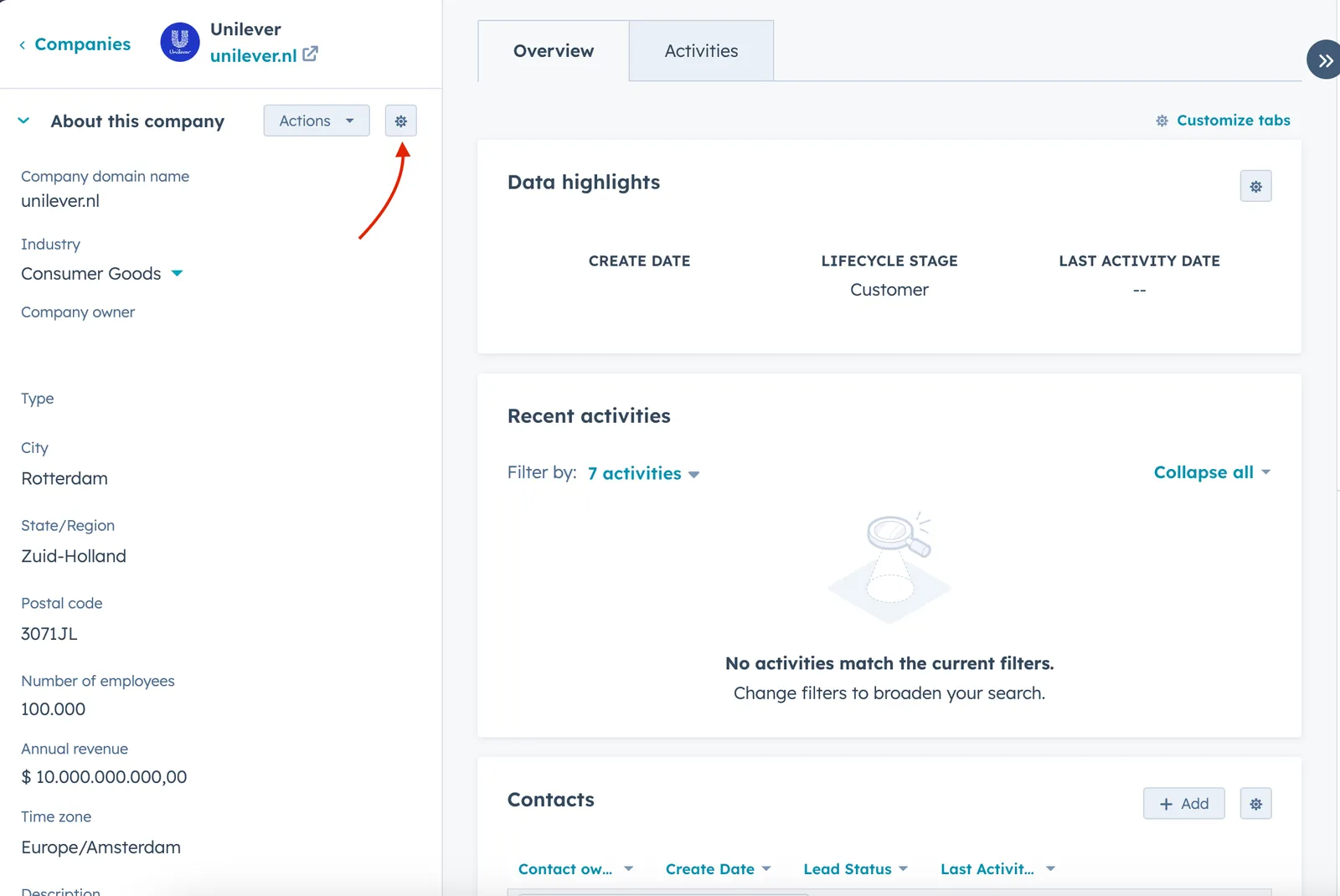
-
Open the Company Information tab.
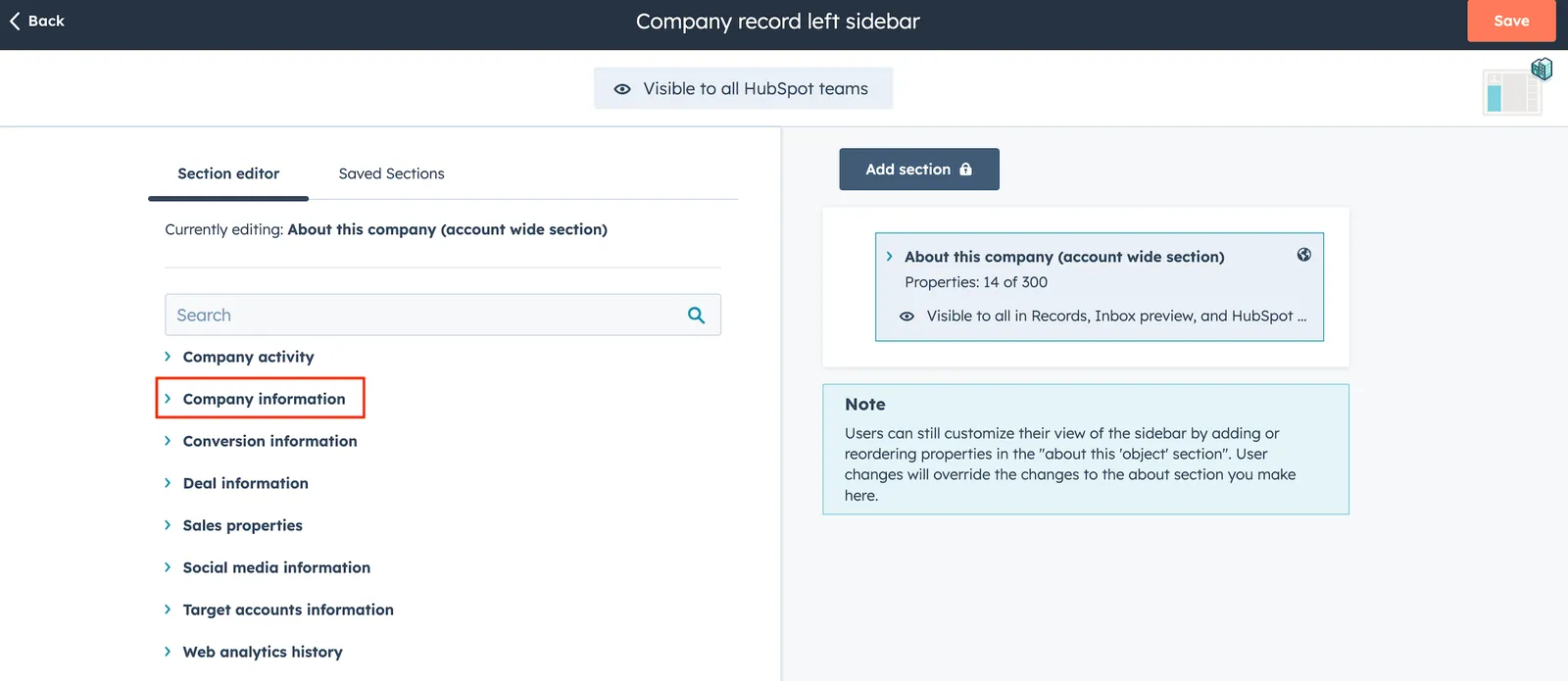
-
Search for Solvimon Customer ID and select it.
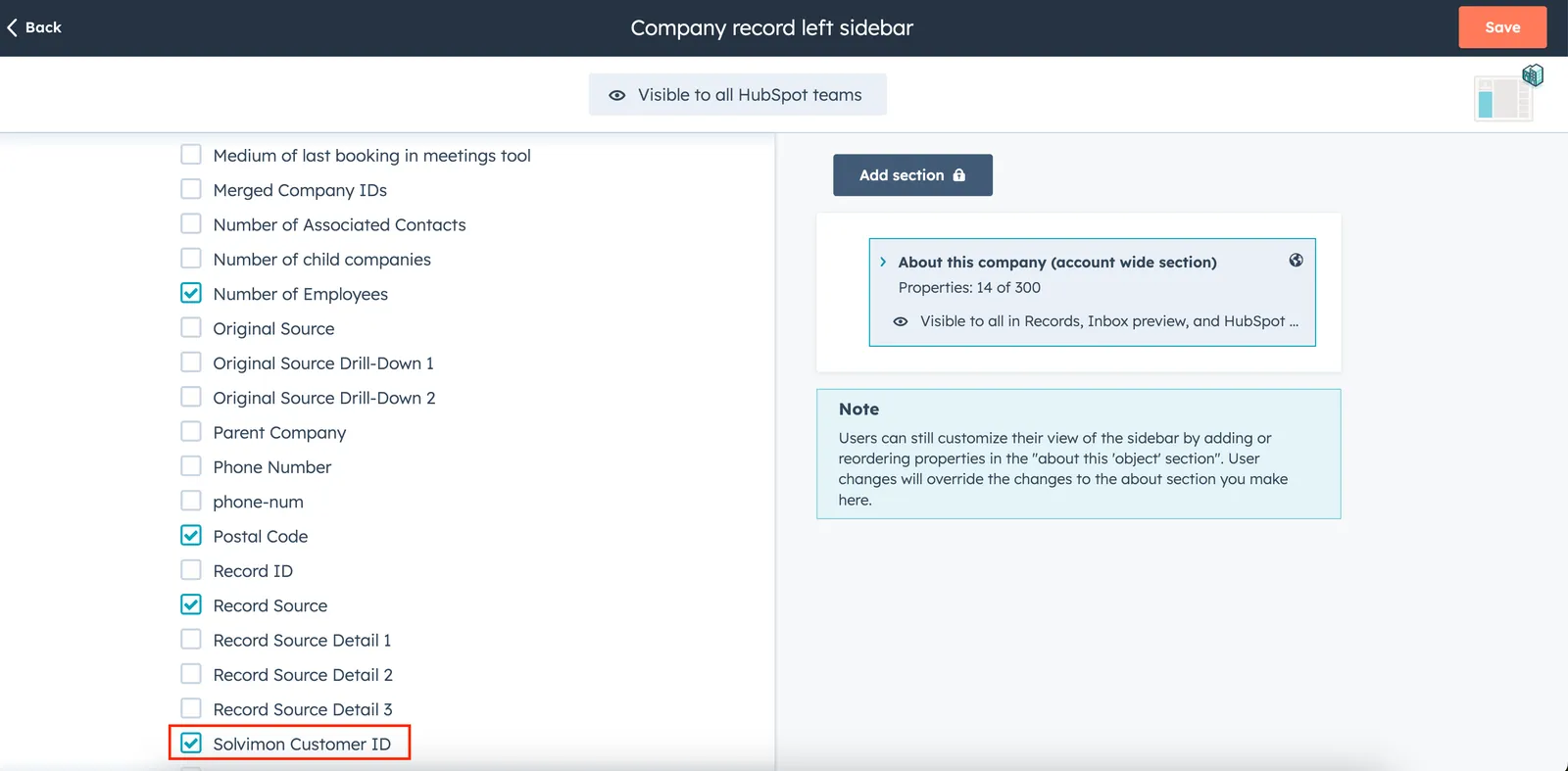
The ID appears on the company a few minutes after the company is imported.
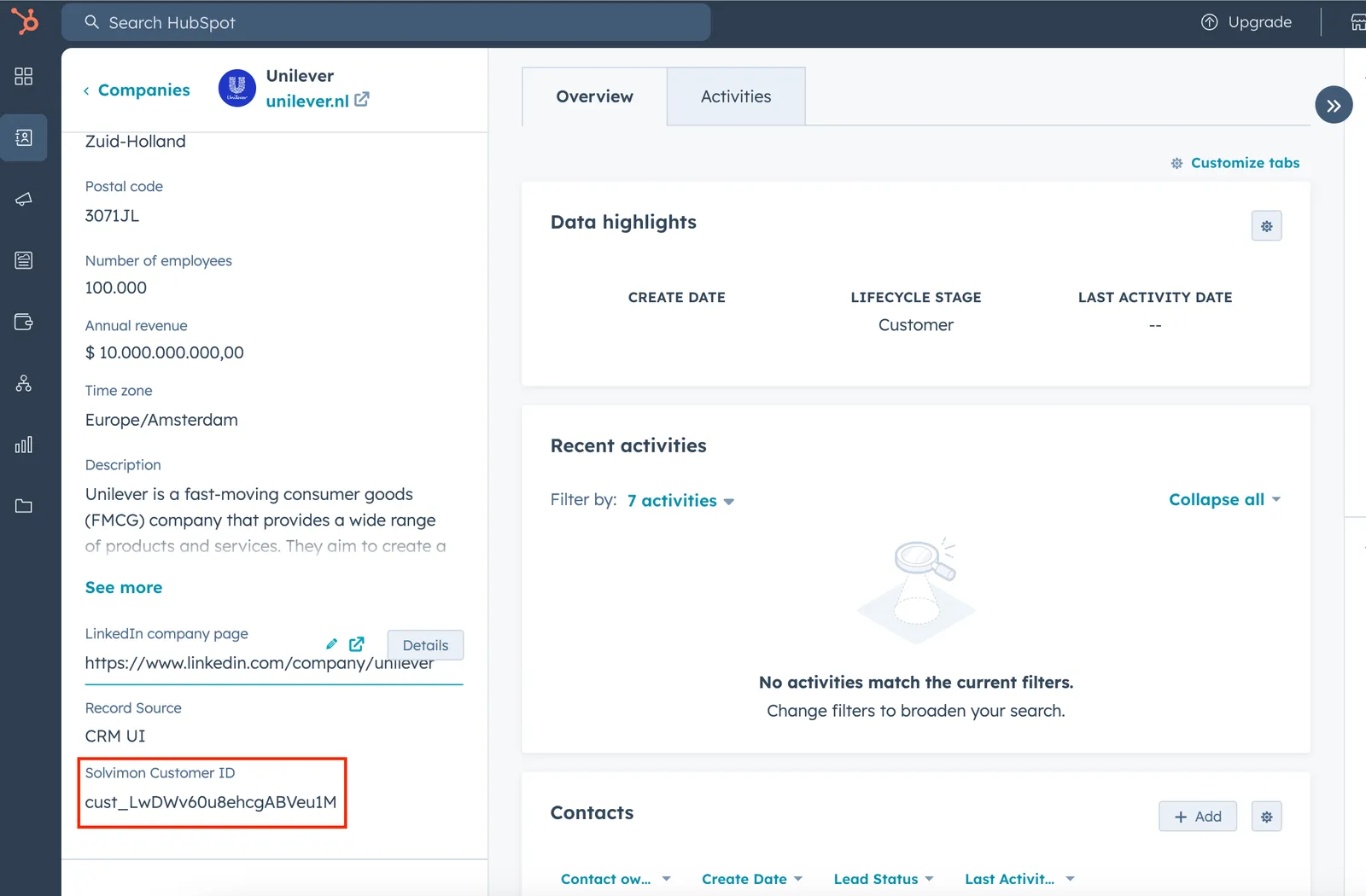
Troubleshooting
If a company isn’t imported, check that:
- The company has a Country/Region code with a two-letter ISO code, such as
USrather thanUSA. - The company has an associated deal in one of the configured pipelines and deal stages.
- The approval property is either empty or a boolean property that is
truefor this company. - You waited at least 3 minutes after the last change.
If a mapped value is missing on the Solvimon customer, check that the HubSpot property belongs to the Company object and that it’s mapped in the section of the flow that ran.
The HubSpot Deal ID custom field on customers isn’t filled in yet. Use the HubSpot Company ID field to link a customer to HubSpot.