
Adyen
Connect Solvimon to Adyen to collect payments for your invoices, with automatic retries of failed payments via Adyen Auto Rescue and payment status updates delivered through webhooks.
Prerequisites
- An active Adyen account, with access to your Company Account and the Merchant Accounts you want to use with Solvimon.
- Permissions to manage API credentials and webhooks in the Adyen Customer Area.
Set up the integration
Configure your merchant account
Solvimon needs additional data settings enabled at the Adyen Merchant Account level to receive complete payment information.
- Navigate to your Company Account.
- Use the Account Switcher to select the Merchant Account you want to configure for Solvimon.
- Go to the Settings section of the selected Merchant Account.
- Select Additional data.
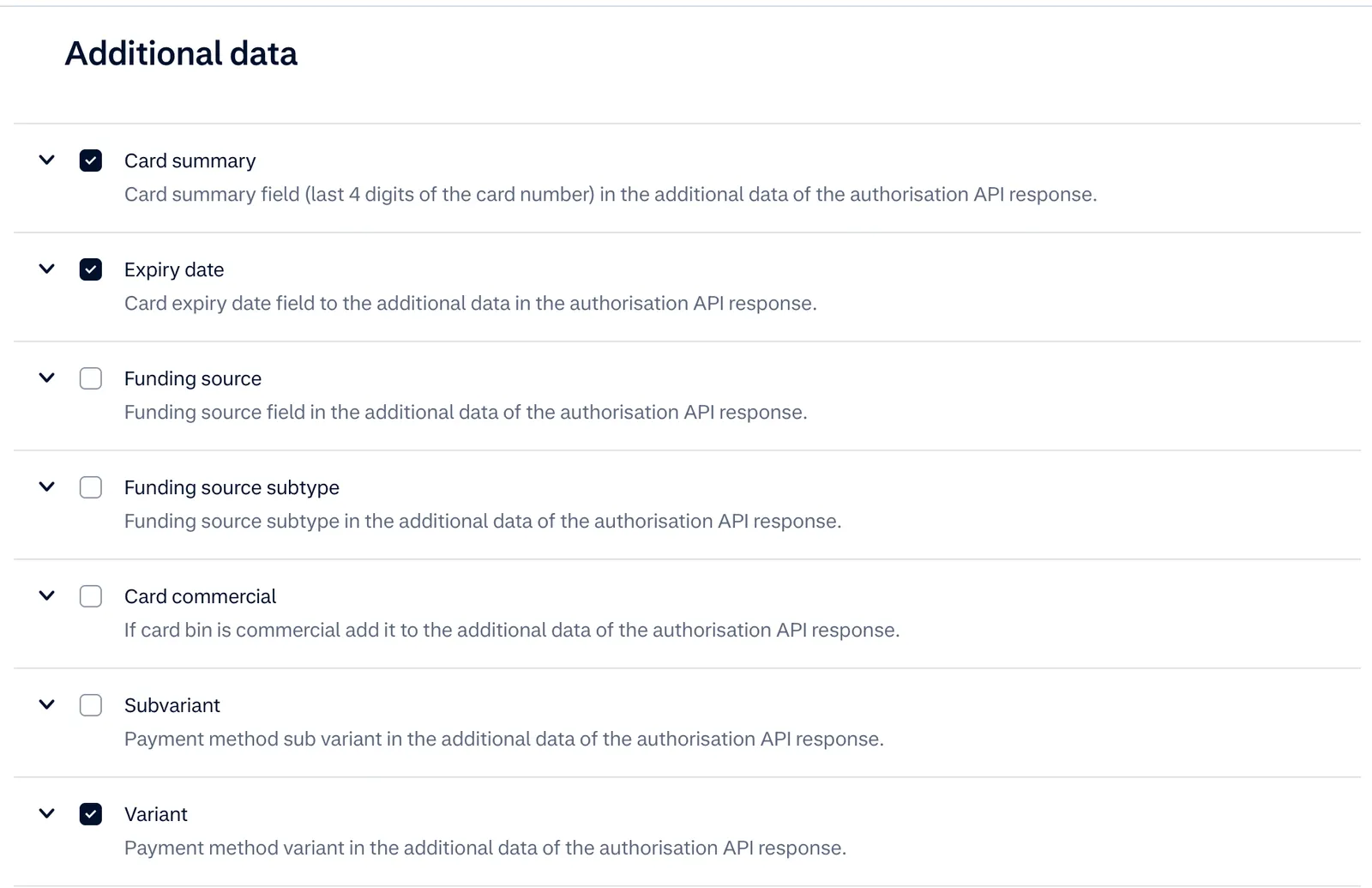
Required additional data options
Ensure the following options are checked:
Card:
- Card summary: provides the last four digits of the card number, so the shopper can identify which of their cards is stored.
- Expiry date: allows Solvimon to access the card’s expiration date.
- Variant: provides information about the card variant (e.g. Visa, Mastercard).
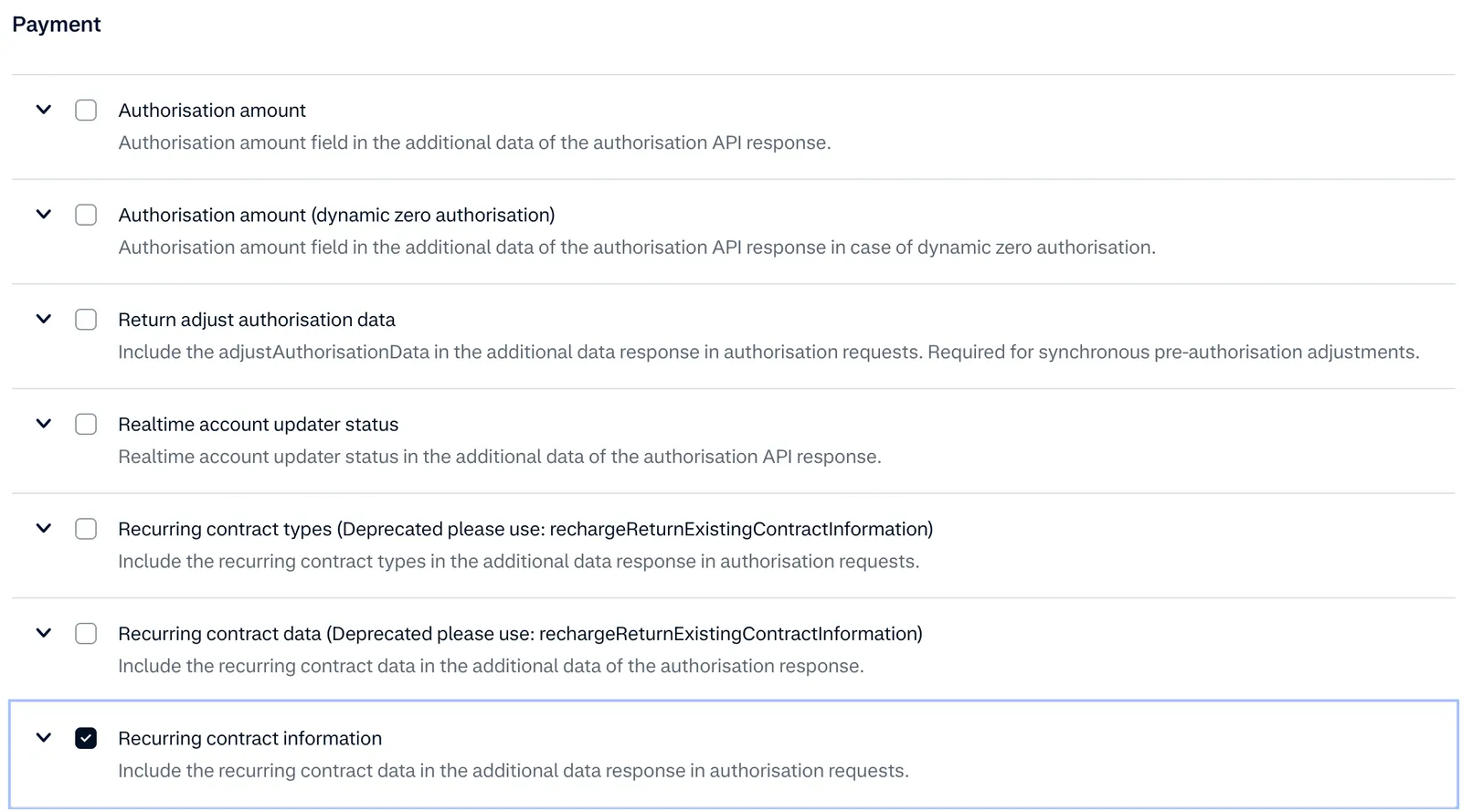
Payment:
- Recurring details: crucial for accessing information related to stored payment methods and recurring payment setups.
Failure to configure these settings may result in incomplete payment information being available to Solvimon.
Configure API credentials
In your Adyen Customer Area, grant the Solvimon integration access to either:
- The Adyen Company Account: broad access across all merchant accounts within your company structure.
- A specific set of Merchant Accounts: limits access to only the designated merchant accounts required for Solvimon’s operations.
Granting access at the Company Account level is advised, since it lets Solvimon configure webhooks automatically instead of requiring manual webhook setup.
Then assign the required roles to the Adyen user account used by Solvimon’s integration:
Payment user roles (required)
-
Merchant PAL Webservice role: mandatory for Solvimon to execute any API calls to the Adyen platform. Without this role, API requests will be rejected. -
Checkout webservice role: required for Solvimon to interact with Adyen’s Checkout API, which is essential for initiating payment sessions, handling payment requests, and processing payment responses. -
Merchant recurring role: necessary for Solvimon to leverage Adyen’s recurring payments functionality. It grants the permissions needed to securely store shopper payment details and subsequently authorize recurring transactions (e.g. subscriptions, installments). -
Checkout encrypted cardholder data: essential if Solvimon needs to transmit encrypted cardholder data using the Adyen Client-Side Encryption (CSE) libraries or SDKs. Important: obtaining this role requires PCI DSS compliance; a Self-Assessment Questionnaire A (SAQ A) must be completed and submitted as part of the assessment process.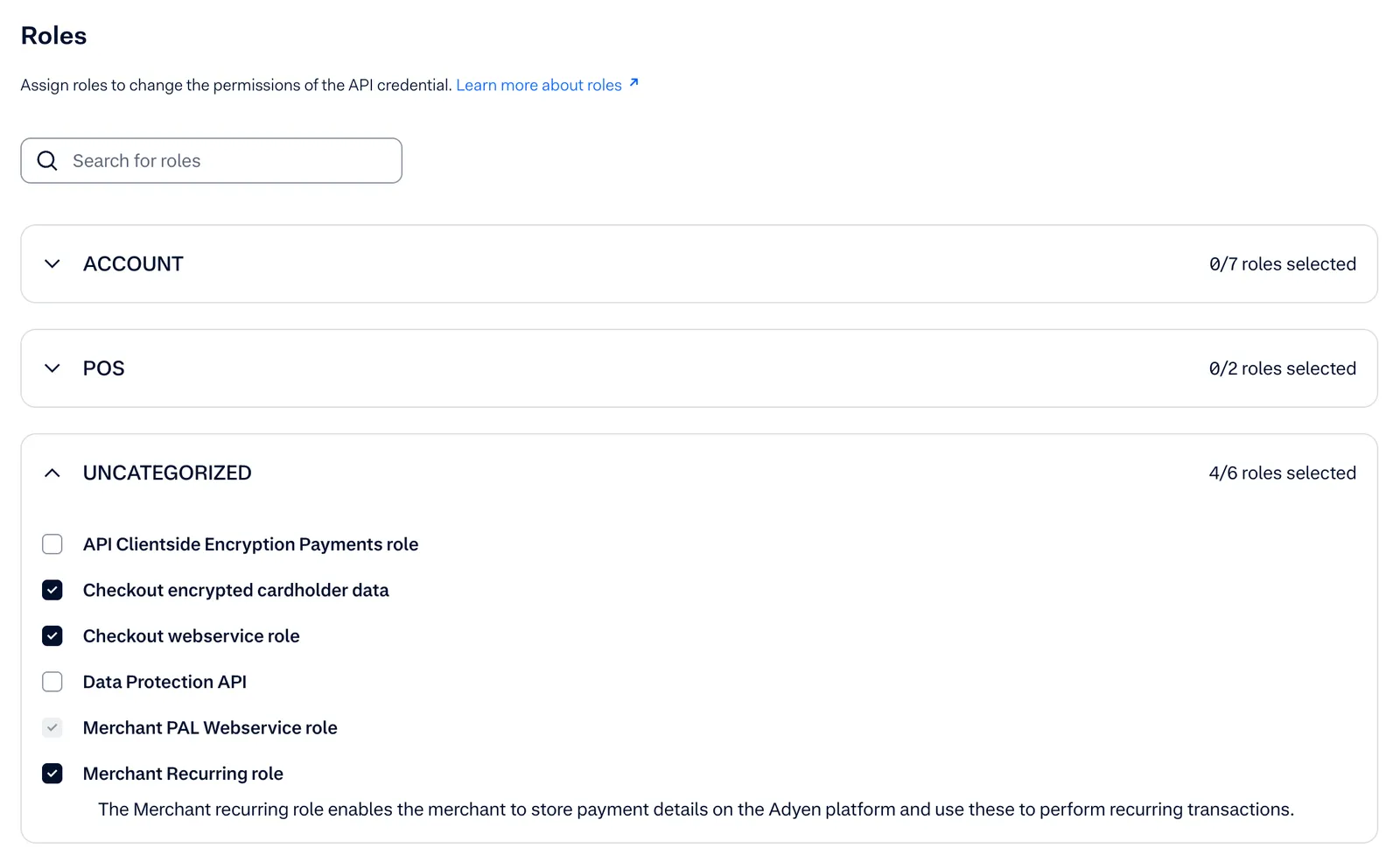
-
Management API - API credentials read and write: necessary for Solvimon to check if the webservice user exists.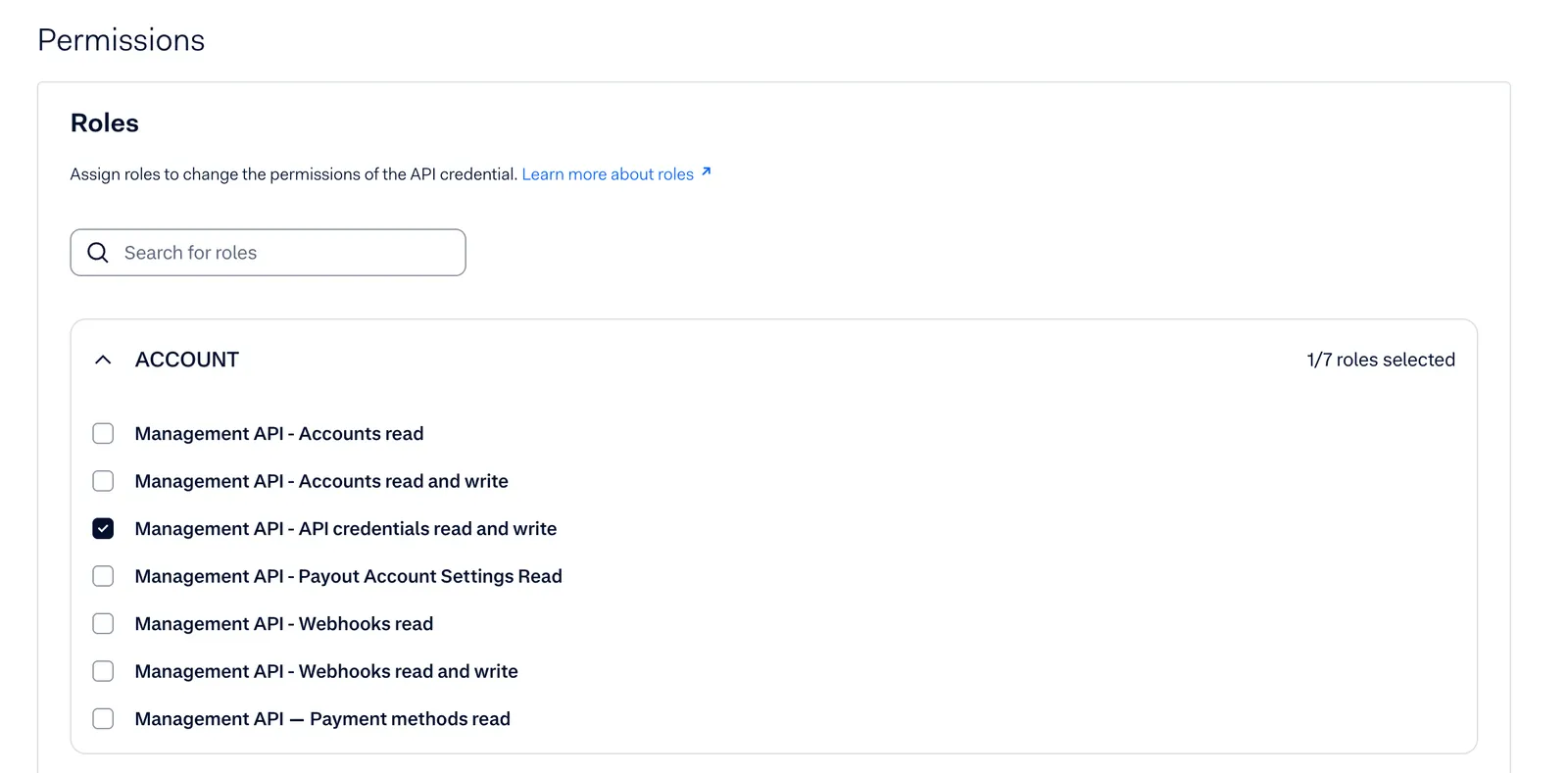
Management API user roles (company-level access only)
This step can be omitted if you do not want to grant company-level access, which is required for some API calls.
The following user roles within the Adyen Management API control the permissions of API credentials:
Management API - Account read: retrieve information about the company and merchant accounts the credential has been granted access to. Essential for Solvimon to identify the available accounts for processing.Management API - API credentials read and write: view, create, modify, and delete other API credentials within the permitted scope. Exercise caution when granting this powerful role.Management API - Webhooks read: view existing webhook configurations.Management API - Webhooks read and write: create, modify, and delete webhook configurations. Necessary for programmatically managing event notifications.Management API - Payment methods read: retrieve information about the payment methods configured within the accessible accounts.
Next:
-
Copy the API key generated by Adyen.
-
Generate a client key and copy the Client Key.
-
If you use the Solvimon Portal, add the allowed origins:
- Test environment: https://test.portal.solvimon.link
- Live environment: https://portal.solvimon.link

-
Click SAVE CHANGES.

Failure to provide the necessary permissions will result in errors and prevent Solvimon from interacting with the Adyen platform as intended.
Connect Solvimon to Adyen
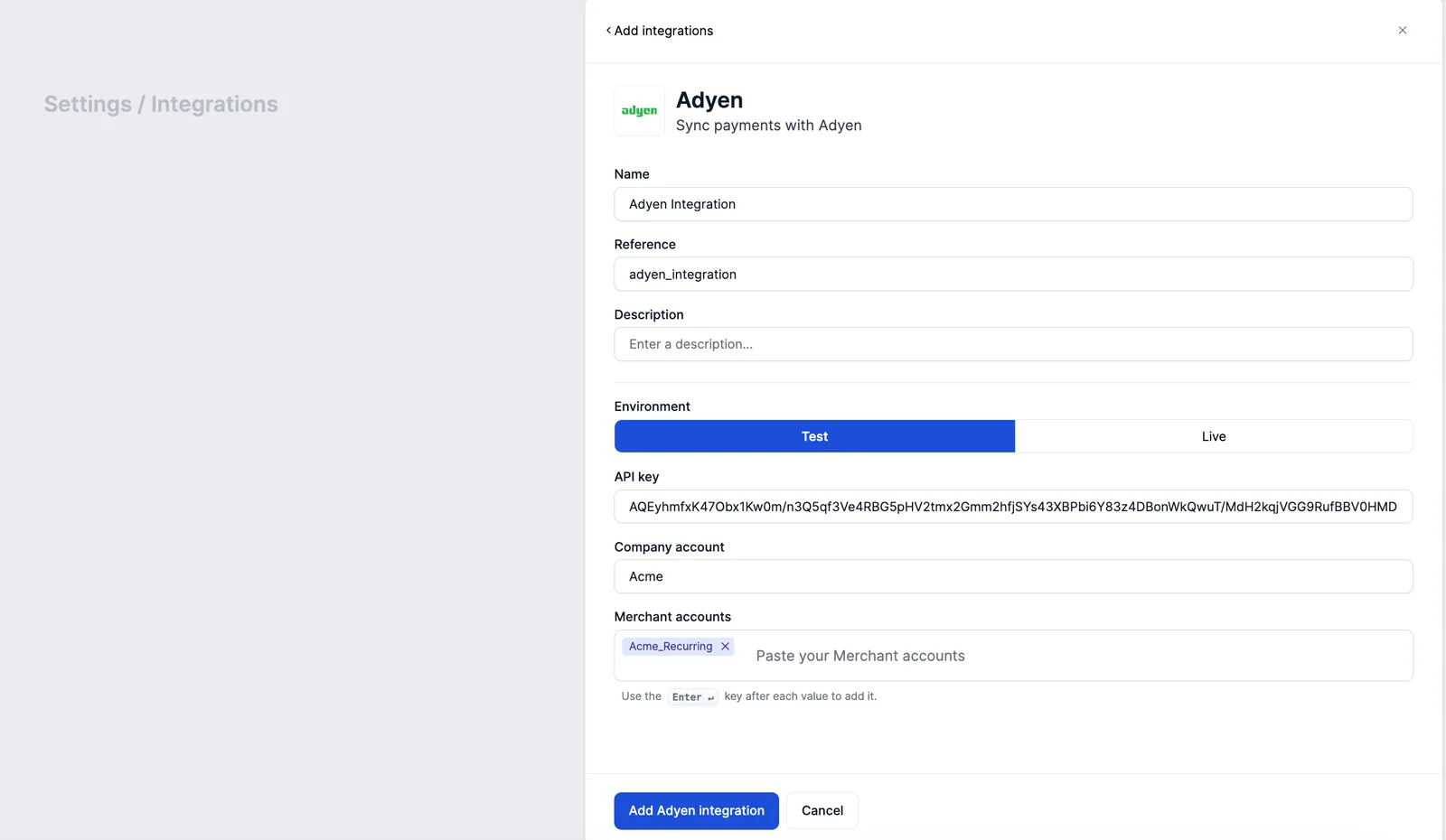
In Solvimon Desk, go to Settings → Integrations → Adyen and log in through the integration widget.
It is recommended to provide an API key that has the required company access; this way configuration is done automatically.
Configure webhooks
Configure a webhook in your Adyen account so payment updates are relayed to Solvimon.
This step is not needed if the API credentials were granted Company Account access; Solvimon configures the webhook automatically in that case.
The Adyen integration with Solvimon must be successfully linked before proceeding with webhook configuration.
Replace [INTEGRATION_ID] with the unique Integration ID provided by Solvimon. For the live environment, contact Solvimon Support to request your unique, dedicated API URL and use it as [DEDICATED_API_URL].
The username and password for Basic Authentication are provided by Solvimon upon completion of the Adyen integration linking process.
Subscribe to the following Adyen events for proper payment update propagation to Solvimon:
AUTHORISATIONAUTORESCUECANCEL_AUTORESCUECHARGEBACKREFUNDREPORT_AVAILABLE(specifically required when processing product items of typeDEDUCTION)
Additional webhook settings
The following settings are highly recommended or required for optimal data transmission to Solvimon:
-
Include Bank Account Details: include bank account information (where applicable) in the webhook payload.
-
Include card info for recurring contract events: ensure card details are included in webhook events related to recurring payments.
-
Include detailed Card BIN information: provide granular details about the card’s Bank Identification Number (BIN).
-
Skip sending to PAL(configured by Adyen): submit a request to Adyen Support at support@adyen.com to enable this for the specific webhook. You can find the webhook IDs at https://ca-test.adyen.com/ca/ca/config/webhooks.shtml.This configuration ensures that any additional properties Solvimon sends during the payment flow are consistently included in the webhook payload. The
Skip sending to PALproperty needs to be configured per webhook.
Enable Adyen Auto Rescue
Solvimon has a native integration to Adyen Auto Rescue. Auto Rescue automatically retries refused or charged back shopper-not-present transactions, such as subscription renewals. It uses smart logic to decide which payments can succeed when retried later, and performs these retries at optimal times.
Adyen Auto Rescue requires configuration by Adyen support; see the Adyen Auto Rescue documentation for details. Email support@adyen.com and ask them to enable Auto Rescue on your Merchant Account, for Cards only.
How Auto Rescue works
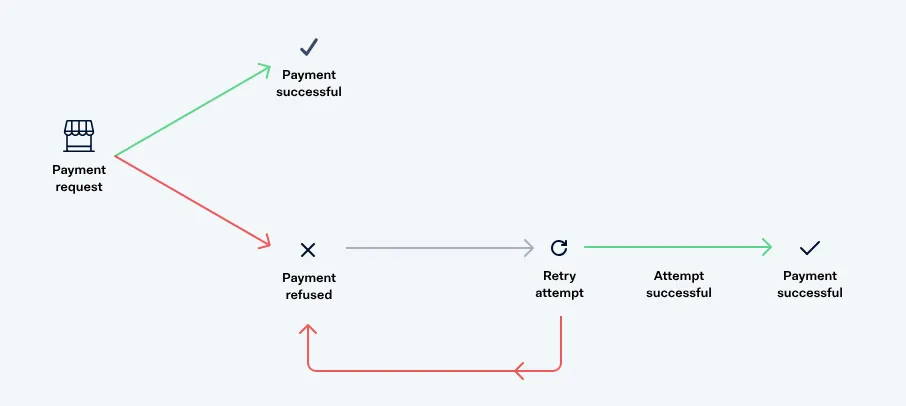
A payment can be refused (card transactions) or charged back (SEPA direct debit transactions) for many reasons. In some cases, for example when the shopper’s account has insufficient funds, the payment may still succeed when submitted again at a later point in time. In other scenarios, for example when the shopper’s account has been closed, the payment is declined permanently.
Auto Rescue schedules retries for refused or charged back payments that have a chance of succeeding. It may take several retry attempts to rescue a payment. These attempts occur within a rescue window.
More information is available in the Adyen Auto Rescue documentation.
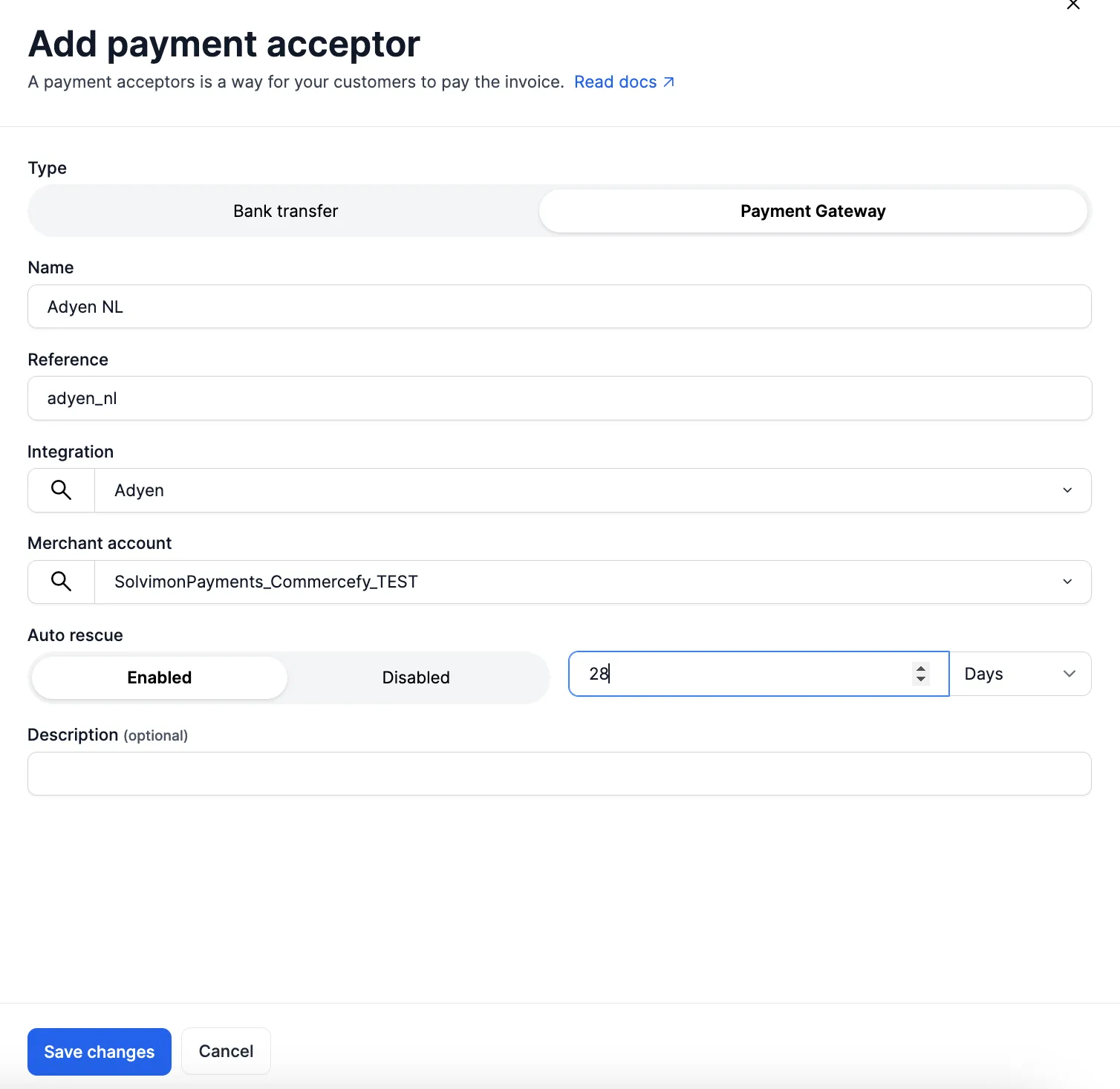
Set the Auto Rescue window in Solvimon under Billing Entity → Payment Acceptor settings.
On the invoice level, you can find Payment Attempts to follow the dunning process.
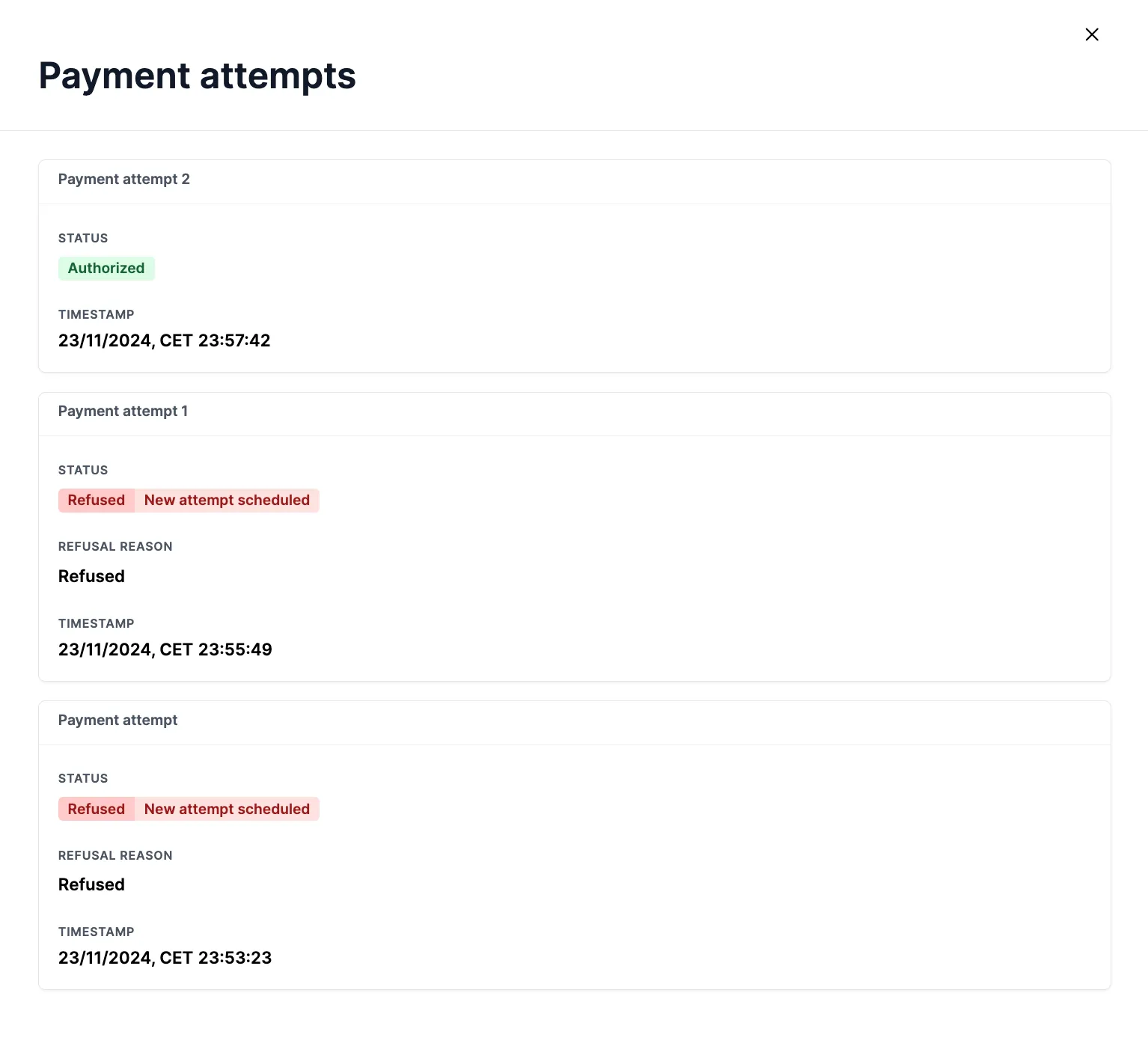
Configure the payment acceptor
Add the Adyen integration as a payment acceptor to the billing entity you want to collect payments for via Adyen, under Settings → Billing Entities → Add Payment Acceptor.
If you have multiple billing entities, you can connect the same Adyen merchant account to all of them, or connect separate Adyen merchant accounts to their own billing entities.
It is possible to connect multiple separate Adyen company and merchant accounts to Solvimon, if you are collecting payments for different billing entities through separate accounts.
You and your users can now select the Adyen payment integration as a way to pay for subscription invoices.
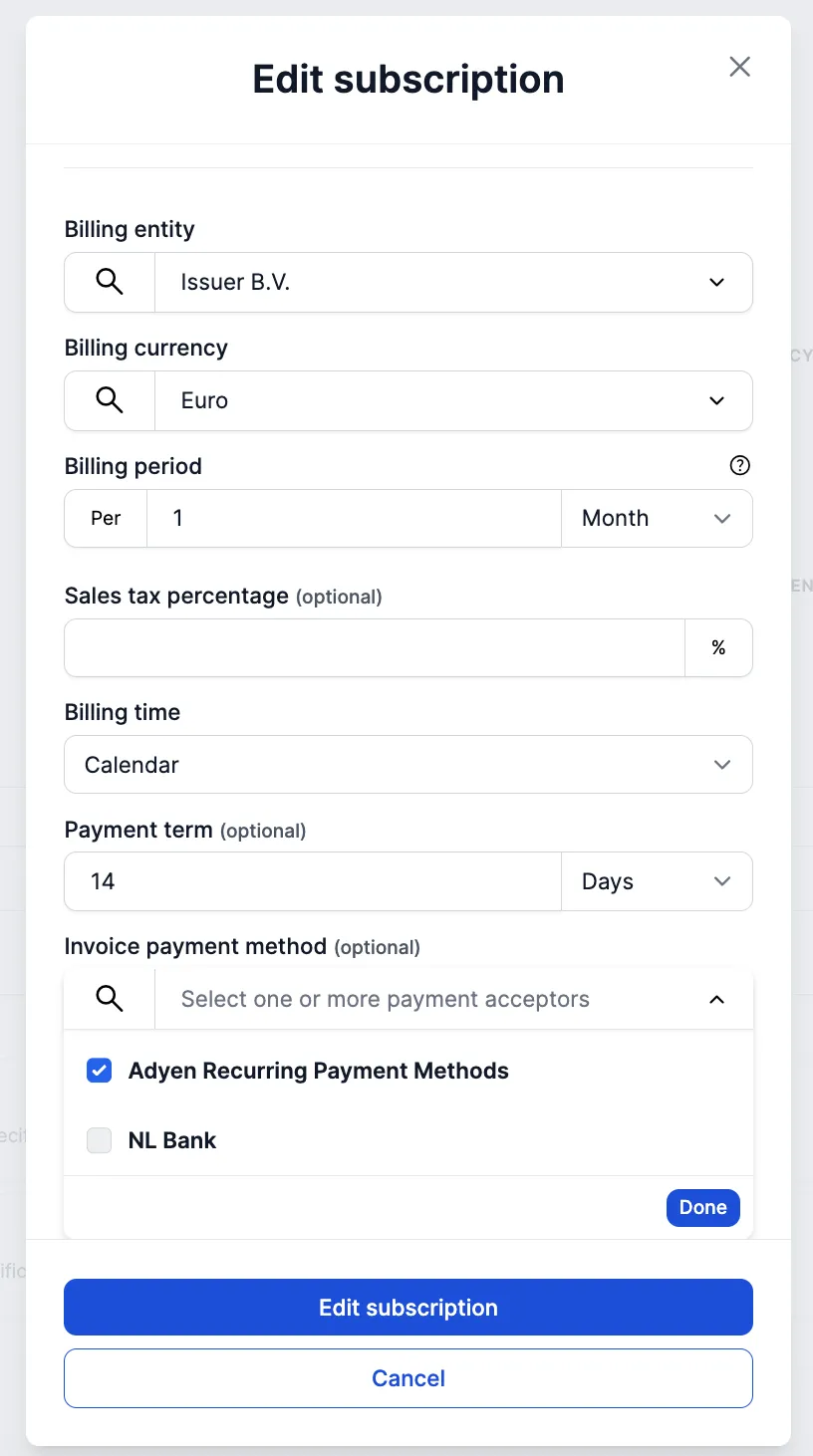
Once selected, the invoices generated for the subscription have a payment link shown on the invoice PDF and on the invoice Portal page.
You’re all set: Solvimon can now collect payments through Adyen, retry failed payments via Auto Rescue, and receive payment status updates through webhooks.