
Field mapping
Configure which Solvimon fields appear on which Salesforce objects, directly from the admin console in your Salesforce org.
How it works
Solvimon supports custom fields on customers, subscriptions, quotes, invoices, and payments. The field mapping configuration routes those values to specific fields on the corresponding Salesforce objects, and is configurable per resource type without requiring a Salesforce developer.
Configuring mappings
Open the configuration
In the Solvimon Salesforce app, go to the Setup tab and select Custom Field Configuration.
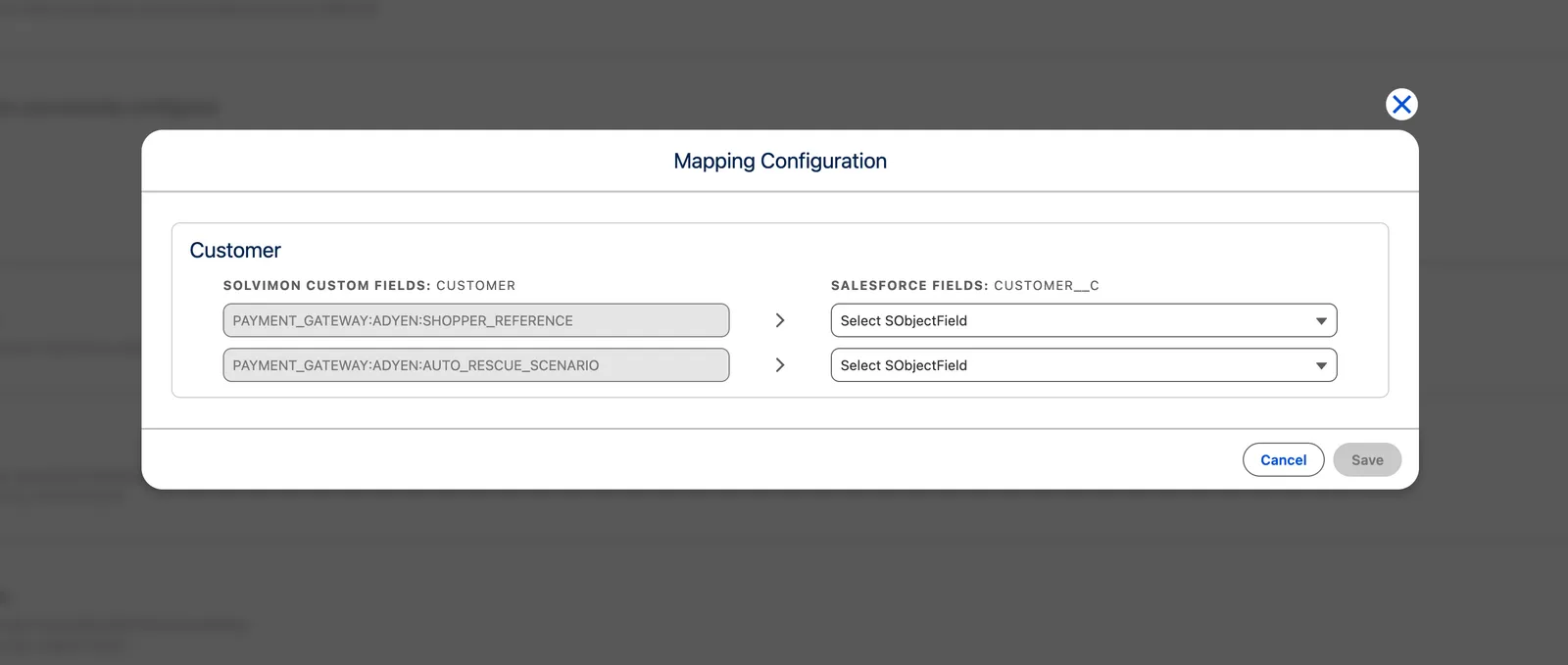
Changes take effect immediately for new sync events. Re-run a manual data sync to apply mappings to existing records.
The Solvimon custom field and the target Salesforce field must both exist before you can map them. Create the Solvimon custom field in Desk under Settings → Custom fields, and create the corresponding field on the Salesforce object before running Deploy.