
Campfire
Connect Solvimon to Campfire to import your customers, billing entities, and products, and to push contracts, invoices, and payments for revenue recognition and general accounting.
Prerequisites
- An active Campfire account.
- A Campfire API key. You can retrieve this in Campfire under Settings → API Keys.
Connect Solvimon to Campfire
Connect your Campfire account
In Solvimon Desk, go to Menu → Settings → Integrations → Campfire and click Connect to Campfire. You’ll see a pop-up like the one shown below.
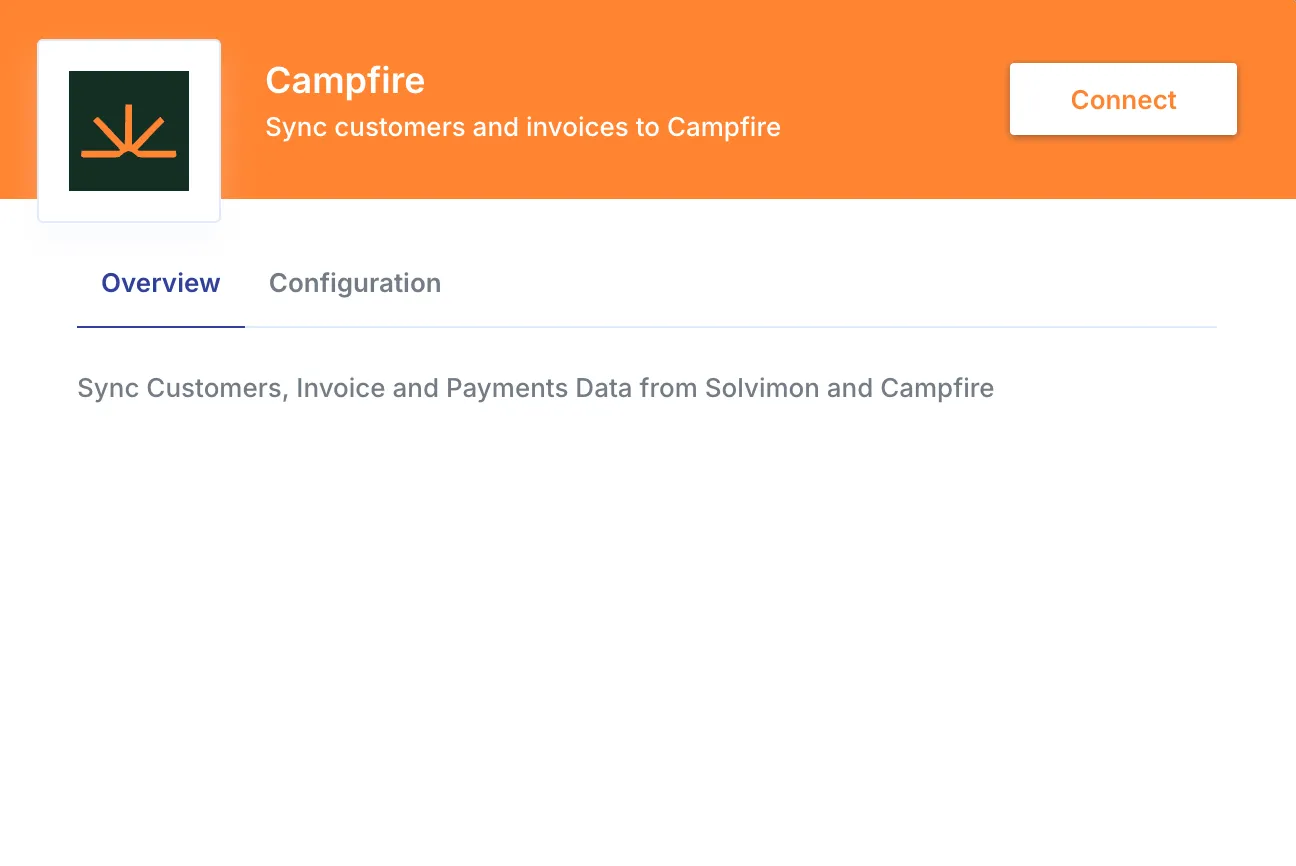
Click Connect and enter your Campfire API key when prompted.
Configure and enable workflows
Once authenticated, open the configurations tab to enable the workflows you want to run against your Campfire platform. The supported out-of-the-box workflows are listed under configuration; if you don’t see the one you’re looking for, reach out to your Customer Success Manager.
For the Sync Invoices workflow, you can configure the following options:
- Allocate full invoice amount to a single Campfire item: when enabled, the entire invoice amount is allocated to one Campfire item, and you must provide a Revenue Campfire Item ID (the Campfire product item used to allocate revenue). When disabled, each invoice line is pushed individually.
- Create Subscriptions on a contract: when enabled, Solvimon creates a Subscription in Campfire on the associated contract for each synced invoice.
Data flow
The integration runs six workflows. Imports are triggered manually from Desk; exports run automatically when the corresponding resource changes in Solvimon.
Import customers
You can manually trigger this workflow to import your Customers from Campfire to Solvimon to speed up your onboarding process.
Every Customer entity in Campfire is treated as a Customer in Solvimon, with the following field mapping:
Import billing entities
You can manually trigger this workflow to import details of your billing entities.
Every Entity in Campfire is treated as a Billing Entity in Solvimon. You can add more than one Billing Entity to your platform. To be valid for invoicing in Solvimon, every Billing Entity needs the following:
- Name
- Tax ID
- Address
- First line
- Postal code
- City
- Country (read more about supported locales and country code usage)
Solvimon requires a Country on every Billing Entity, but Campfire does not enforce this. If a Campfire entity is missing a country, the import will fail for that record. Make sure all entities in Campfire have a country set before importing.
The integration syncs the following fields from Campfire:
Import products
You can manually trigger this workflow. Products configured on your Campfire account are synced to Solvimon and created in the Products section of the settings menu under the category Campfire Products.
For Contracts and Invoices to sync successfully to Campfire, Products, Customers, and Billing Entities must each have their Campfire ID stored in the respective custom field in Solvimon. Without these, the sync will fail for the affected records.
Create contracts in Campfire
This workflow runs automatically. When a Subscription is activated in Solvimon, it is pushed to Campfire as a Contract. Before creating the contract, Solvimon checks whether the Customer associated with the Subscription already exists in Campfire. If it doesn’t, Solvimon creates it automatically.
Export invoices to Campfire
Whenever an invoice is finalised in Solvimon, it is pushed to Campfire. Whether this happens automatically or requires a manual trigger depends on the Send to ERP setting in your Invoice Platform settings:
- Automatic: the invoice is synced to Campfire as soon as it is finalised, without any manual action required.
- Manual: the sync must be triggered manually from the invoice.
Depending on your configuration, the invoice can be synced in one of two ways:
- Single item: the full invoice amount is allocated to a single Campfire item.
- Multiple items: each invoice line is pushed as a separate Campfire item, with its own usage, quantity, price, and tax.
If the Create Subscriptions option is enabled, Solvimon also creates a Campfire Subscription for each invoice line (or for the single item, if using that mode). This triggers the Revenue Recognition process in Campfire.
For Campfire Subscriptions to be created successfully, the Solvimon Subscription linked to the invoice must have already been synced to Campfire as a Contract. If the Contract does not exist in Campfire, the Subscription creation will fail.
Campfire tags each synced invoice with the Solvimon invoice ID, making it traceable from either platform.
Each invoice line is mapped as follows:
Sync payments and payment status
This workflow runs automatically via webhook. When a Transaction is added to an invoice in Campfire, Solvimon is notified and creates a corresponding Payment on the Solvimon side, keeping payment status in sync across both platforms.
Recommended workflow
To get the most value from the integration, follow these steps:
- Import your customers from Campfire to Solvimon.
- Import billing entities and products.
- Use Solvimon to create draft invoices.
- Review and edit invoices in Solvimon Desk as needed.
- Finalise and send invoices to customers using Solvimon.
- Invoices are synced to Campfire for revenue recognition and general accounting.
Synchronisation is trigger-based by default. If you need custom triggers, reach out to your sales executive.