
Customer overview

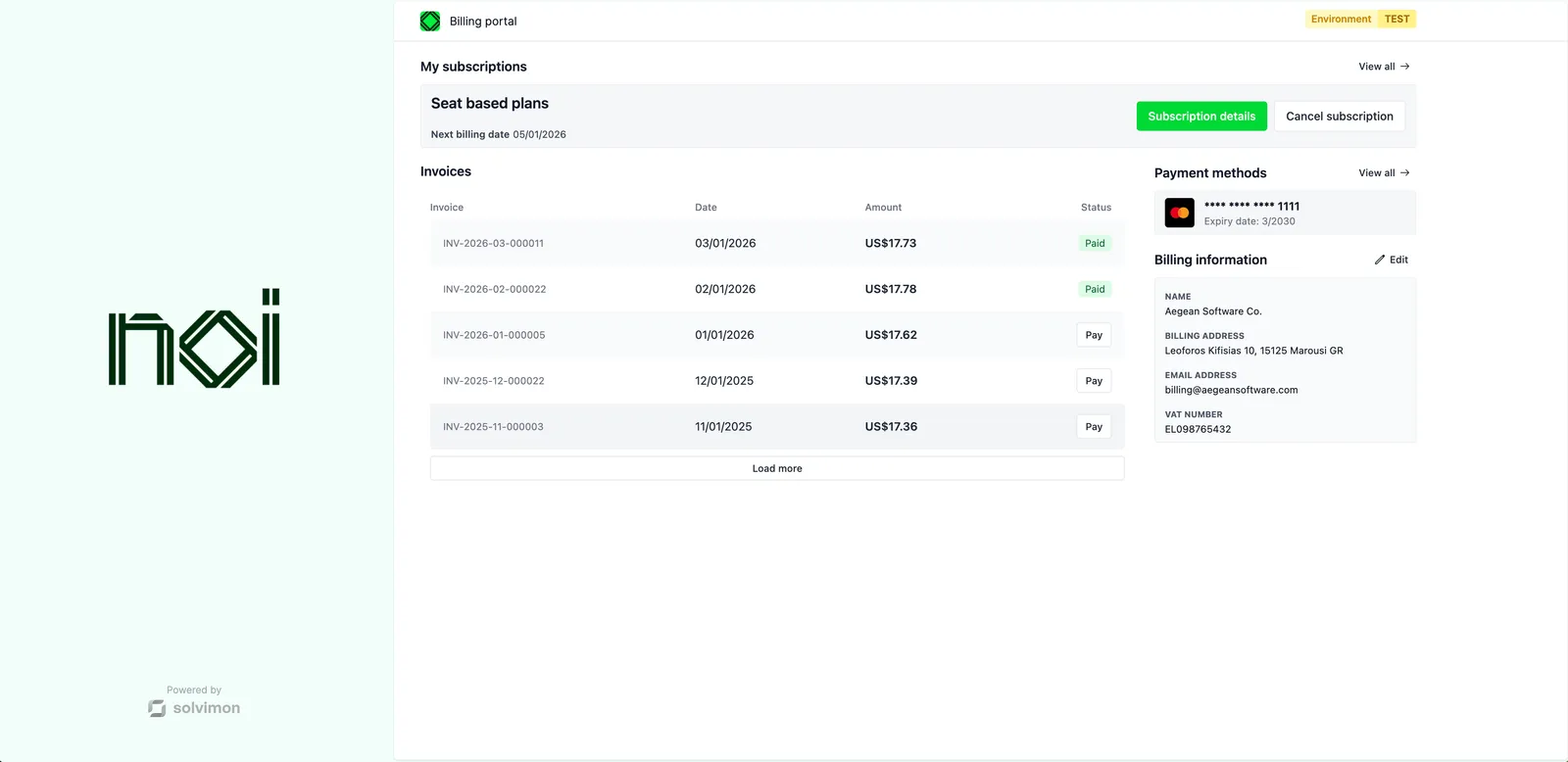
The Customer overview screen renders a complete billing dashboard for a customer in a single mount. Use it when you want to expose the full billing self-service experience without composing individual components.


Overview

Customer overview is driven by a portalObject your backend generates for a specific customer. The SDK uses it to load all billing data for that customer. Your frontend never handles API keys directly.

The screen is a composed layout of five sections:

  • Active subscriptions with cancel and renew actions
  • A paginated invoice list
  • Open wallet balances
  • Saved payment methods
  • Billing address details

Actions that require navigation or app-level handling, like paying an invoice or cancelling a subscription, are surfaced as action-request events rather than handled internally.

Mount the screen

Customer overview screen
1import { createSolvimonCore } from '@solvimon/sdk/core';
2
3// Generated by your backend via the Solvimon API.
4const customerPortalObject = {
5 object_type: 'PORTAL_URL',
6 id: 'purl_example',
7 type: 'CUSTOMER_PORTAL',
8 customer_id: 'cust_example',
9 token: 'replace-with-a-real-portal-token',
10 status: 'PUBLISHED',
11};
12
13const solvimon = createSolvimonCore({
14 environment: 'TEST',
15 locale: 'en-US',
16 branding: {
17 colors: {
18 primary: '#1d4ed8',
19 secondary: '#0f172a',
20 },
21 },
22});
23
24const unmount = solvimon.createScreen('customer-overview', {
25 container: '#sdk-root',
26 portalObject: customerPortalObject,
27});
28
29window.addEventListener('beforeunload', () => {
30 unmount?.();
31});

Configuration

The Customer overview screen accepts an optional configuration object to control the payment methods section.

OptionTypeDefaultDescription
configuration.maxItemsnumber3Maximum number of payment methods shown.
configuration.showViewAllButtonbooleanShow a “View all” button when the customer has more payment methods than maxItems.
configuration.showAddButtonbooleanShow an “Add” button when the customer has fewer than maxItems payment methods.

Events

Customer overview fires action-request DOM events for actions that require navigation or app-level handling. Listen on the container or on document.

Handling action requests
1document.addEventListener('action-request', (event) => {
2 const { action, data } = event.detail;
3
4 switch (action) {
5 case 'view-invoice':
6 navigate(`/invoices/${data.invoiceId}`);
7 break;
8 case 'pay-invoice':
9 openPaymentModal(data.invoiceId);
10 break;
11 case 'view-subscription-details':
12 navigate(`/subscriptions/${data.subscriptionId}`);
13 break;
14 case 'cancel-subscription':
15 openCancelDialog(data.subscriptionId);
16 break;
17 case 'add-payment-method':
18 openAddPaymentMethodFlow();
19 break;
20 }
21});
EventPayloadDescription
view-invoice{ invoiceId: string }Customer clicked to view an invoice.
pay-invoice{ invoiceId: string }Customer clicked to pay an invoice.
view-subscription-details{ subscriptionId: string }Customer clicked to view subscription details.
view-all-subscriptionsnoneCustomer clicked to view all subscriptions.
cancel-subscription{ subscriptionId: string }Customer clicked to cancel a subscription.
renew-subscription{ subscriptionId: string }Customer clicked to renew a subscription.
edit-billing-informationnoneCustomer clicked to edit billing information.
view-all-payment-methodsnoneCustomer clicked to view all payment methods.
add-payment-methodnoneCustomer clicked to add a payment method.